
Before You Begin
- You must be logged into the Facilipay Business Portal.
- Your user account must have permission to edit business details.
Step-by-Step: Update Your Business Details
-
Log In to the Business Portal
Sign in to the Facilipay Business Portal with your business credentials. -
Go to Company Details
From the main menu, select My Business, then click Company Details to view your current business information.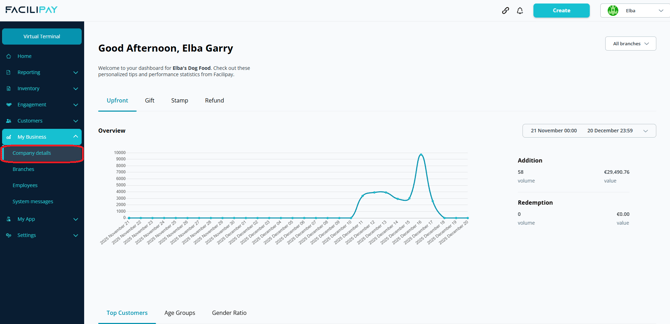
-
Edit Your Business Information
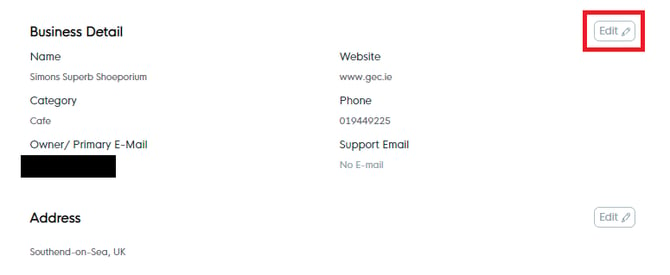
Click the Edit button next to the section you want to change. Update the relevant fields, such as:- Business name
- Address
- Phone number
- Website
-
Save Your Changes
When finished, click Save to store your updates.
Customise Your Brand Appearance
In addition to basic information, you can configure how your business appears to customers in the Facilipay app.
-
Upload Your Business Logo
Go to the Design section, click Upload under Business Logo, and choose your logo file. This logo is shown to customers when they interact with your business in the Facilipay app.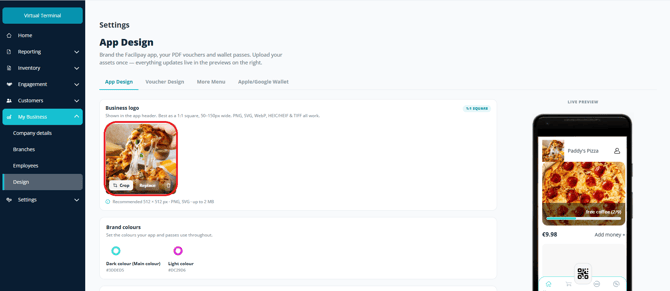
-
Add Background Images and Colours
Upload background images and select colours that reflect your brand identity, then click Apply or Save.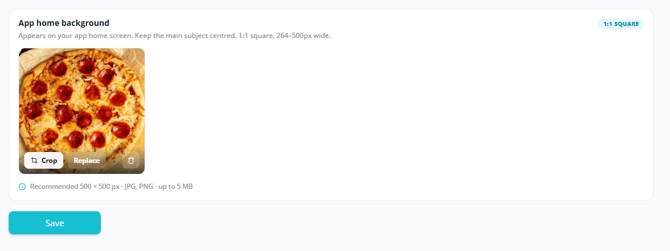
Branch Details & Opening Hours
If your business has multiple locations, each branch can have its own details.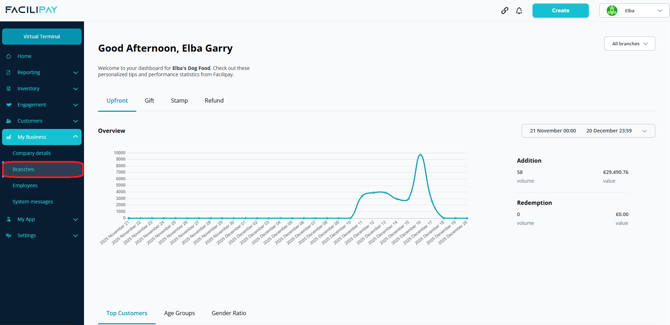
-
Edit Branch Information
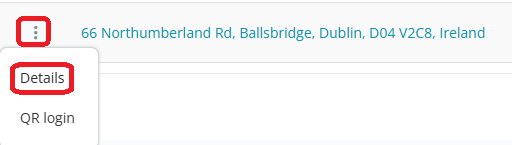
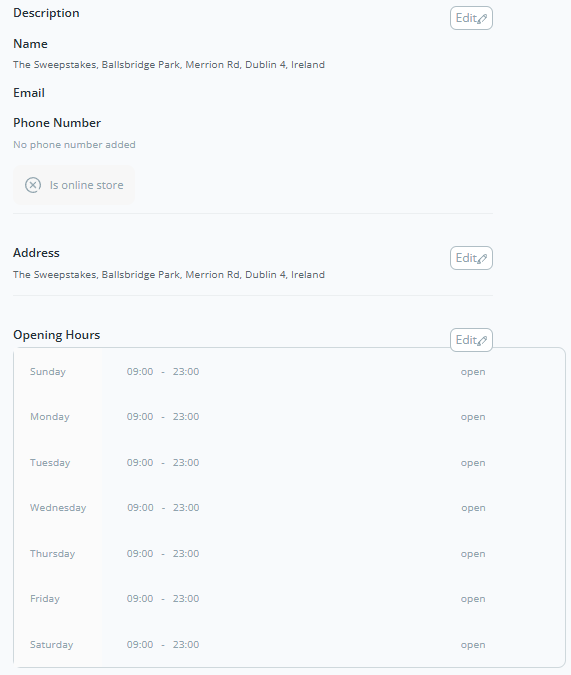
Go to Branches in the portal, select the branch you want to edit, then click Edit next to the fields you want to update. You can update:- Branch name
- Address
- Phone number
- Email
-
Set Opening Hours
Within the branch settings, locate Opening Hours. Use the time fields to enter the hours your business is open, then click Save. You can also add segmented hours for days with multiple open and close periods.
What Happens After You Save
-
Your updated business information will be visible to customers in the Facilipay app and online.
-
Branding changes (logo, images, colours) will be reflected in customer-facing screens.
-
Opening hours will display correctly across all customer touchpoints.
Tips & Best Practices
-
Keep location info accurate: Customers rely on the address and contact details to locate your business — double-check these whenever you update them.
-
Stay consistent with branding: Use logos and colours that align with your wider brand identity for a polished customer experience.
-
Update hours seasonally: Refresh opening hours regularly to reflect holidays, public closures, or seasonal changes.