
Before You Begin
- You must be logged into the Facilipay Dashboard with admin access.
- Plan your preferred order before you start to avoid making changes mid-update.
Amend Product Sort Order
-
Open Inventory → Products
From the Facilipay Dashboard, select Inventory, then click Products. -
Open the Product
Select the product you want to edit. -
Update Sort Order
Scroll to the Sort Order field. The sort order determines the position of the product within its assigned category.For example:
- Enter 1 to display the product at the top of the category
- Enter 5 to display it in fifth position
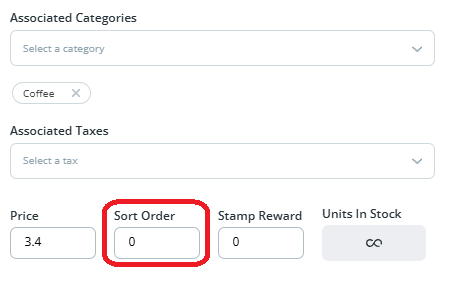
-
Save and Synchronise
Click Save. To apply the changes to your Clover devices, return to the Inventory main page and click Synchronise in the top right corner.
Amend Category Sort Order
-
Open Inventory → Categories
From the Facilipay Dashboard, select Inventory, then click Categories.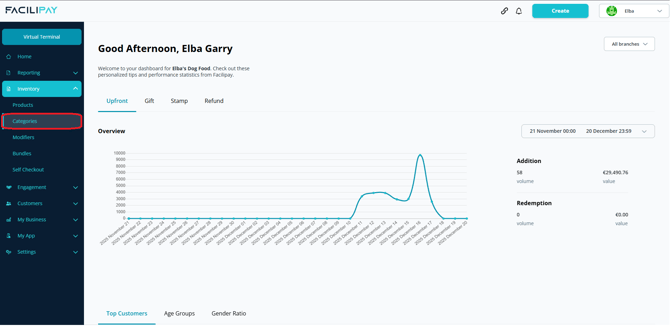
-
Open the Category
Click on the category you want to edit. -
Update Sort Order
Adjust the Sort Order field to determine where the category appears in your online menu, then click Save.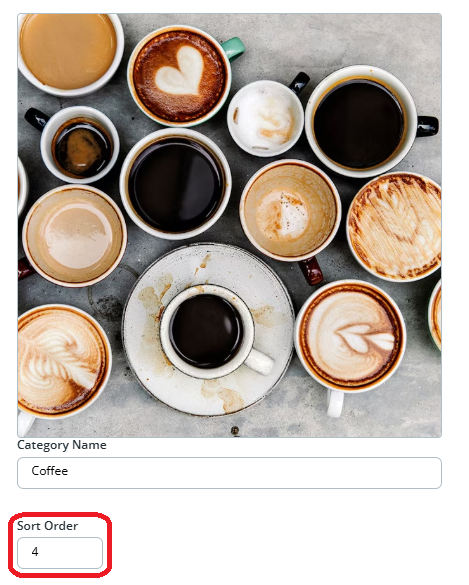
What Happens After You Save
Products and categories display in the defined order within your online menu after saving and synchronising.
Tips & Best Practices
-
Lead with bestsellers: Place top-selling items at the top of categories to maximise conversion.
-
Use whole numbers: Use simple numerical sequences (1, 2, 3) for clarity.
-
Synchronise after changes: Always synchronise to push changes to Clover devices.