
Before You Begin
- You must be logged into the Facilipay Dashboard with admin access.
- Plan your offer details, target audience, and any limits before starting.
Step-by-Step: Create a Targeted Campaign
-
Start a New Campaign
- From the Facilipay Dashboard homepage
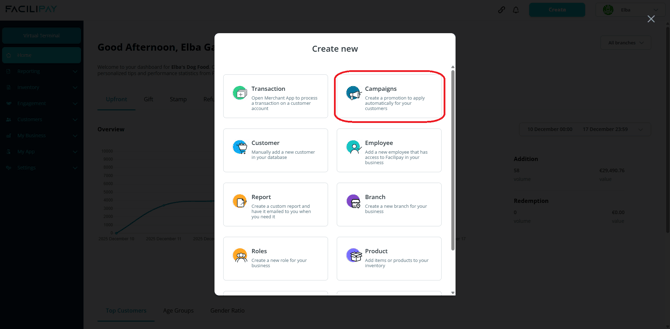
- Click Create (top right)
- Select Campaigns
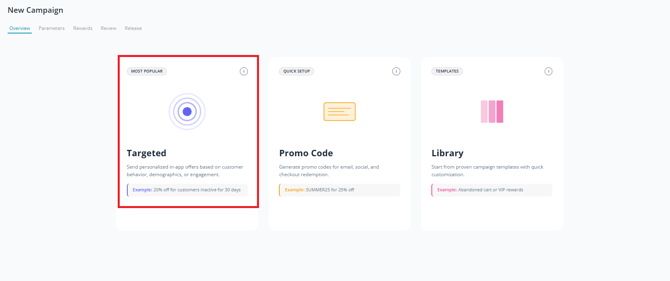
- Click Targeted
-
Enter Campaign Details
Complete the following:- Name: Clearly describe the offer (e.g. 50% off coffee)
- Description: Explain the campaign and when it can be redeemed
- Terms and Conditions: Define any rules (e.g. valid on Fridays only)
Click Next.
-
Set the Schedule (Optional)
Configure when the campaign is active:- Period: Set start and end dates
- Days of the week: Limit to specific days
- Daily period: Restrict to times of day
-
Set Limits (Optional)
Apply usage limits if required:- Total Budget: Maximum total value across all customers
- Max Coupons: Total number of redemptions allowed
- Max Coupons per User: Limit per customer
- Max Value per User: Maximum discount per customer
Review your settings and click Next.
-
Define Your Audience (Optional)
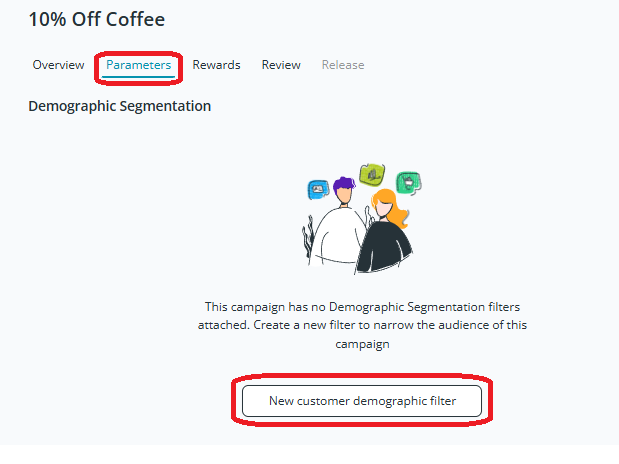
- Click New Customer Demographic Filter
- Select Customer Selection
- Search for customers by name, email address, or customer ID
- Select the relevant customers and click Save
-
Set the Reward
Click Rewards in the top menu and choose:- Discount Sale: Fixed amount or percentage off orders
- Credit Back: Add balance to customer accounts
- Discount Product / Category: Apply discounts to specific items or categories
-
Review the Campaign
Click Review and check all campaign details and settings. -
Configure Notifications (Optional)
For branded apps, set up push notifications to alert customers when the campaign goes live. -
Launch the Campaign
Click Release.
What Happens After You Launch
Your campaign is live and available to your selected customers. They will see the offer at checkout (where applicable) or be notified via the configured channels.
Tips & Best Practices
-
Match the offer to the audience: Tailor the reward to what your target group actually values.
-
Set sensible limits: Limits protect your margin while still creating excitement.
-
Share the link: Copy and share the campaign link via social media or email to amplify reach.
-
Review performance: Track redemptions and refine future campaigns based on what worked.