
Before You Begin
- You must be logged into the Facilipay Dashboard with admin access.
- Decide on the area you want to cover before drawing the radius on the map.
Step-by-Step: Set Up a Delivery Radius
-
Access Branch Settings
From the Facilipay Dashboard, hover over My Business and select Branches. A list of branches will display.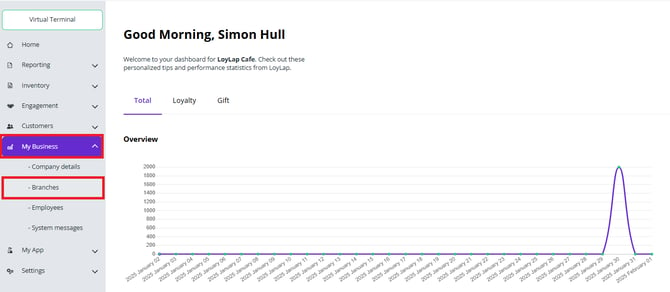
-
Open Branch Details
Click the three dots beside the branch you want to update, then select Details. -
Access Delivery Settings
Select the Ordering tab. From the left-hand menu, choose Delivery, then click Edit.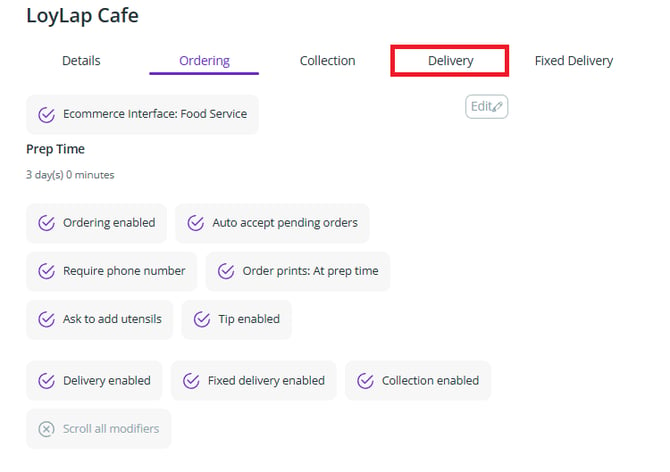
-
Draw the Delivery Radius
Scroll to the Delivery Areas section where the map is displayed. Click the Draw (arrow) icon to begin.To create the radius:
- Left-click on the map to place the first point
- Move the mouse to draw a line from that point
- Click again to place additional points
- Continue placing points until the final point connects back to the start to close the area
Only addresses within this defined area will be eligible for delivery from the selected branch.
-
Delete the Delivery Radius (If Required)
To remove a configured radius, click the Bin icon on the map. The bin icon only appears once a delivery area has been completed.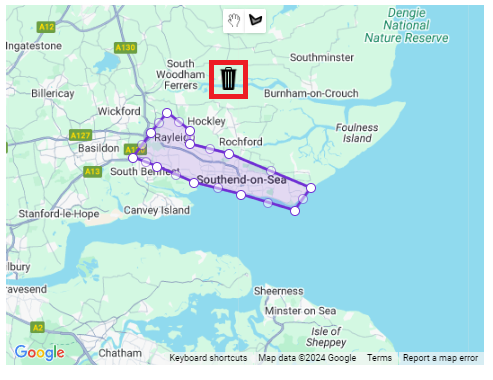
-
Move the Map While Drawing
If you need to stop drawing and reposition the map, click the Hand icon to enable map navigation.
What Happens After You Save
The Delivery Radius is configured, restricting delivery orders to addresses within the defined area. Customers outside the radius cannot place delivery orders from that branch.
Tips & Best Practices
-
Match driver capacity: Set the radius based on what your drivers can realistically cover.
-
Avoid awkward shapes: Smoother polygon shapes are easier to communicate and manage than fragmented zones.
-
Test edge addresses: Try test orders from edge locations to confirm the radius behaves as expected.