
Before You Begin
- You must have access to the Facilipay Dashboard with permissions to view customers.
- Customers need to have given consent (using one of the methods below) before they appear on your marketing list.
How Customers Give Marketing Consent
There are two ways customers can opt in to receive marketing communications from your business.
1. After Completing a Digital Voucher Purchase
Once a customer completes a digital voucher purchase, the thank-you confirmation page includes a panel inviting them to subscribe.
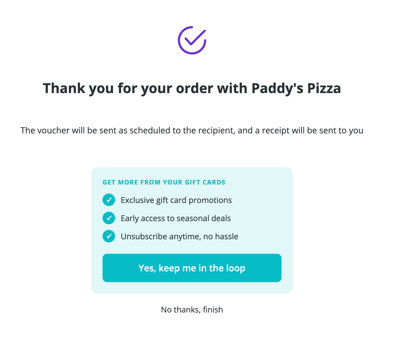
The customer sees the benefits of subscribing — exclusive gift card promotions, early access to seasonal deals, and the ability to unsubscribe anytime — and can click:
- Yes, keep me in the loop to subscribe to marketing communications, or
- No thanks, finish to complete the purchase without subscribing.
Clicking Yes, keep me in the loop immediately adds the customer to your marketing consent list.
2. From Within the App at Any Time
Existing customers can subscribe (or unsubscribe) at any time from within the app, without needing to make another purchase:
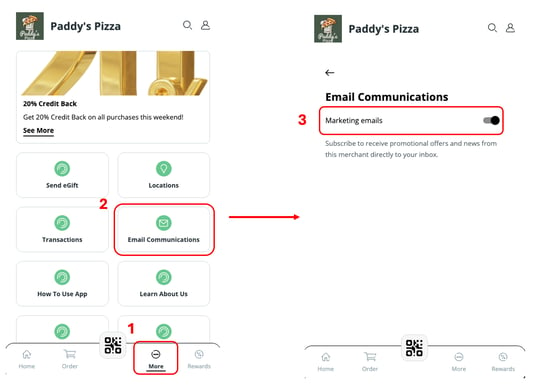
- Open the app and select the More tab from the bottom navigation.
- Tap Email Communications.
- Toggle Marketing emails on to subscribe (or off to unsubscribe).
The Email Communications tab is shown as standard in all member accounts.
Where to Find and Export Your Consented Customer List
Once customers have subscribed, you can access their details from two places in the Facilipay Dashboard.
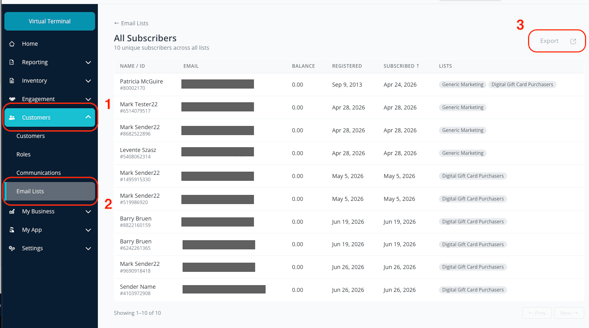
Option 1: Email Lists
- Sign in to the Facilipay Dashboard
- Open Email Lists
From the left-hand menu, expand Customers, then click Email Lists. - View and Export Subscribers
The list of customers who have consented to marketing communications is displayed.
Option 2: Customers Page
- Open the Customers Page
From the Facilipay Dashboard, click Customers in the left-hand menu. - Click the Marketing Consented Tile
At the top right of the Customers home screen, you'll see a green Marketing Consented tile showing the number of opted-in customers and a click to view link. Click it to open the filtered list of subscribed customers.
Export the List
Once you're viewing your subscribed customers:
- Click Export at the top right of the customer list.
- A CSV file downloads containing your subscribers' details.
- Open the file in Excel, Numbers, or any spreadsheet tool, or import it directly into your preferred third-party email marketing platform.
The exported CSV contains the customer details such as: Account ID, Name, Email, Balance, Registered & Subscribed Locations and List they're subscribed to. You can use this list to send out marketing communications using your preferred tool.
What Customers Receive After Subscribing
When a customer subscribes to your marketing list, they receive a confirmation email from Facilipay on your behalf. The email:
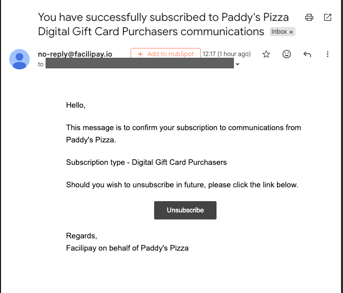
- Confirms their subscription to communications from your business
- States the subscription type (for example, Generic Marketing)
- Includes an Unsubscribe link they can use at any time to opt out
This gives your customers a clear, ongoing way to manage their preferences, even after they've subscribed.
Tips & Best Practices
- Export before each campaign: Refresh your list right before sending so you capture new subscribers and exclude anyone who has unsubscribed since your last send.
- Respect unsubscribe requests: Customers who use the unsubscribe link are removed from the list, so subsequent exports will exclude them automatically.
- Use your own email tool: The export is designed to be loaded into your existing third-party email marketing platform — Facilipay's role is to collect and manage consent, not to send the campaigns.
- Promote the in-app toggle: Let existing customers know they can subscribe at any time from the Email Communications tab in the app, so they don't have to wait for their next purchase to opt in.