
Before You Begin
- You must be logged into the Facilipay Business Portal with reporting access.
- Decide on the date range and filters you want to apply before running the report.
Step-by-Step: Create and Export a Transaction Report
-
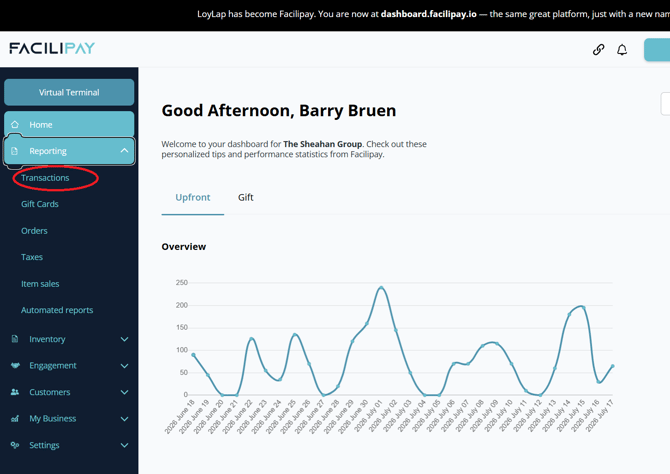
Go to Reports → Transactions
From the main menu of your Facilipay Dashboard, select Reports, then Transactions. Transactions are listed from newest to oldest by default.
-
Filter by Date Range
Use the date picker to select your desired start and end dates, or manually enter a date range and click Search. -
Filter by Payment Type
Select the relevant payment type(s) from the available options to narrow the report to specific payment methods. -
Filter by Transaction Type
Choose between:- Add — money added to a customer's account (e.g. gift card loads, loyalty rewards, balance top-ups)
- Redeem — money removed from a customer's account (e.g. gift card redemptions, loyalty usage, stamp or credit spend)
-
Export the Report
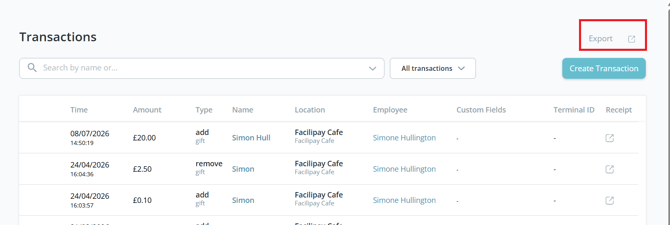
Once your filters are applied, click the Export button in the top-right corner. A confirmation will appear on the left-hand side of the screen.
-
Open the File
A .csv file will automatically download to your computer. Open it in Microsoft Excel or upload it to Google Sheets to review your data.
Tips & Best Practices
-
Apply filters before exporting: The export reflects exactly what is visible on screen — refine date and filters first to avoid unmanageable files.
-
Use shorter date ranges: For high-volume businesses, exporting week by week keeps files easier to review and reconcile.
-
Know your transaction types: Filtering by Add vs. Redeem separately helps isolate top-up activity from spend for cleaner reporting.
What You Can Do With Your Export
-
Reconcile transactions with your accounting system or POS records
-
Identify high-value customers or top-up patterns over time
-
Share financial summaries with your accountant or finance team
-
Build custom dashboards or reports for business reviews