
Before You Begin
- You must have access to your Facilipay Dashboard with permissions to manage settings.
- Have your charity name, charity number, and average payment charge ready — Gift Aid cannot be enabled without them.
Step-by-Step: Configure Donation Settings
- Log Into Your Dashboard Log into your Facilipay Dashboard.
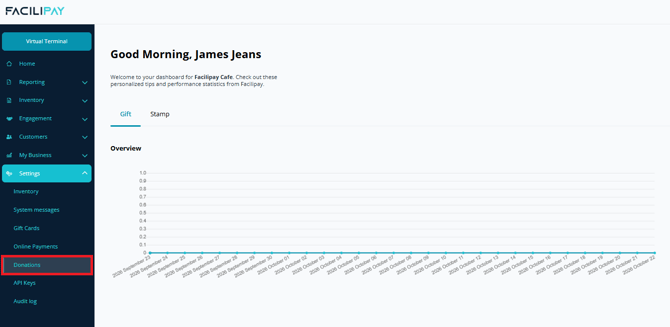
- Open Donations Settings Using the menu on the left of the screen, click Settings, then select Donations from the dropdown.
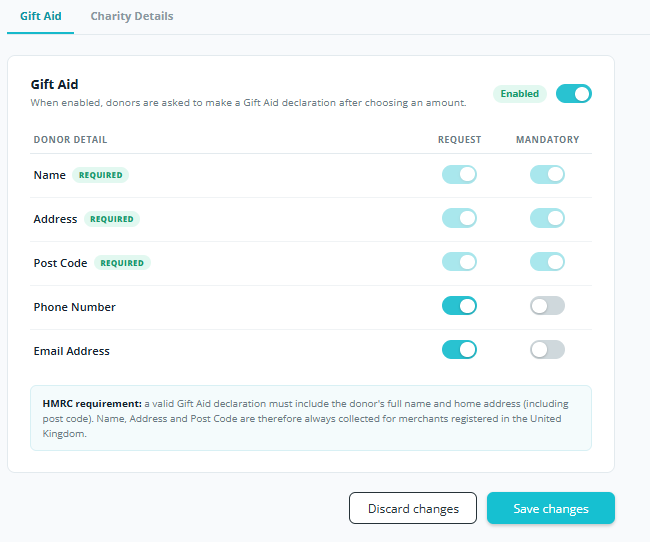
- Configure Gift Aid Open the Gift Aid tab and toggle Gift Aid acceptance on or off. If Gift Aid is enabled, you can also choose which details a donor needs to enter:
- Name, address, and postcode are mandatory and cannot be turned off.
- Phone number and email address can each be toggled on or off, and if requested, you can also set whether they are required entries.
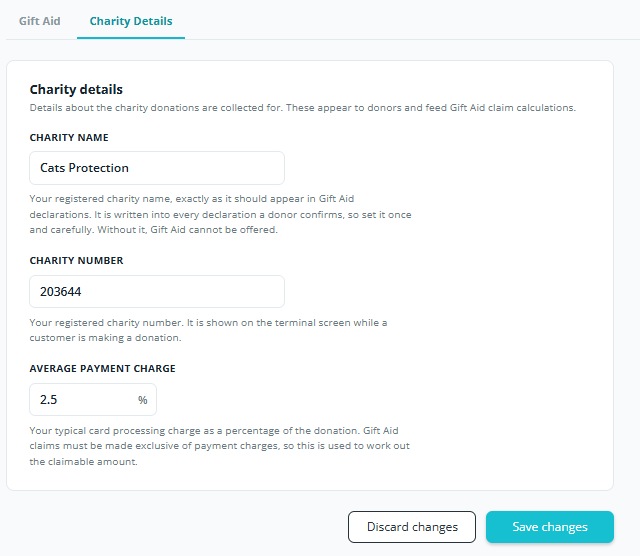
- Enter Your Charity Details Open the Charity Details tab and enter the charity name, charity number, and average payment charge. Click Save Changes.
Note: Gift Aid cannot be enabled until these charity details are complete.
Tips & Best Practices
- Complete Charity Details first if you're enabling Gift Aid: Because Gift Aid can't be turned on without the charity name, number, and average payment charge, it's quickest to fill in that tab before configuring the Gift Aid tab.
- Use the preview: The preview on the Donation Amounts Setup tab shows how the pre-set amounts will appear on the device, so you can check the layout before saving.
- Save each tab separately: Settings are saved per tab, so remember to click save before moving on to the next one.