
Before You Begin
- You'll need access to the Facilipay Business Portal with permissions to manage products and inventory.
What You Can Do Here
You can make changes to your self-checkout products, including:
- Updating product names
- Editing prices
- Changing product status (active/inactive)
- Adjusting category assignments
- Removing products from self-checkout
Step-by-Step: Edit Your Inventory
-
Sign In to the Business Portal
Log in to the Facilipay Business Portal using your business credentials. -
Navigate to Inventory
From the main menu, click Inventory to view your product list.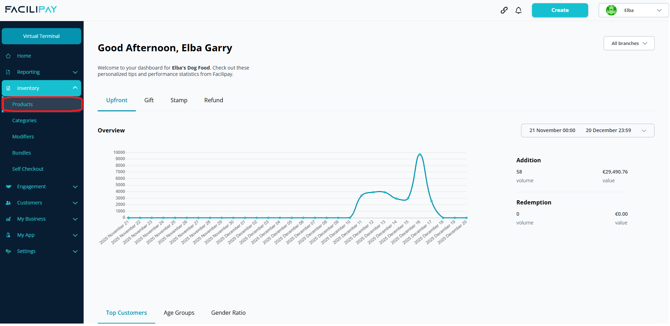
-
Find the Product
Use the search bar or scroll through the list to locate the product you want to update. -
Access Product Details
Click on the product name to open its details page. -
Make Your Edits
Within the product details screen you can:- Change the product name — Update to a clear, descriptive title.
- Adjust the price — Edit the price field to match your current selling price.
- Update product status — Set as Active (visible) or Inactive (hidden).
- Assign categories — Update which category the product belongs to.
- Make Available for Self Checkout - Without this the product will not show
-
Save Your Changes
Once all edits are complete, click Save at the bottom of the page.
What Happens After You Save
- The updated product information is reflected in the Facilipay Self-Checkout interface instantly or within a short sync period depending on your system settings.
- Customers will see the updated details next time they use self-checkout.
Troubleshooting
If a product change isn't appearing in self-checkout:
- Refresh the inventory list and confirm the product status is Active.
- Check that the category assigned is valid and visible in self-checkout.
- Log out and log back in to refresh your session.
- If issues persist, contact support@facilipay.io.
Tips & Best Practices
-
Use clear naming: Consistent and clear product names help customers identify items quickly.
-
Check prices regularly: Ensure prices in the portal match the prices on your shelves or digital menus.
-
Deactivate instead of delete: If you no longer sell an item, set its status to inactive — this keeps historical sales data intact.
-
Organise categories: Assign products to logical categories to improve navigation.