
Before You Begin
- You must be logged into the Facilipay Dashboard with admin access.
- Have product images, descriptions, and any other detail prepared before you start.
Step-by-Step: Edit a Product
-
Open Product Settings
Log in to the Facilipay Dashboard, click Inventory, then select Products. -
Select a Product
From the product list, click on the product you want to edit.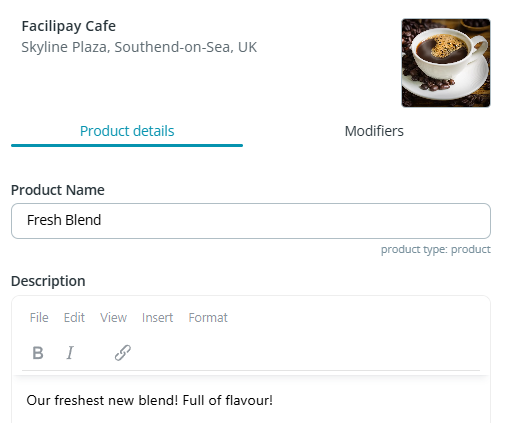
-
Update Product Details
The Product Details panel will open. Update the relevant fields:- Image: Add or update a product image (top right)
- Product Name: Name displayed to customers
- Description: Detailed product information
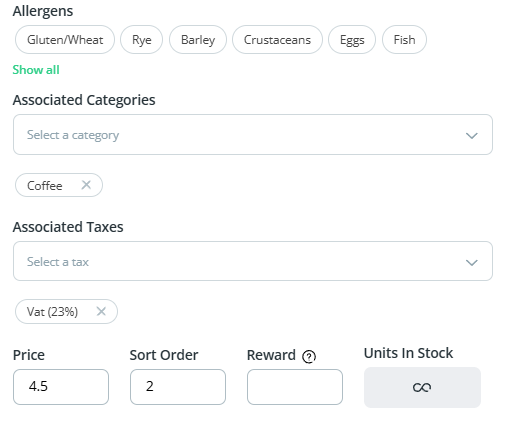
- Allergens: Select applicable allergens from the list
- Associated Categories: Choose where the product appears
- Associates Taxes: Choose the tax rate for the product
- Price: Set the product price
- Sort Order: Control display position within the category (e.g. 1 = first)
- Rewards (optional): Apply rewards for purchasing this product
-
Manage Availability by Stock (Optional)
Set rules to disable the product when stock falls below a defined level. -
Set Availability Schedule
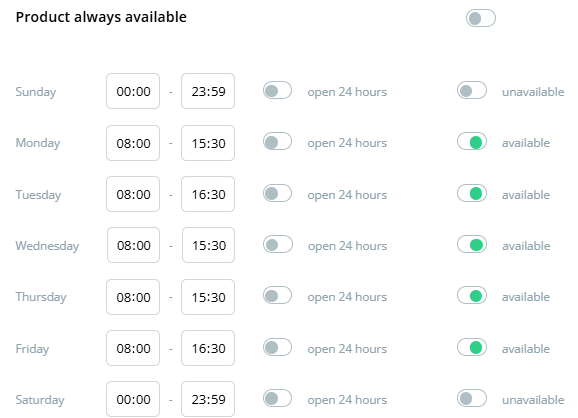
Toggle Always Available:- Enabled — product is available at all times

- Disabled — set specific days or times for availability
- Enabled — product is available at all times
-
Control Online Visibility
Use Available for Ordering to:- Enable — show the product in your online store
- Disable — hide the product from ordering

What Happens After You Save
Your product updates are saved and reflected in your online ordering system. Customers will see the updated product immediately.
Tips & Best Practices
-
Use high-quality images: Visuals are the single biggest driver of online ordering conversion.
-
Write descriptive names: Clear, descriptive product names help customers find what they want.
-
Keep allergens up to date: Recipe changes mean allergen tags need to be reviewed regularly.