
Before You Begin
- You must be logged into the Facilipay Dashboard with admin access.
- Decide whether you want orders to be auto-accepted, whether to allow tipping, and any other preferences before configuring.
Step-by-Step: Enable Online Ordering
-
Open Branch Settings
Log in to the Facilipay Dashboard, click My Business, then select Branches. -
Select a Branch
Click the three dots next to the branch you want to edit.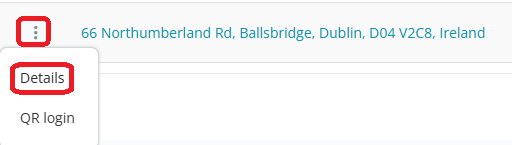
-
Open Ordering Settings
Click Ordering in the top menu, then click Edit.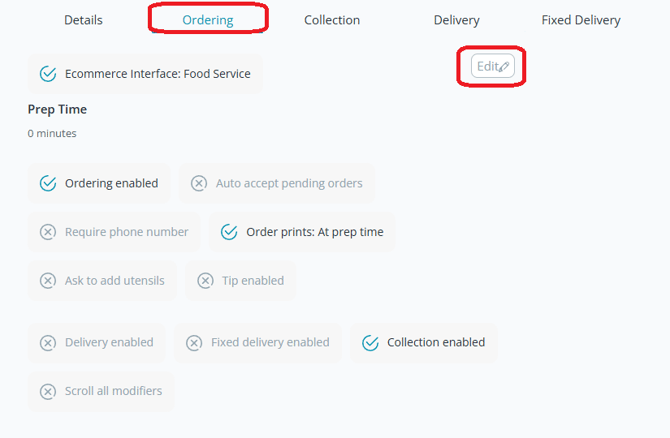
-
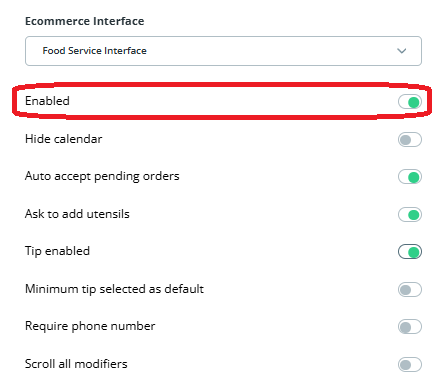
Enable Online Ordering
Ensure the following are enabled:- Ecommerce Interface
- Enabled
Click Save.
-
Configure Additional Settings (Optional)
You can further customise the ordering experience:- Auto Accept (recommended): Automatically accept incoming orders.
- Ask for Utensils: Adds an option at checkout for customers.
- Tips Enabled: Allows customers to add a tip.
- Minimum Tip Default: Sets the default tip amount.
- Require Phone Number: Makes phone number entry mandatory at checkout.
- Scroll All Modifiers: Displays modifiers in a single list instead of separate screens.
- Service Charge: Add a service fee and set the amount.
- Prep Time: Set the minimum time required to prepare orders.
What Happens After You Save
Online ordering is enabled for the selected branch and ready for customers to use immediately. Orders will start flowing into the Facilipay Dashboard for fulfilment.
Tips & Best Practices
-
Set realistic prep times: Underestimating prep time can lead to disappointed customers — aim slightly higher than your true average.
-
Test with a real order: Place a test order yourself to validate the customer experience end-to-end.
-
Train staff: Make sure team members know how to receive, prepare, and complete online orders before going live.