
Step 1: Review the transaction list to see all open checks.
Step 2: Select the check you want to process. For example, pick check 262 to view its details.
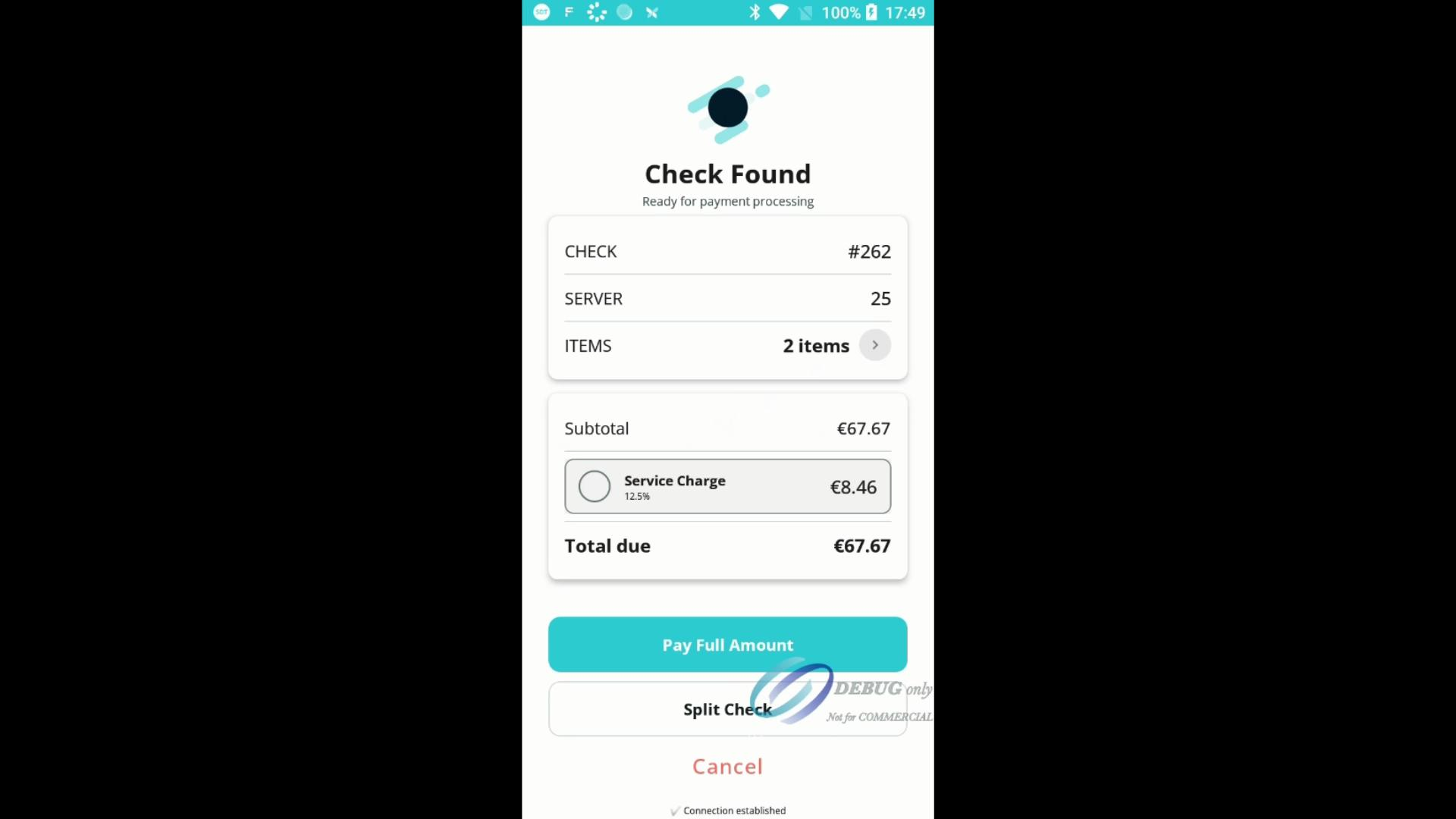
Step 3: Wait as the app locates and scans the selected check. Confirm the itemized charges and total due on the confirmation screen.
Step 4: Move to the tip entry screen. Enter a custom tip using the numeric keypad.
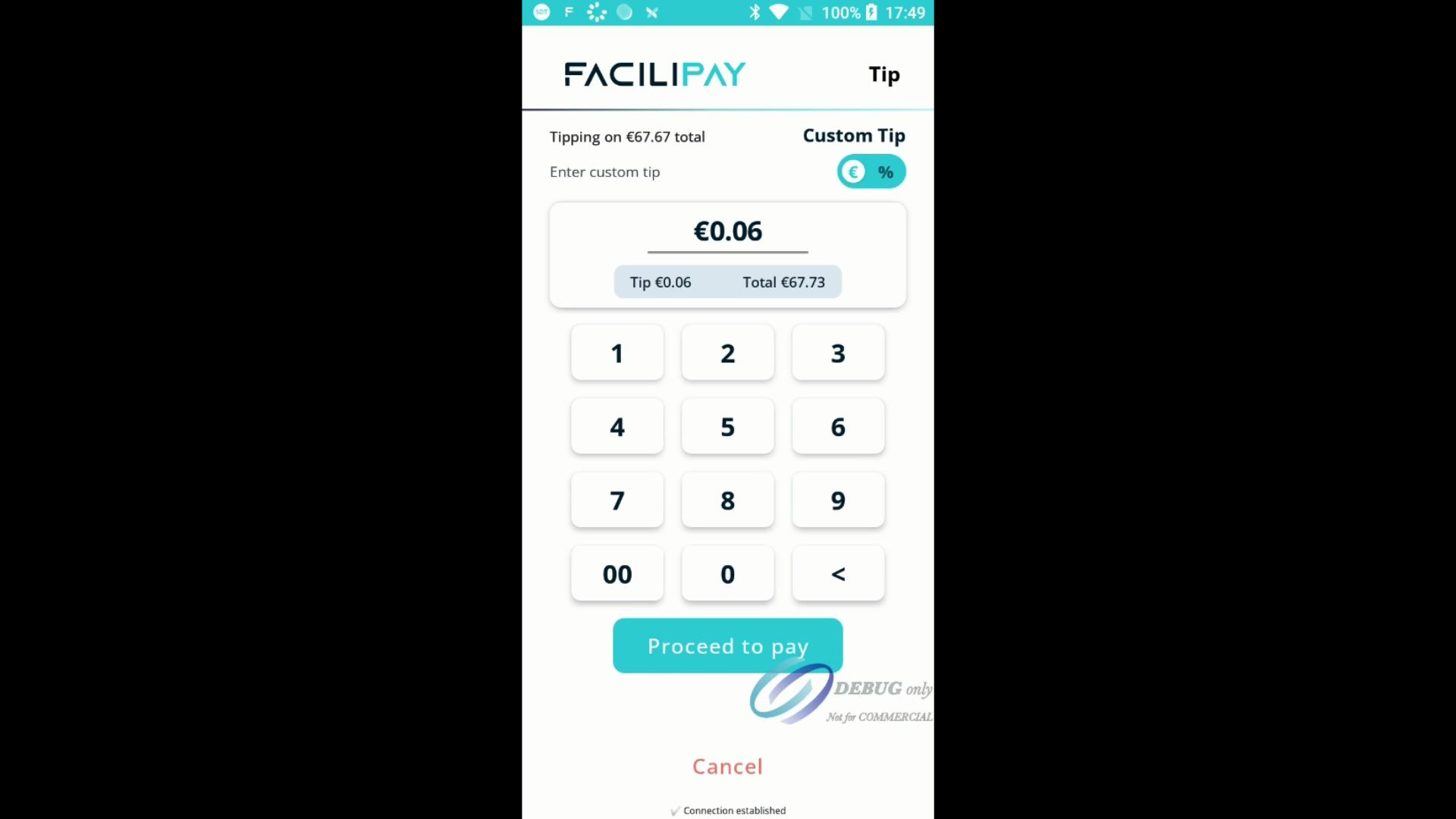
Step 5: After entering your tip (e.g., €0.06), watch for the Proceed to Pay button to activate, making it ready for the next step.
Step 6: If you prefer, switch to percentage-based tipping. Select a percentage and see the tip amount calculate automatically.
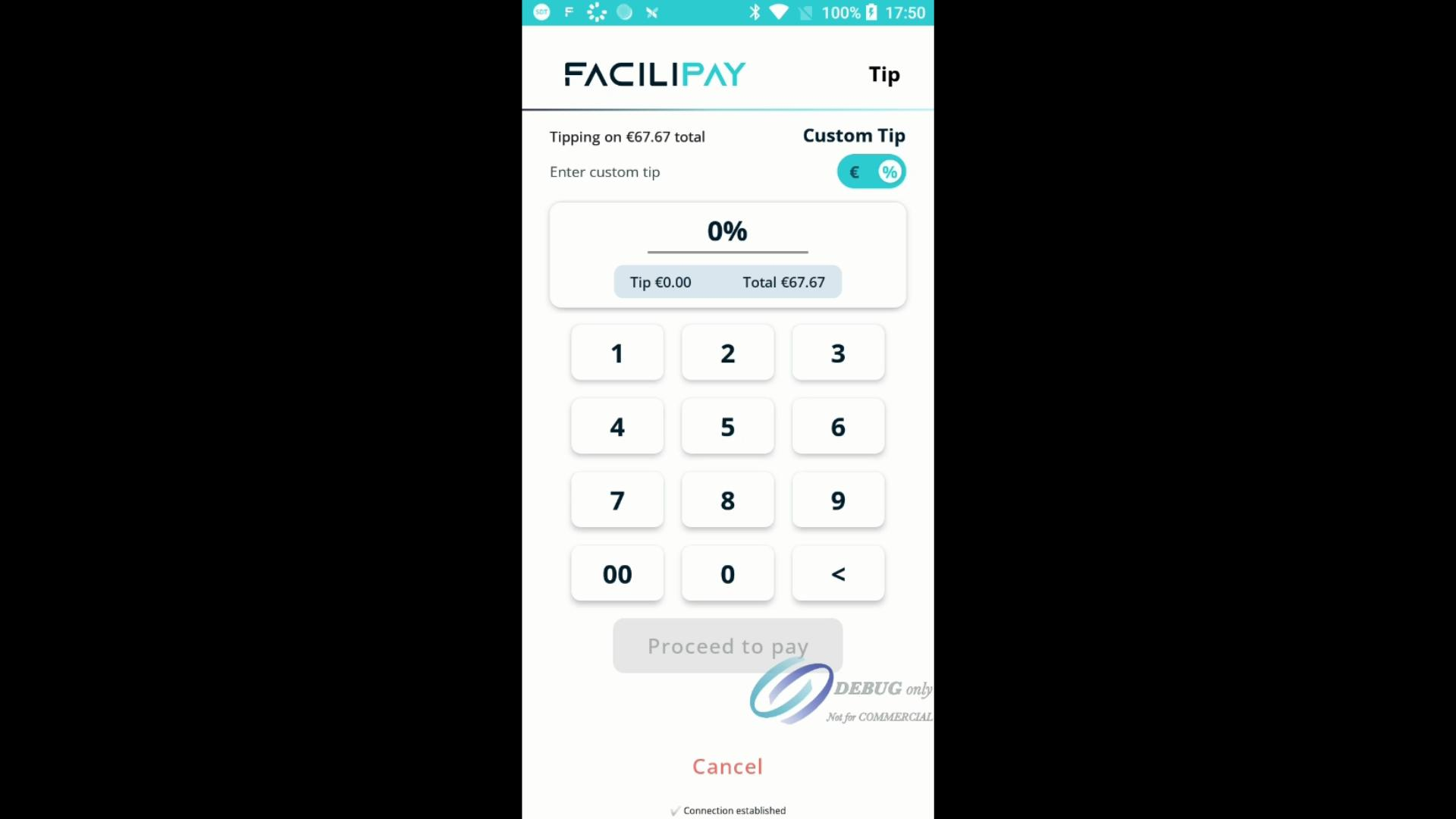
Step 7: Toggle between flat amount and percentage options to find the tipping method that suits you.
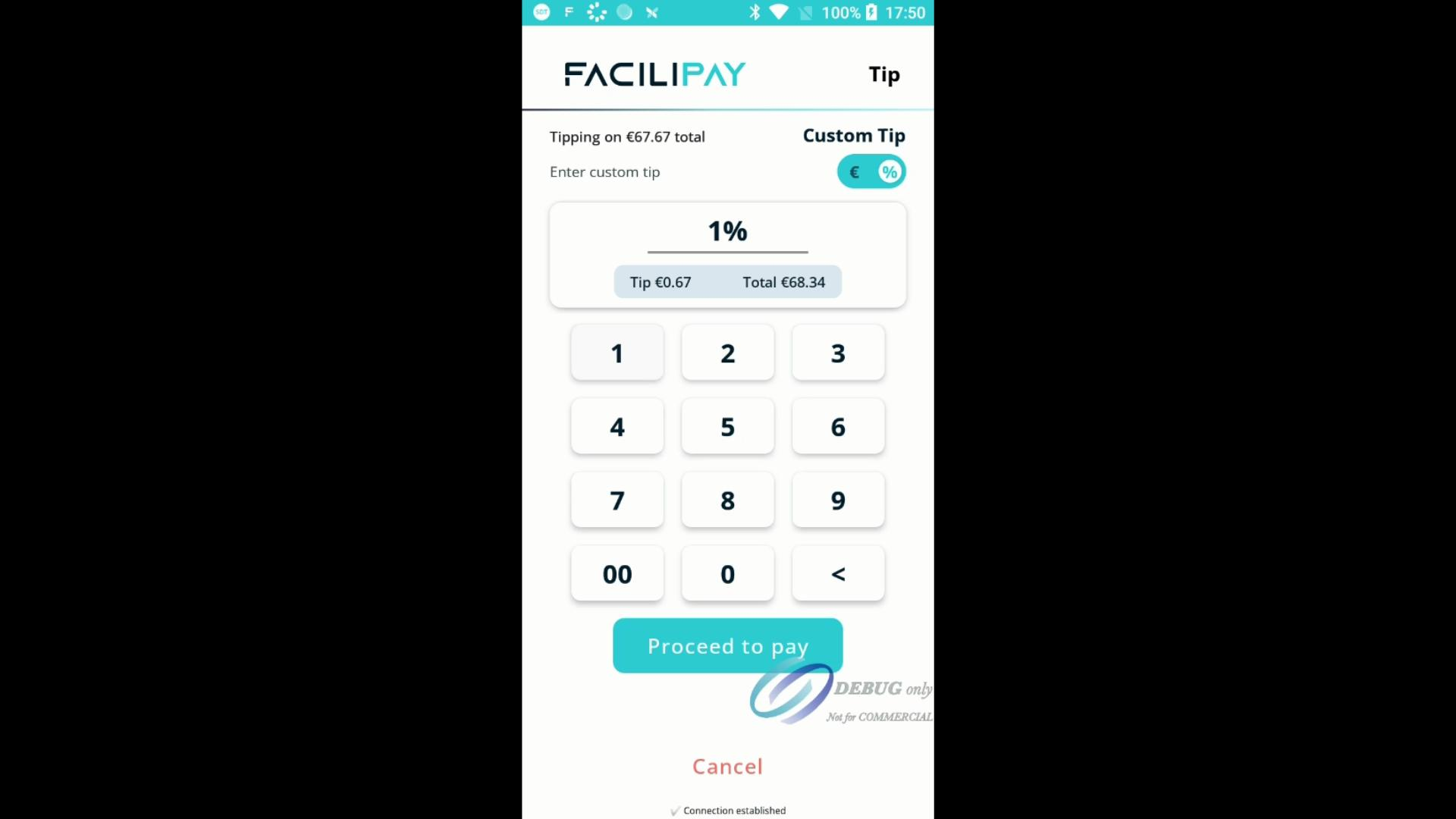
Step 8: After setting your tip (for example, choosing 1%), confirm the amount, and then tap Proceed to Pay to advance.
Step 9: On the payment method screen, review the final total and pick your preferred payment option: card or contactless.