
Before You Begin
- You must be logged into the Facilipay Business Portal.
- You need admin or account owner permissions to add new users.
- Have the employee's full name and email address ready before you start.
Step-by-Step: Add a New Employee
-
Log In to the Business Portal
Sign in to the Facilipay Business Portal using your administrator credentials. -
Navigate to Employees
From the left-hand menu, select My Business, then click Employees. This section displays all current employees with account access. -
Add a New Employee
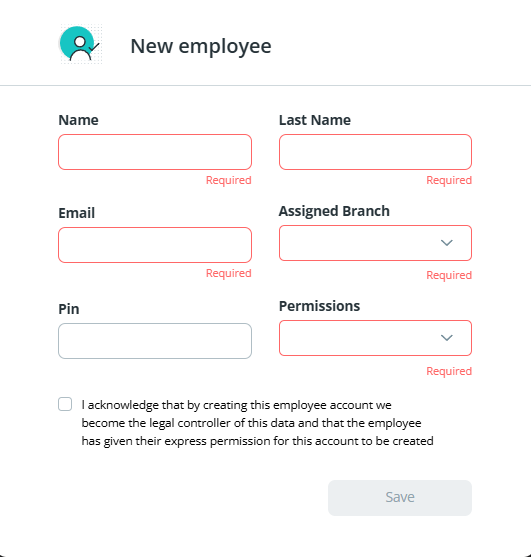
Click Create Employee and enter the employee's:- First Name
- Last Name
- Email Address
The email address will be used for login and system notifications.
-
Assign a Role
Choose the appropriate role for the employee:- Admin – Full access to settings, reporting, and account management
- Manager – Access to operational tools and reporting
- Basic – Limited access based on day-to-day operational needs
Tip: Follow the principle of least access — only grant the permissions necessary for the employee's role.
-
Select a Branch
If your business operates across multiple locations, assign the employee to the relevant branch or branches so they only see the locations relevant to them. - Add a Pin (If Applicable)
A Pin can be used for extra security around the processing of transactions, specifically via the merchant app or web app.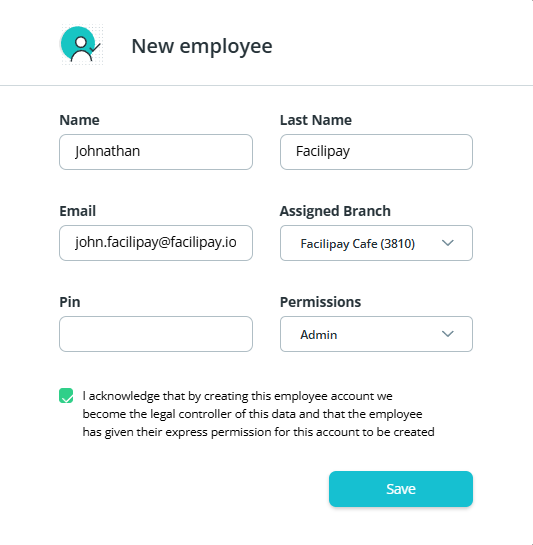
-
Save and Send the Invite
Click Save to create the employee profile (note the terms of service will need to be accepted). The employee will receive an email invitation prompting them to set a password, activate their account, and log in to the Facilipay Business Portal.
What Happens After You Save
-
The new employee receives an invitation email immediately.
-
Once they activate the account, their access matches the role and branch you assigned.
-
You can edit, disable, or revoke access at any time from the Employees section. Disabling immediately prevents login while keeping all historical records intact.
Tips & Best Practices
-
Review permissions regularly: Periodically audit who has access, especially after staff changes.
-
Disable access promptly: Remove or disable accounts as soon as an employee leaves the business.
-
Use individual logins: Assign a unique email address to each employee — avoid shared logins.
-
Limit admin access: Only grant the Admin role to those who genuinely require full account control.