
Step 1:
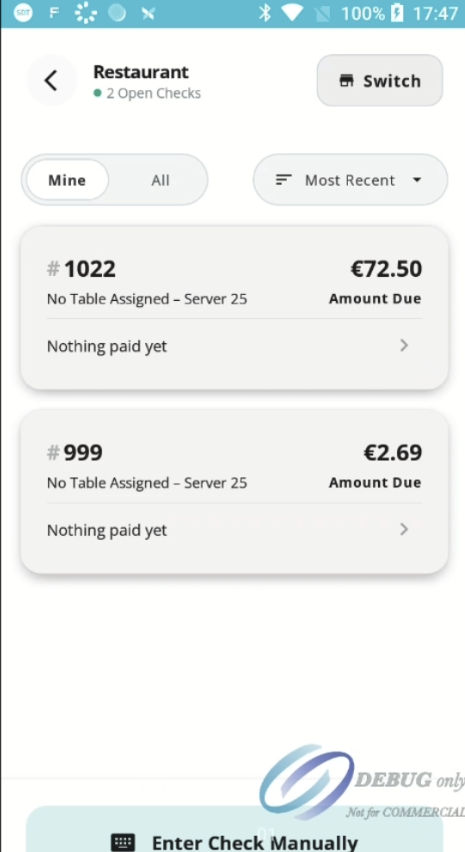
View the summary screen. Here, all open checks display with their check numbers and outstanding amounts.
Step 2:
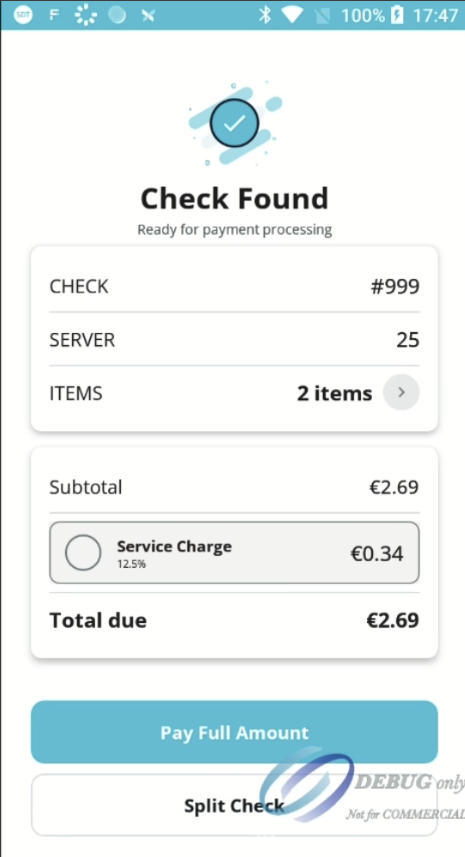
Tap the check you wish to process. The Check Found screen displays the check details, including the subtotal, any applicable service charge, and the total amount due. Select Pay Full Amount to continue.
Step 3:
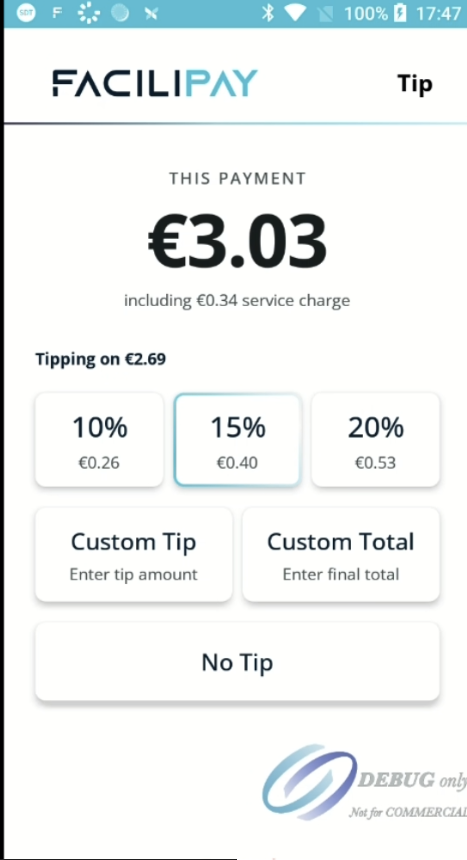
The tipping screen will appear before payment. Customers can choose from one of the available tipping options:
- 10% or 20% preset tip
- Custom Tip to enter a specific gratuity amount
- Custom Total to enter the final amount they wish to pay
- No Tip to continue without adding a gratuity
If a service charge has already been applied to the bill, it will be displayed beneath the payment amount.
Step 4:
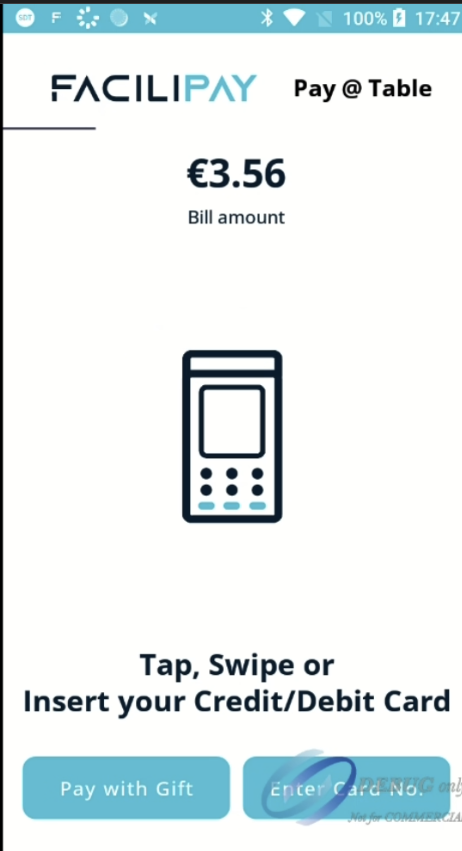
Once a tip option has been selected, the total payable updates automatically. Ask the customer to tap, swipe, or insert their payment card to complete the transaction.
Step 5:
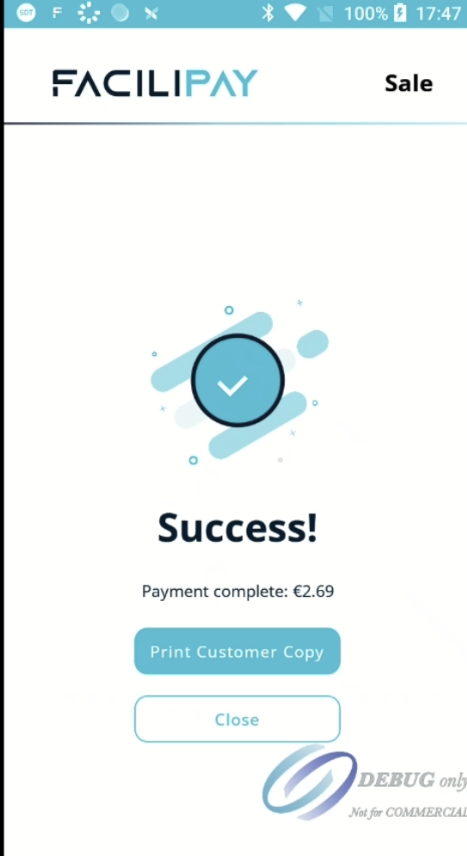
After the payment has been approved, a Success message will be displayed. You can print a customer copy of the receipt if required or tap Close to return to the main screen.
This workflow allows customers to add gratuities quickly while completing their payment at the table. With flexible tipping options and a simple payment process, Pay@Table provides a fast and convenient checkout experience for both staff and guests.