
Before You Begin
- You must be logged into the Facilipay Business Portal with create/edit product permissions.
- Prepare clear product images (JPEG/PNG recommended) — ideally 500×500 pixels or larger for best display quality.
Step-by-Step: Add Images to Your Products
-
Log In to the Business Portal
Sign in to the Facilipay Business Portal using your credentials. -
Open Your Inventory
From the left-hand menu, click Inventory, then select Products to view the full list of items available for sale.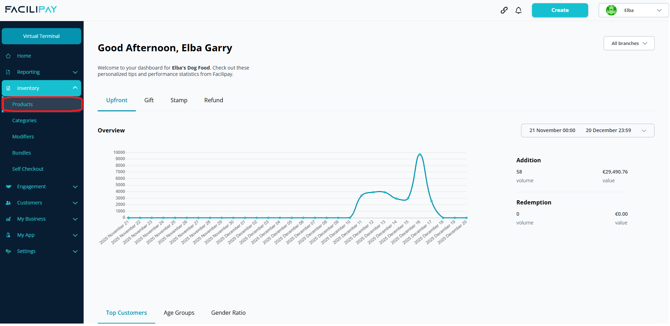
-
Locate the Product
Search or browse to find the product you want to add an image for. Click on its name to open the product details page. -
Upload the Product Image
- On the product details screen, locate the Image section.
- Click Upload Image (or a similar button).
- Select a JPEG or PNG file from your device.
- Wait for the image to upload — you should see a preview once it's complete.
Tip: If an image already exists, you can usually click Replace to update it.
-
Save Your Changes
After the image uploads and displays in the preview, click Save (or Update). The image will now be associated with the product.
What Customers Will See
-
Customers browsing your online ordering page will see the product image beside the item name and description.
-
Visuals help customers quickly identify items and enhance the online ordering experience.
Troubleshooting
If the image doesn't show:
- Make sure the file type is compatible (use JPEG or PNG).
- Confirm the file size isn't too large — resize if necessary (keep it under 2 MB if possible).
- Refresh the product listing or clear your browser cache.
Tips & Best Practices
-
Use high-quality images: Clear, well-lit photos help customers understand what the item is and look more appealing.
-
Stay consistent: Use a consistent background and angle for product photos so your online menu looks polished.
-
Use square images: Square images (1:1 ratio) work well on most online order layouts.
-
Test display: Preview your online ordering page after uploading to confirm images display correctly on both desktop and mobile.