
Before You Begin
Before generating QR codes for online ordering, make sure you've completed these setup steps:
- Enable online ordering for your business branch in the Facilipay Business Portal.
- Configure dispatch methods such as collection, delivery, or table service as needed.
- Customise your online menu so products and categories are available for online ordering.
- Set up time slots or prep windows as required for order volumes and operational flow.
- Order prep times and branch availability must be configured so the ordering experience works correctly.
These settings ensure your QR codes link to a working online ordering page with menus tailored to your business.
Step-by-Step: Generate and Use QR Codes
-
Log In to the Business Portal
Sign in to the Facilipay Business Portal. -
Select the Branch
Click My Business → Branches. Choose the branch for which you want to create QR codes.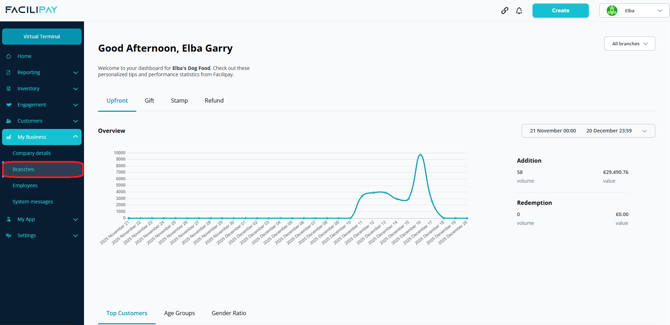
-
Open Ordering Settings
Within the selected branch:- Click Ordering.

- Navigate to the Fixed Delivery section (exact label may vary).
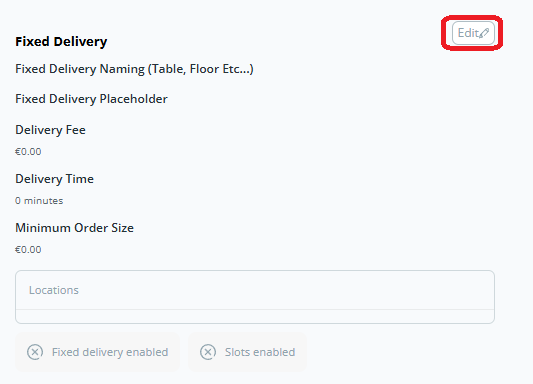
- Ensure the option is enabled.
If your settings are correct, you'll see a list of available table numbers or ordering destinations.
- Click Ordering.
-
Copy the Ordering Link
For each table or ordering location, click Copy Link beside the entry. This copies a unique ordering URL that directs customers to place orders for that specific location. -
Generate the QR Code
QR code generation isn't performed directly in Facilipay — instead:- Go to a QR code generator website (e.g. qr.io or another service).
- Paste the ordering URL into the generator's URL field.
- Select your preferred settings (image format, size).
- Click Download to save the QR code image.
-
Print or Display the QR Code
Once downloaded, print the QR code and place it on tables, menus, posters, or signage. Customers can now scan with their smartphone camera to open your online ordering page instantly — with the table or ordering context pre-selected.
What Customers Will Experience
-
Their phone opens the ordering page in the Facilipay ordering interface.
-
The menu displayed corresponds to the context assigned (e.g. table number).
-
The customer selects items, chooses a dispatch option, and checks out.
Troubleshooting
-
Link doesn't work: Ensure online ordering is enabled for the branch and dispatch methods are configured correctly.
-
Menu items don't appear: Confirm products and categories are marked available for online ordering.
-
Wrong table assigned: Check that the correct ordering link was copied before generating the QR code.
Tips & Best Practices
-
Clear placement: Place QR codes where customers can easily scan them (table stands, counters).
-
Label QR codes: Include text like "Scan to Order" or "Order to Table 5" so customers know what each code does.
-
Test each code: Test on a phone before printing in bulk.
-
Update if menus change: Regenerate QR codes when product availability changes significantly.