
Before You Begin
- You'll need a smartphone or tablet (Android or iOS) to install the Merchant App.
- Have your Business Portal credentials ready before logging in.
Step-by-Step: Add Stamps via the Merchant App
Install the App
If you haven't already, search for "Facilipay" on the Android or iOS app store and install Facilipay Merchant.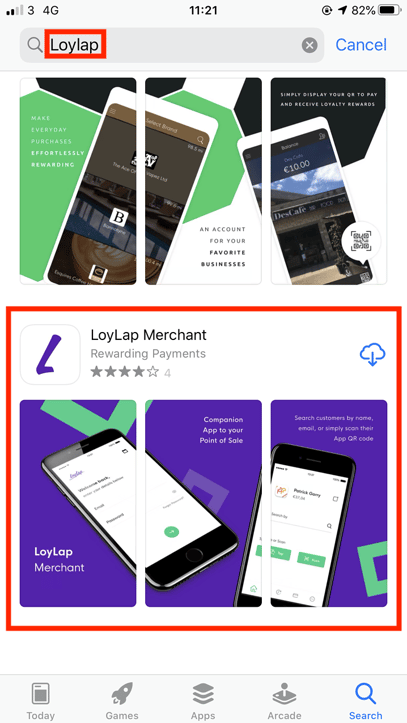
Install the free application.
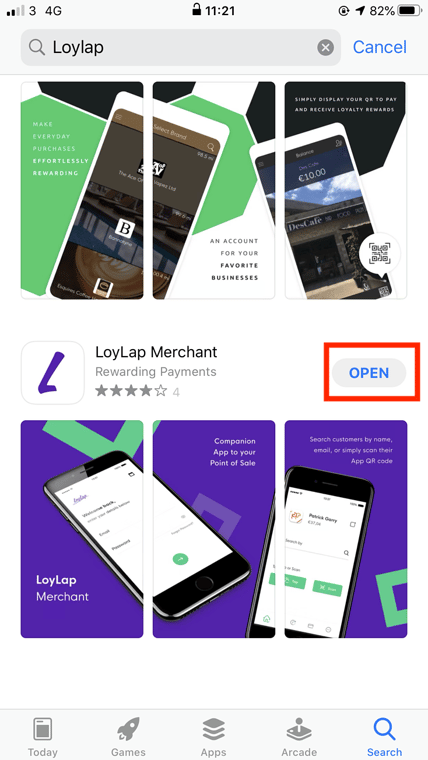
Log In to the App
Log in using your Business Portal credentials.We have a video walkthrough of the process below:
Find the Customer Account
Once logged in, you'll see a search bar. Use it to search for a customer account or gift card using the voucher ID (the eight-digit code beneath the QR code on the back of the voucher or on a digital voucher). You can also search by customer name or email.The search bar is handy for rectifying incorrect balances or for locating an account when the customer is not on site with the voucher in hand.
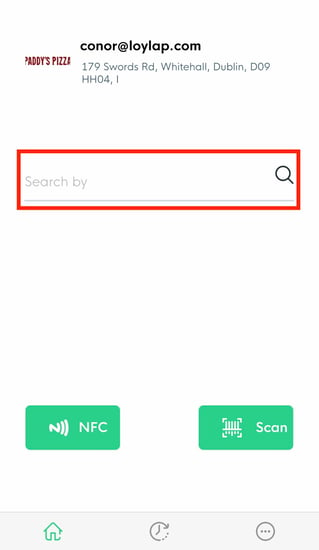
If the customer is on site with the voucher in hand, you can use the Scan button to scan the QR code.
Select the Customer Account
Tap the account you wish to add (or redeem) stamps to.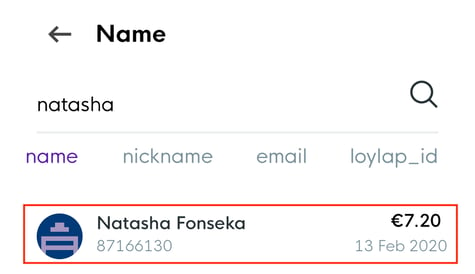
Tap Stamp
Press the Stamp button on the following page.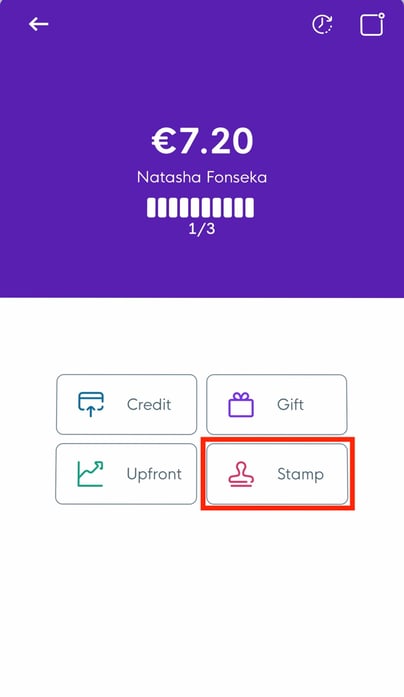
Add the Stamps
Enter the stamp amount and tap Add to add it to the customer's account or voucher.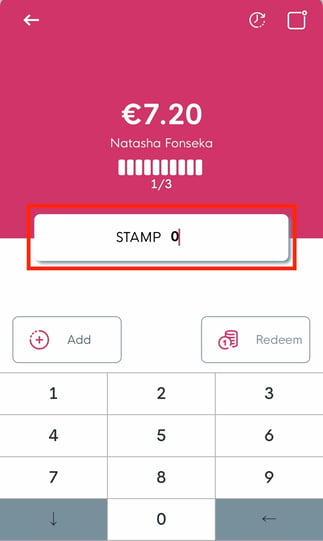
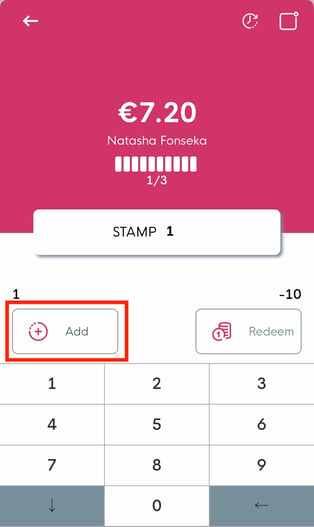
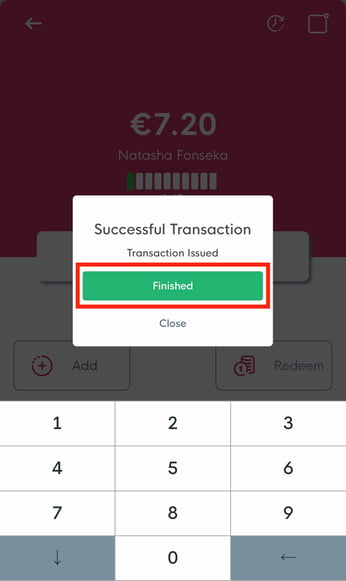
After pressing Add, a notification appears on screen confirming the transaction was successful.
Tips & Best Practices
Scan rather than type: Scanning is faster and avoids data entry errors during busy service.
Verify the customer: Confirm the right account before applying stamps.
Need help? Contact our support team at support@facilipay.io.