
Before You Begin
- Locate the guest's current reservation and confirm the deposit you want to reverse.
Step-by-Step: Cancel a Deposit
- Locate the Reservation Locate the current reservation and open Deposit Cancellation.
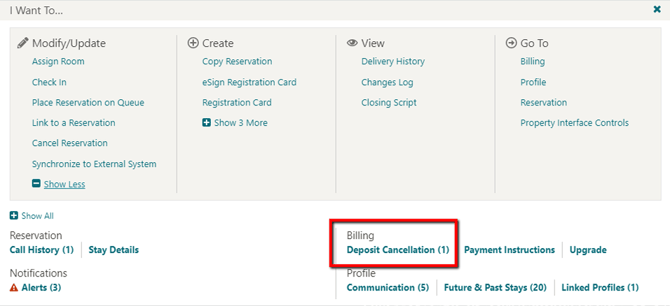
- Enter a Negative Amount Enter a negative amount into the Deposit Amount field, matching the deposit you want to reverse.
- Enter the Due Date Enter the Due Date for the reversal.
- Add a Reference Complete the Reference/Comments field (e.g. "Deposit reversal").
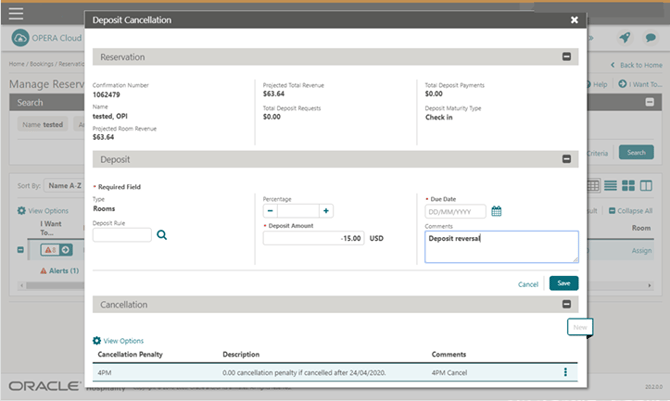
- Save Click Save to process the reversal.
Tips & Best Practices
- Reversal appears alongside the original: The reversal is listed as a separate line next to the original deposit request, with the outstanding balance updated accordingly.
- Use a clear reference: Labelling the reversal clearly (e.g. "Deposit reversal") makes it easier to track during reconciliation.
- Need help? For deposit cancellation issues, contact your Payment Service Provider.