
Before You Begin
- Locate the guest's reservation in the Front Desk > Arrivals area.
- This covers scenarios where the card is presented on arrival (card present check-in).
Step-by-Step: Check In with Pre-Authorisation
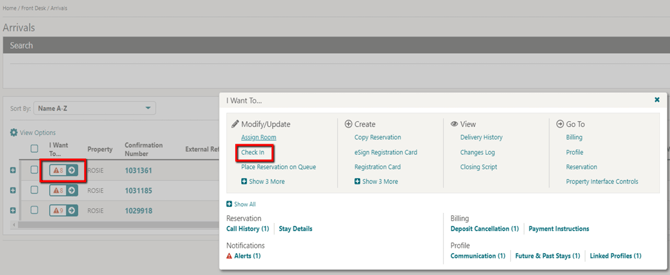
- Locate the Reservation Locate the current reservation and click the I Want To option.
- Select Check In Select Check In (located under Modify/Update).
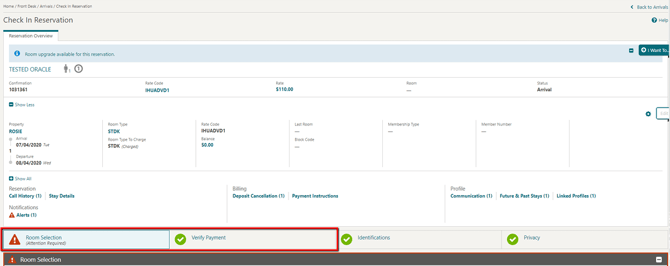
- Review the Reservation On the Check In Reservation screen, review all guest reservation details.
- Assign a Room In the Room Selection panel, assign a room to the reservation.
- Open Verify Payment Select the Verify Payment panel.
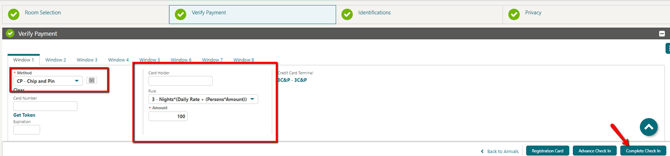
- Select the Payment Type Select the payment type in the Method field (e.g. CP – Chip and Pin).
- Verify the Authorisation Rule Under the Rule option, verify the authorisation rule and amount.
- Complete Check In Select Complete Check In.
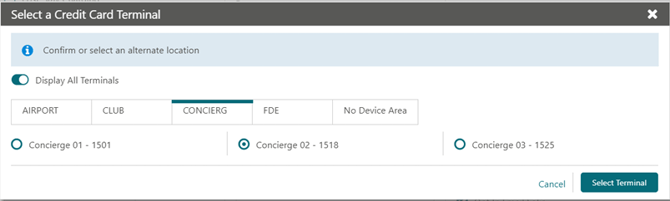
- Select the Terminal (First-Time Use) If this is the first time accessing the device after chip and pin installation, select the desired terminal and click Select Terminal.
- Present the Card The payment device alerts the guest to insert or swipe their card. A token and authorisation request is initiated automatically.
- Confirm Successful Check-In Once authorisation succeeds, the token, card type, expiration date, and last 4 digits are returned, and the guest is checked in.
Tips & Best Practices
- Review before assigning a room: Confirm the reservation details are correct before moving to the payment step, to avoid repeating the check-in process.
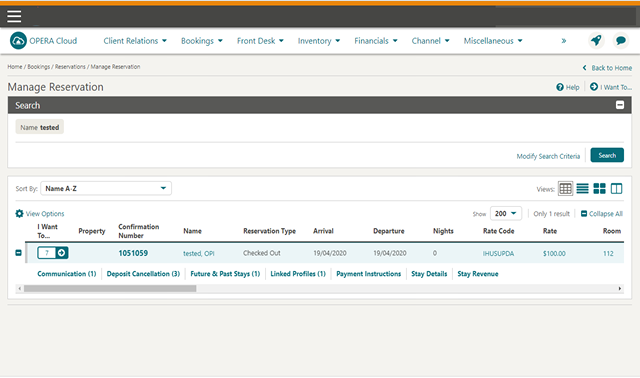
- Review the token afterwards: To confirm the transaction, select Payment Instructions under Manage Reservation — the masked token with the last 4 digits will be displayed.
- Need help? For check-in or terminal issues, contact your Payment Service Provider.