
Before You Begin
- You must be logged into the Facilipay Business Portal with permission to process refunds.
- Have the original transaction details ready (date, amount, customer name) to locate the record quickly.
Step-by-Step: Process a Refund
- Log In to the Business Portal
Sign in to the Facilipay Business Portal with your business credentials. - Open the Transactions Report
From the top navigation menu, select Reporting, then click Transactions to open the transaction report.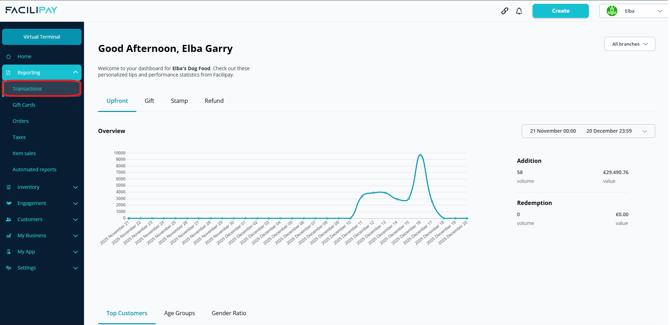
- Locate the Transaction
Find the transaction you want to refund. Use the Transaction Type and Payment Type filters to find Upfront or online payments quickly. - Open the Refund Option
Once located, click the three-dot menu beside the transaction and select Refund.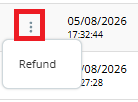
- Choose Refund Amount
In the refund window, choose whether to:- Refund the full transaction amount, or
- Enter a partial refund amount
- Confirm the Refund
Click Refund to confirm the action.
Tips & Best Practices
- Confirm before processing: Double-check the transaction amount and customer details before clicking Refund — refunds cannot be reversed.
- Document partial refunds: Make a note of why a partial refund was issued for future reference.
- Need help? If a refund fails or you cannot locate the transaction, contact support@facilipay.io.