
Before You Begin
- You must be logged into the Facilipay Business Portal with admin access.
- Have your logo, banner image, and brand colour codes ready before starting.
What This Does
When a customer purchases an Experience Voucher and receives it by email, they can add it directly to their mobile wallet (Apple Wallet on iOS or Google Wallet on Android). Before sending vouchers, you should configure the wallet pass design so it reflects your brand.
Step-by-Step: Configure Wallet Passes
-
Log In to Your Business Portal
Sign in to the Facilipay Business Portal using your admin credentials. -
Navigate to Wallet Pass Settings
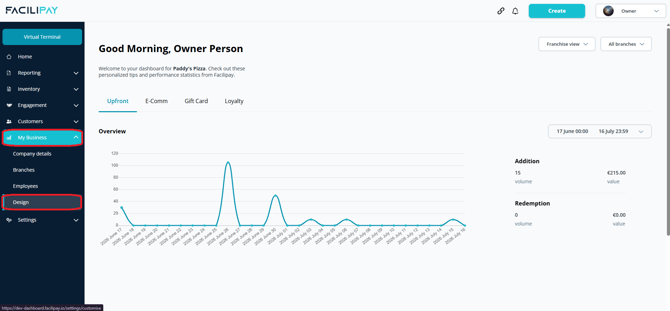
- In the left-hand menu, click My Business then Design.
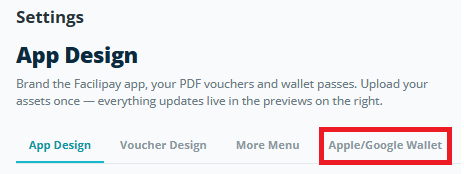
- Select Apple/Google Wallet — this opens the wallet pass configuration screen.
- Choose between Loyalty / Voucher
-
Enter Your Pass Details
Customise the information that will appear on the wallet pass:- Wallet Name: Enter your business name — this shows on the pass.
- Description (Optional): Provide a short description if you want additional context.
- Wallet Logo: Upload your logo — this image will display prominently on the pass.
- Pass Background: Upload a banner (wide image) that appears when the pass is viewed in the wallet.
- Pass Colours: Choose your dark and light colours to reflect your brand's look and feel.
These visual elements help customers instantly recognise your pass when they see it in their wallet.
-
Save Your Settings
Once you've added the logo, banner, and colours, click Save to apply the changes.
Test the Pass Design
- Send a test Experience Voucher to your own email address.
- Open that email on an iOS or Android device.
- Tap Add to Apple Wallet or Add to Google Wallet from the voucher email.
You should see your customised design with your logo, banner, and colours.
What Customers Will See
- Customers who purchase Experience Vouchers see an "Add to Wallet" button in their email or order confirmation.
- Tapping this button adds a branded pass to their Apple Wallet or Google Wallet.
- The pass can display voucher details, your business branding, and can be scanned or presented when redeeming the experience.
Tips & Best Practices
-
Use high-quality images: Clear logos and banner images make wallet passes look professional.
-
Reflect brand colours: Choose colours consistent with your other customer touchpoints.
-
Test on multiple devices: Check the pass on both iPhone and Android.
-
Train staff: Ensure staff know how to help customers add the pass to their wallet.