
Before You Begin
- You must be logged in to the Facilipay Business Portal.
- Your branch must be enabled for online ordering and set up for tablet ordering.
- Have your product information ready (name, price, image, etc.).
Step-by-Step: Create a Product
-
Open the Business Portal
Sign in to the Facilipay Business Portal using your business credentials. -
Start Creating a Product
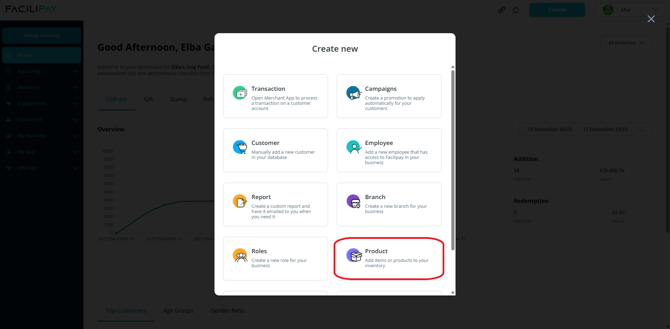
In the top right corner of the dashboard, click Create. From the dropdown, click Product to start a new product entry.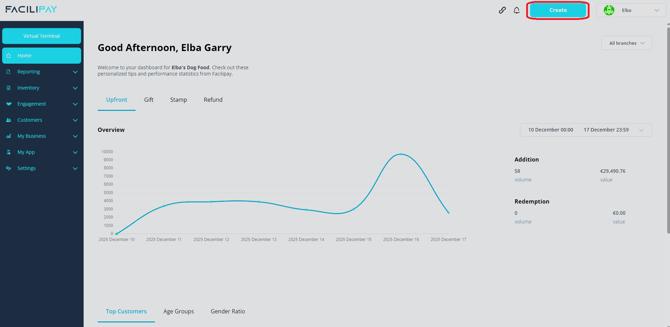
-
Enter Product Details
Fill in the following fields:- Name: Clear, descriptive product name (e.g. Cheeseburger).
- Price: The amount customers will pay.
- Description (optional): Brief text describing the product.
- Image: Upload a good-quality image — this makes it easier for customers to identify the item.
- Branch: Ensure the correct branch is selected so the product appears in the right location.
-
Set Ordering Availability
Under the product settings:- Always Available: Toggle on if the product should always be visible.
- Available for Ordering: Toggle on to make the product visible on the ordering tablet and online menu.
You can also choose dispatch methods (Collection, Delivery, Order to Table) depending on your setup.
Next Steps: Create Categories (Optional but Recommended)
After creating products, organise them into categories (e.g. Drinks, Mains, Desserts) so customers can browse easily.
- Click Create → Category from the dashboard.
- Enter a category name and save.
- Assign products to that category via the product's category dropdown.
What Customers See
Once your products are created and marked Available for Ordering, they will:
- Appear on the tablet ordering interface used by staff or customers.
- Be grouped into categories if assigned.
- Be selectable at checkout with pricing and images visible.
Tips & Best Practices
-
Use high-quality images: Good visuals help customers quickly choose items.
-
Organise items logically: Group products into meaningful categories for a smoother ordering experience.
-
Confirm dispatch options: Make sure products are enabled for the dispatch methods you support.