
Before You Begin
- You must be logged into the Facilipay Business Portal with admin or support credentials.
- Have the customer's gift card number or name ready to find their account.
When to Use This
Disable a gift card when:
- A customer reports it lost or stolen.
- You want to block further use of the card to protect the customer's balance.
- You plan to reassign or re-issue the balance to a new card or account.
Disabling the card prevents it from being redeemed or used for future payments.
Step-by-Step: Disable a Lost Gift Card
-
Log In to the Business Portal
Sign in to the Facilipay Business Portal using your admin or support credentials. -
Open the Customers List
From the left navigation menu, select Customers → Customers to view all customer accounts.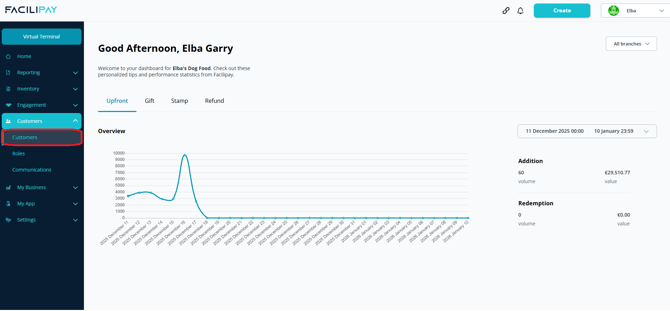
-
Find the Customer or Gift Card
Use the search field to look up the card you want to disable:- Enter the gift card number, OR
- Enter the customer's name associated with the card.
-
Open the Options Menu
In the search results, locate the customer or card record. Click the three dots next to their name to open the options menu. -
Disable the Card
From the options menu, choose Disable. This will deactivate the card, making it unusable for payments or rewards.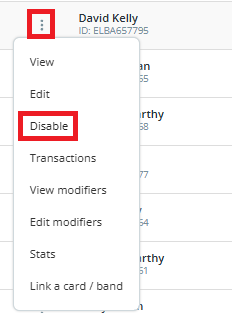
Important: Disabling the customer account will also disable all cards linked to that account. If the customer has multiple cards and you only want to disable one, confirm which card should be blocked before proceeding.
What Happens After You Disable
- The lost card will no longer work for purchases or gift card redemption.
- Any balance associated with the disabled card remains in the system and can be transferred to a replacement card if needed.
- If you disable the entire customer account, all linked cards are also deactivated.
Tips & Best Practices
-
Confirm the card number: Before disabling, double-check you have the correct card number to avoid disabling the wrong one.
-
Ask for details: Confirm the loss with the customer — including approximate last use or purchase — to ensure the right card is disabled.
-
Issue a replacement: After disabling the lost card, assist the customer with issuing a new card or transferring their balance.