
Before You Begin
- You must be logged into the Facilipay Business Portal with admin or support credentials.
- Have the customer's name ready to find their account.
When to Use This
Disable a customer when:
- A customer reports a gift card as lost or stolen.
- You want to block further use of the card to protect the customer's balance.
- You plan to reassign or re-issue the balance to a new card or account.
Disabling the customer prevents the account & any associated cards from being redeemed or used for future payments.
Step-by-Step: Disable a Lost Gift Card
- Log In to the Business Portal
Sign in to the Facilipay Business Portal using your admin or support credentials. - Open the Customers List
From the left navigation menu, select Customers → Customers to view all customer accounts.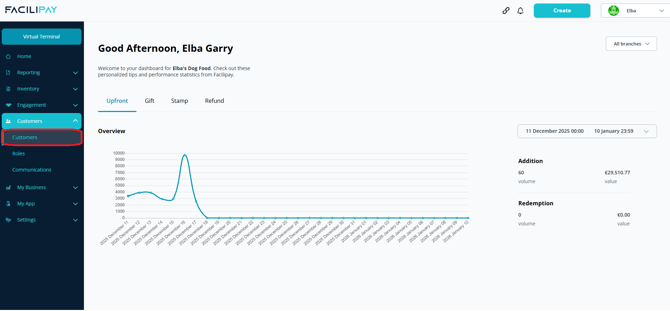
- Find the Customer
Use the search field to look up the card you want to disable:- Enter the customer's name, OR
- Enter the gift card number associated to their account
- Open the Options Menu
In the search results, click the three dots next to their name to open the options menu. - Disable the Card
From the options menu, choose Disable. This will deactivate the customer, making the account unusable for payments or rewards.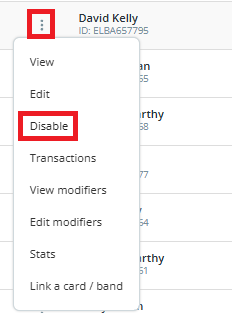
Important: Disabling the customer account will also disable all cards linked to that account. If the customer has multiple cards and you only want to disable one, confirm which card should be blocked before proceeding.
What Happens After You Disable
- The customer will no longer work for purchases or gift card redemption. An error will be displayed when attempting a transaction.
- Any balance associated with the disabled card remains in the system and can be transferred to a replacement card if needed.
- If you disable the entire customer account, all linked cards are also deactivated.
Tips & Best Practices
- Confirm the account: Before disabling, double-check you have the correct name or card number to avoid disabling the wrong one.