
Before You Begin
- Confirm your payment terminal has been installed and tested by your Payment Partner.
- Know whether your property uses a general CP – Chip and Pin method or a card-specific method (e.g. Master Card, VISA).
Step-by-Step: Guarantee via Payment Device (Card Present)
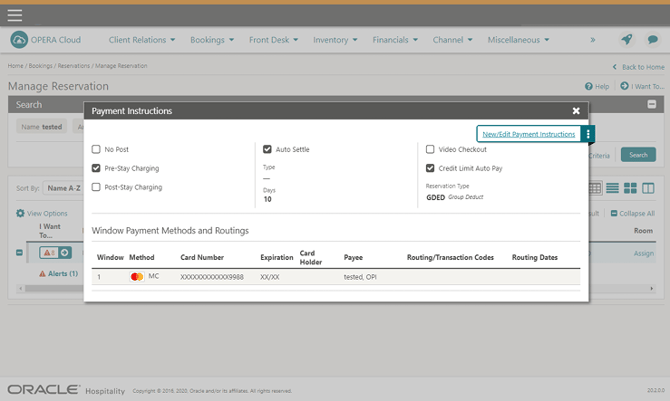
- Locate the Reservation Locate your guest and access the Payment Instructions page.
- Open New/Edit Payment Instructions Select New/Edit Payment Instructions.
- Select the Payment Method Choose your desired payment Method (e.g. CP – Chip and Pin, or a specific card type).
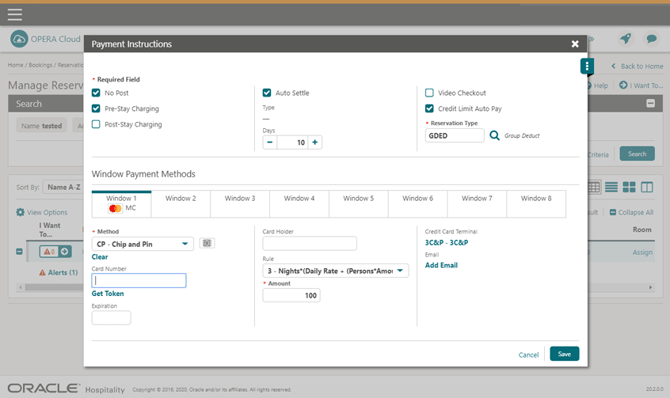
- Trigger the Payment Device Click Get Token. This triggers the payment device to request the card.
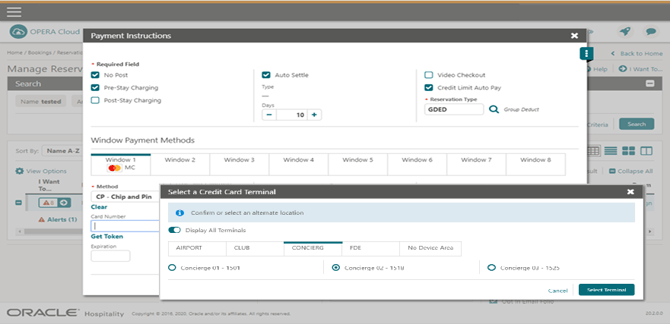
- Select the Terminal (First-Time Use) If this is the first time accessing the device after installation, a panel appears to select your credit card terminal. Select the terminal to activate for this transaction and click Select Terminal. Once chosen, it's remembered for this user until the browser/application cache is cleared.
- Present the Card The guest inserts or swipes their card. A token request is automatically initiated.
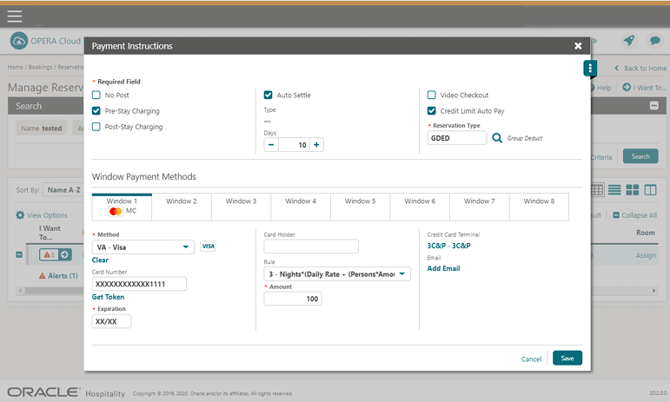
- Confirm the Token The token, card type, expiration date, and last 4 digits of the card number are returned and displayed.
- Save Click Save to attach the token to the reservation.
Tips & Best Practices
- Terminal selection is remembered: You only need to select a terminal once per user, until the application or browser cache is cleared.
- No manual entry needed: When using a payment device, you don't need to enter the card number or expiration date — these come through the token request.
- Need help? For payment device or terminal issues, contact your Payment Service Provider.