
Before You Begin
- You must be logged in to your Facilipay Business Portal.
- The category you want to restrict must already exist in your Inventory → Categories.
Step-by-Step: Restrict a Category by Time
-
Open the Business Portal and Go to Categories
- Sign in to the Facilipay Business Portal.
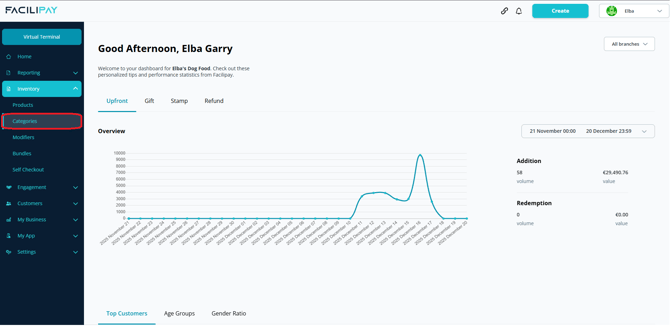
- Click Inventory in the left menu.
- Select Categories to view all your existing product categories.
-
Choose the Category to Restrict
Find the category you want to make time-restricted (e.g. Breakfast, Lunch Specials, Weekend Deals) and click on its name to open its settings. -
Turn Off "Always Available"
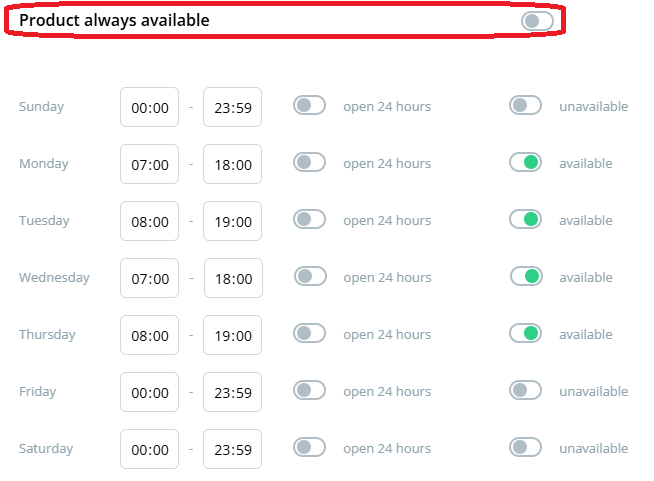
In the category's settings, ensure the Always Available toggle is switched OFF (grey). When Always Available is off, new options appear for scheduling availability. -
Set Your Availability Days & Times
Once Always Available is disabled:- Select the days of the week the category should be active (Mon–Sun).
- For each selected day, set the start time and end time when the category should be shown.
Example: Monday, Tuesday, Wednesday and Thursday from 08:00–12:00 for limited days.
-
Save Your Changes
Click Save to apply the availability rules. The category will now only be visible for online order placement within the days and times you selected.
How This Works for Customers
-
Customers visiting your online ordering page will only see that category during the specified times and days.
-
Outside those hours, the category (and all items in it) will not be visible.
-
This helps create time-based menus like breakfast, lunch, dinner, specials, or limited-time offers.
Tips & Best Practices
-
Plan ahead: Create categories like Breakfast, Lunch, or Happy Hour ahead of time, then set their availability windows.
-
Test changes: Use your online ordering page during a restricted time to confirm the category appears and hides correctly.
-
Use descriptive names: Clear names help customers understand what's coming when they appear (e.g. Weekend Brunch).
-
Coordinate with hours: Make sure category times align with overall store opening hours.