
Before You Begin
- You must have access to the Facilipay Business Portal.
- The item must already exist in your Clover inventory but be hidden from the POS.
- Have the item name handy so you can find it in both Clover and the Business Portal.
How Hidden Items Work
When an item is hidden in Clover, it won't show in your in-store Register app, but you can still choose to make it available for online ordering by enabling a setting in the Facilipay Business Portal. This allows you to offer online-only products — for specials, limited-time items, or menu variants.
Step-by-Step: Make a Hidden Item Available Online
-
Open Your Clover Dashboard
Sign in to your Clover dashboard and click Inventory. Search for the item you want to make available online.Tips for identifying hidden items: a hidden item will have Show on POS unticked.
-
Find the Item in the Facilipay Business Portal
- Go to the Facilipay Business Portal and sign in.
- From the side menu, select Inventory → Products.
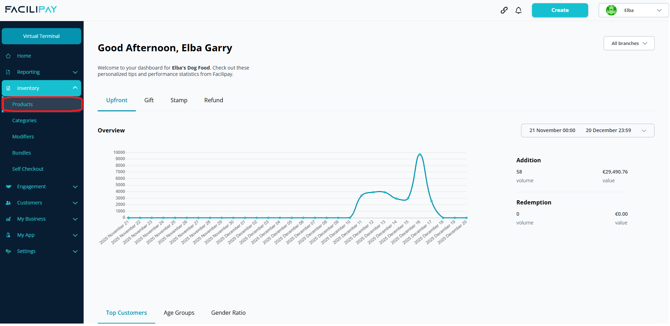
- Search for the same product you identified in Clover.
-
Enable "Available for Ordering"
- Click into the product you want to update.
- Locate the Available for Ordering toggle.
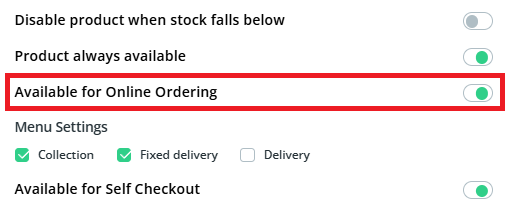
- Turn it ON (the icon will appear green).
- Click Save to apply the change.
Once enabled, the item remains hidden in your Clover POS, but it becomes available for customers to order through the Facilipay online ordering interface.
What Happens After You Save
When a hidden item is marked as Available for Ordering:
- It won't be visible in your Clover Register app.
- It will appear in your online ordering menu for customers using Facilipay.
- Customers can add the item to their cart and complete checkout normally.
Tips & Best Practices
-
Online-only items: Use this method to offer online-only products such as digital specials without cluttering your in-store menu.
-
Test the ordering flow: After enabling, place a test order via the online ordering page to confirm the item appears correctly.
-
Bulk changes: For many products, consider using category settings or bulk inventory options to manage availability in groups rather than item-by-item.