
Step 1: From the FaciliPay home screen on your PAX terminal, tap Reports. 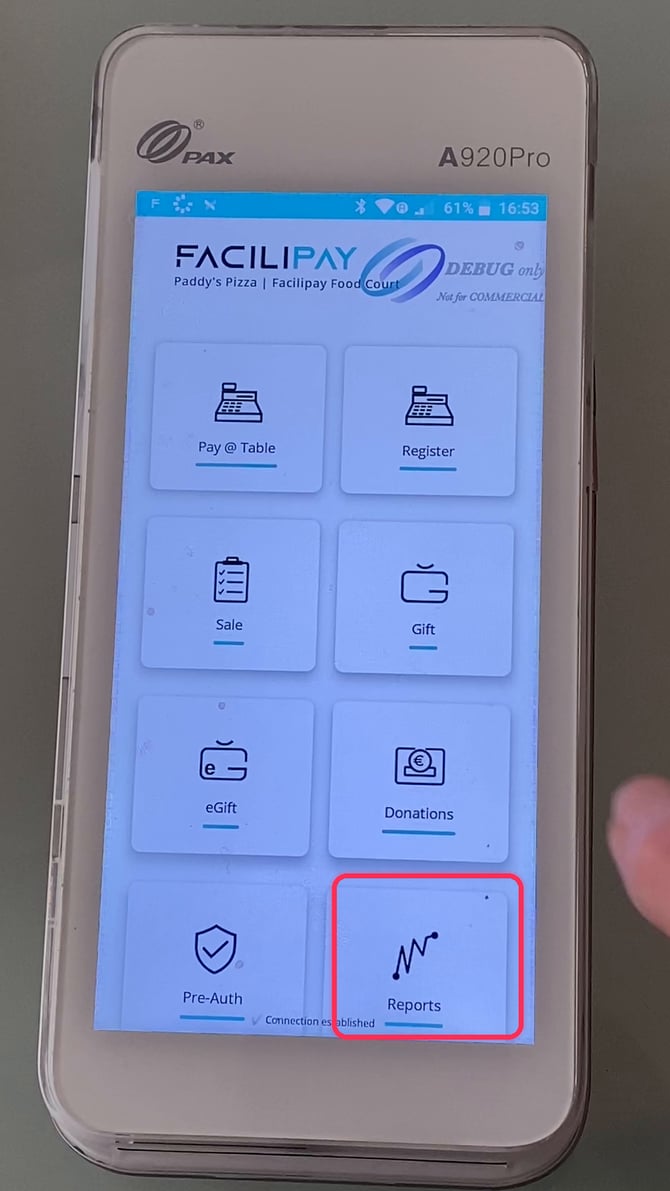
Step 2: Select Payments to view card, cash, and gift totals for the current open batch. 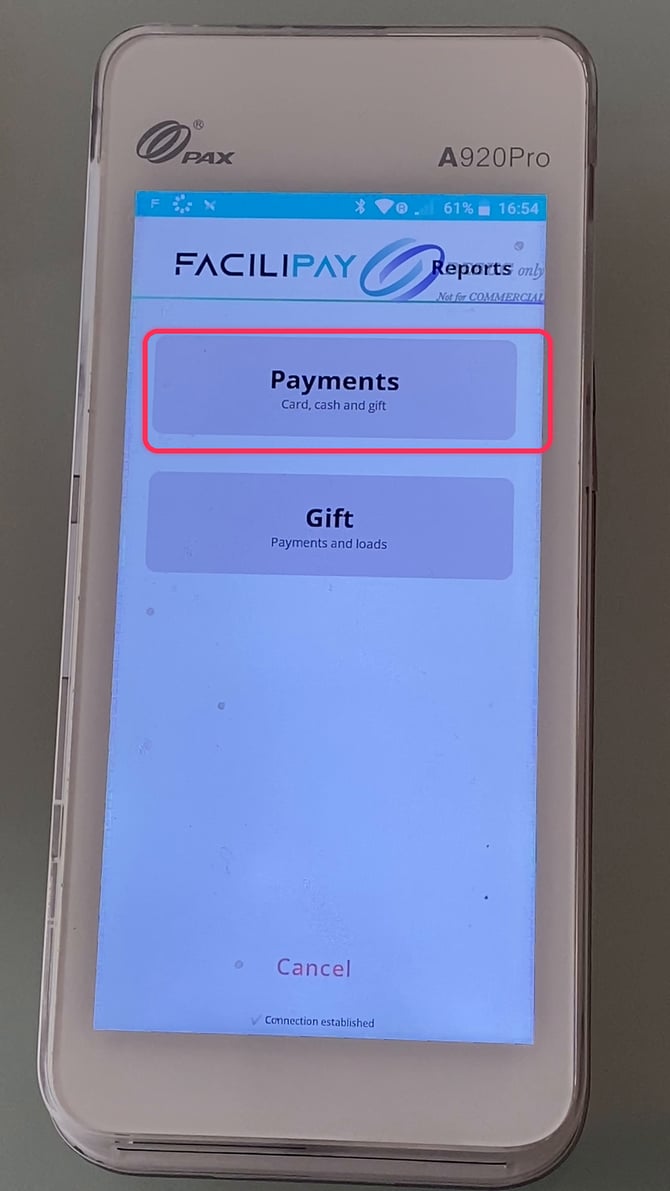
Step 3: Review the Summary tab, which shows Net Sales, Gross Sales, Tips, Cashback, Refunds, and Gift Loads, plus a full breakdown by card scheme.
Step 4: To trace a specific transaction, tap History, which lists every sale in the batch with card type, masked card number, amount, and time 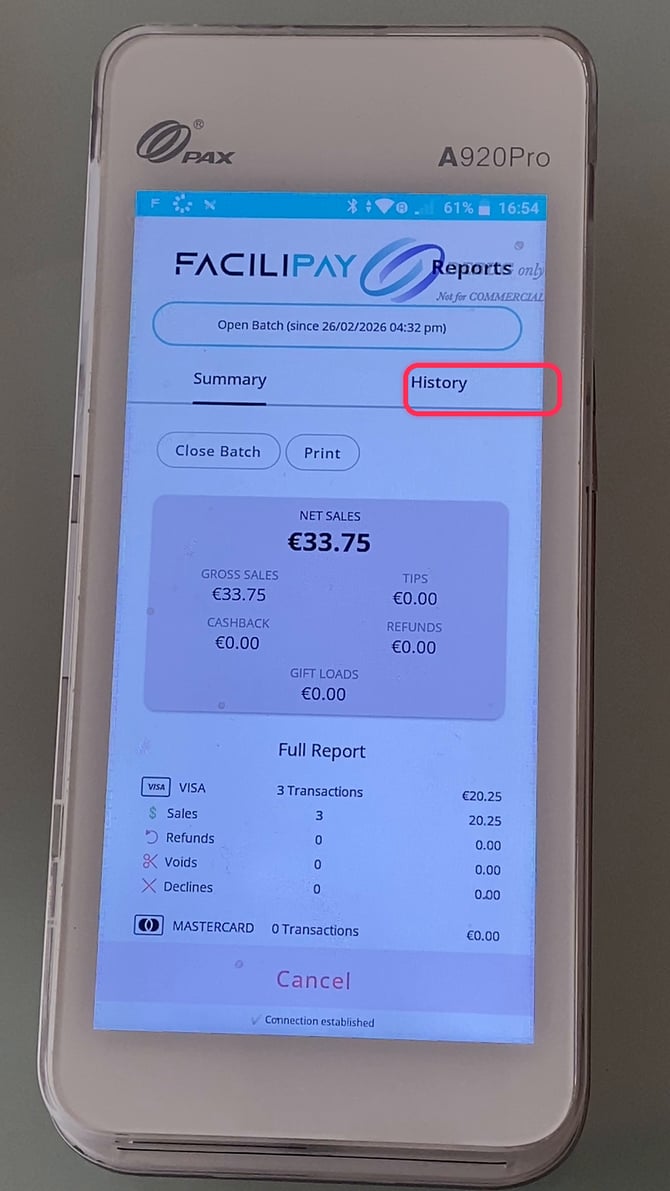
Step 5: When you're ready to settle up, go back to the Summary tab and tap Close Batch
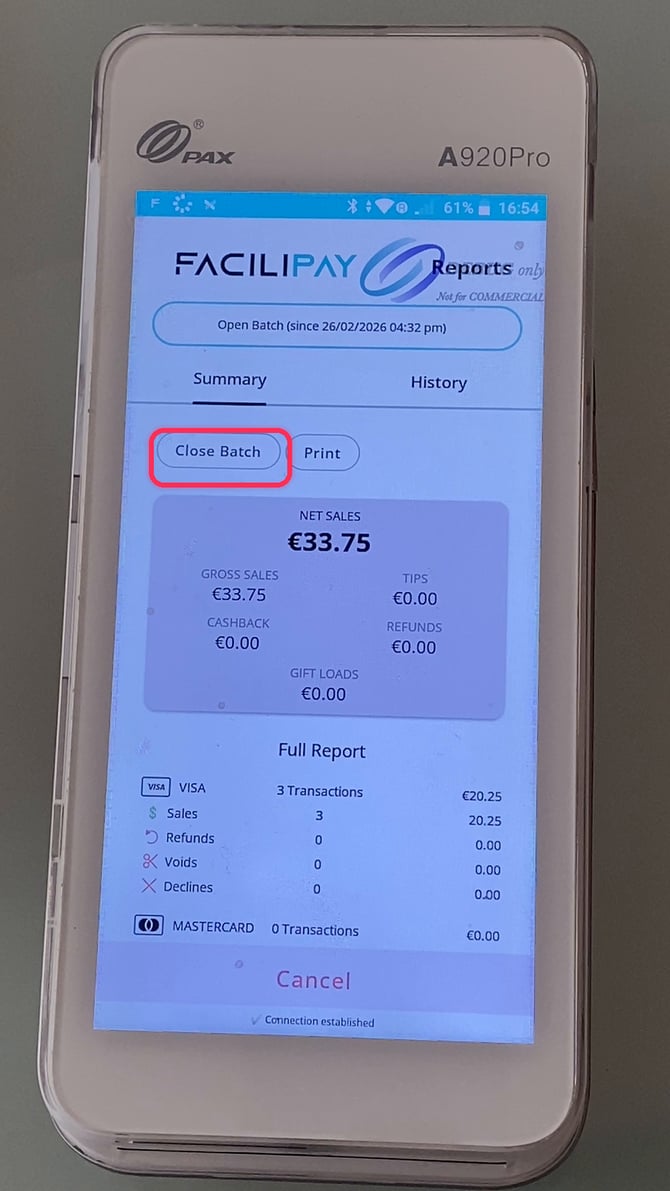
Step 6: In the confirmation dialog, tick Print Report if you want a paper copy, then tap Confirm to finalize the batch 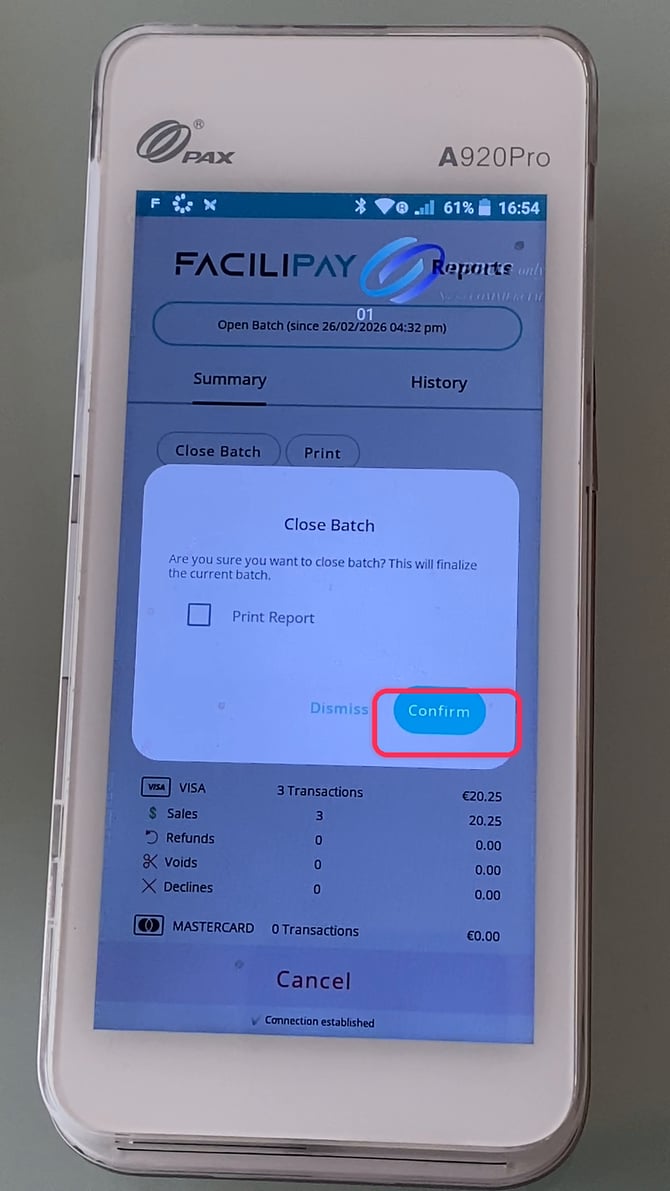
FaciliPay Register streamlines end-of-day reconciliation. The process guides staff smoothly from reviewing takings to closing out a clean, auditable batch.