
Before You Begin
- Locate the guest's current reservation before starting.
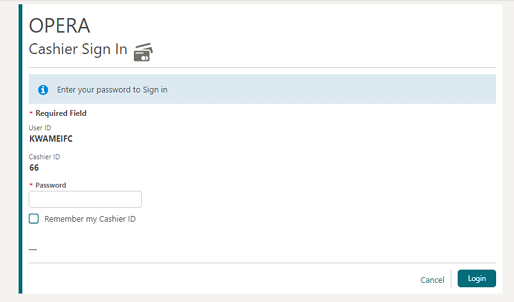
- You'll need cashier credentials to access the Billing screen.
Step-by-Step: Post a Payment
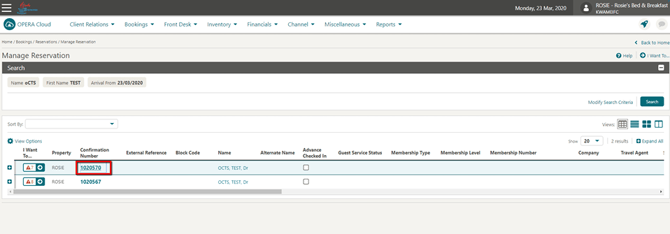
- Locate the Reservation Locate the current reservation and click on the Confirmation Number.
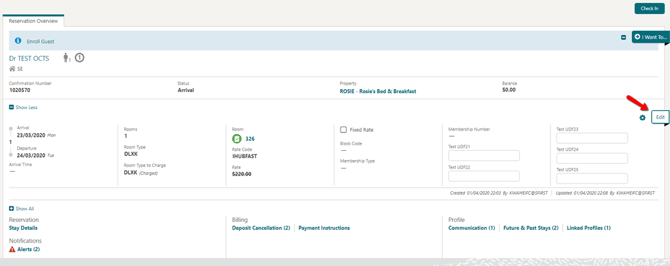
- Edit the Reservation Click Edit.
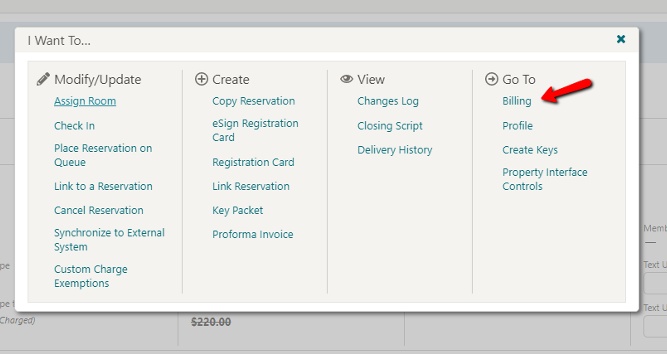
- Open Billing Select Billing from the options and enter your credentials if prompted (Cashier Sign In).
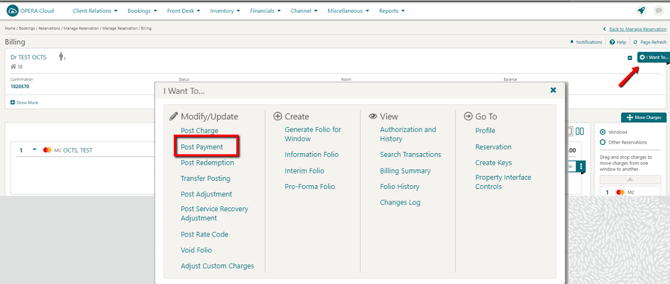
- Open Post Payment Select I Want To, click on the Confirmation Number, then select Post Payment.
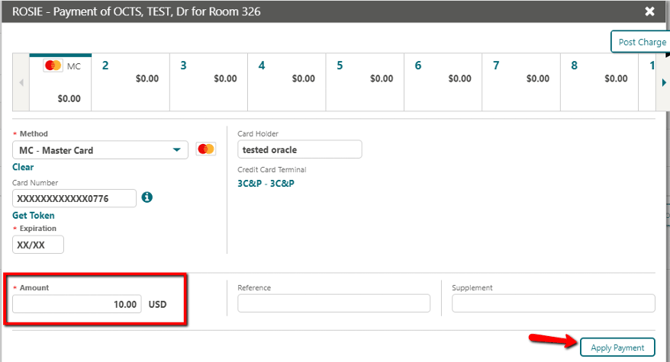
- Enter the Amount Enter the payment amount in the Amount field.
- Apply the Payment Click Apply Payment.
Tips & Best Practices
- Confirm posting: Once processed, the payment appears in the guest's reservation with a posted status and date — check this to confirm it went through.
- Print Receipt available: After posting, a Print Receipt option is available directly next to the transaction line.
- Need help? For payment posting issues, contact your Payment Service Provider.