
The Print Check feature allows staff to print a customer's check before taking payment. This is useful when a customer would like to review their bill before completing the transaction.
Step 1:
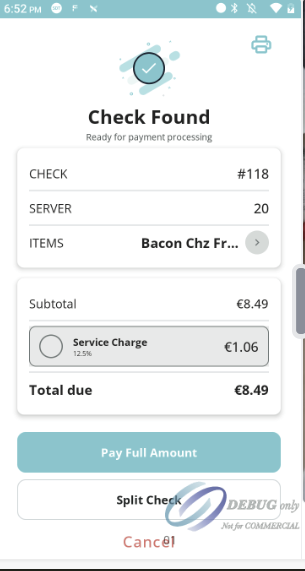
Locate and select the open check you would like to process. The Check Found screen displays the check details, including the subtotal, any service charge, and the total amount due.
Step 2:
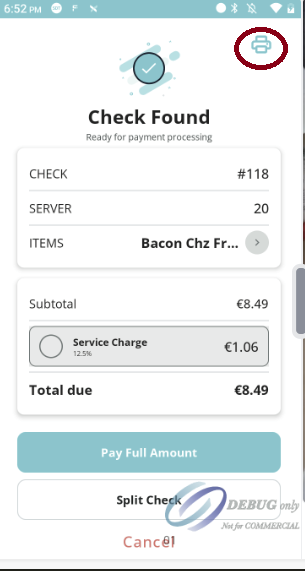
Tap the Print Check icon located in the top-right corner of the Check Found screen.
The check will be sent directly to the connected receipt printer.
Step 3:
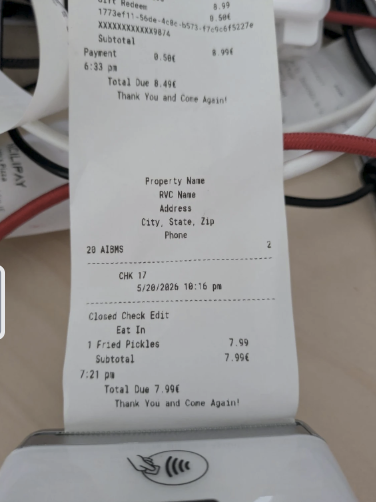
The printed check contains a summary of the customer's order, including purchased items, subtotals, taxes (where applicable), service charges, and the total amount due.
Step 4:
After printing the check, you can continue with the payment process as normal by selecting Pay Full Amount or Split Check, depending on the customer's preference.
The printed check is provided for review only and does not complete or affect the payment transaction.
Printing a check before payment allows customers to review their bill before paying, helping to improve accuracy and provide a smoother tableside payment experience.