
Before You Begin
- Confirm your Oracle Payment Interface (OPI) solution has been installed and tested.
- Notify your Payment Partner that manual entry (MOTO) transactions will be processed, as they need to support this transaction type.
Step-by-Step: Enter a Card Manually via the OPERA Application
- Open Bookings From the Opera Cloud main page, select Bookings.
- Open Reservations Select Reservations, then click Manage Reservation.
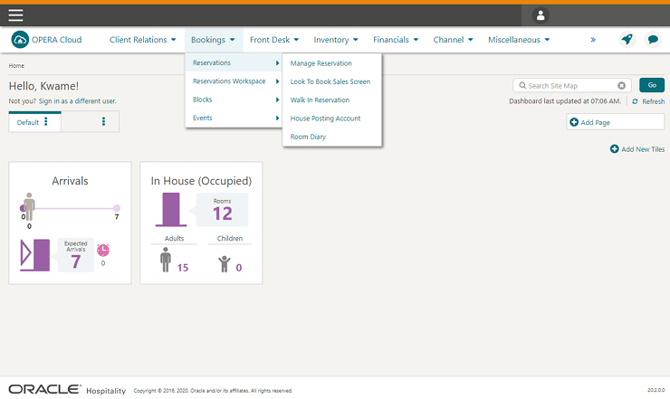
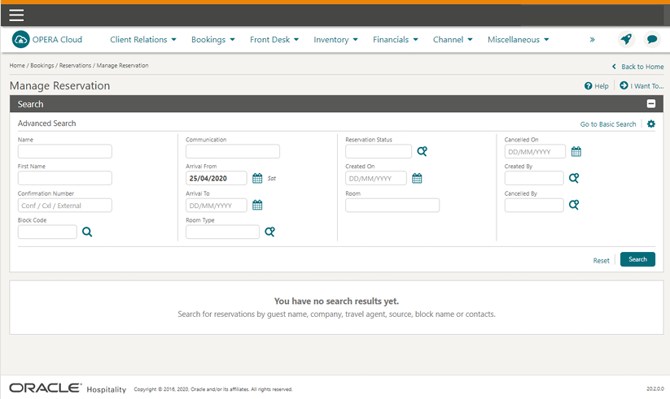
- Search for the Reservation Search for the guest's reservation.
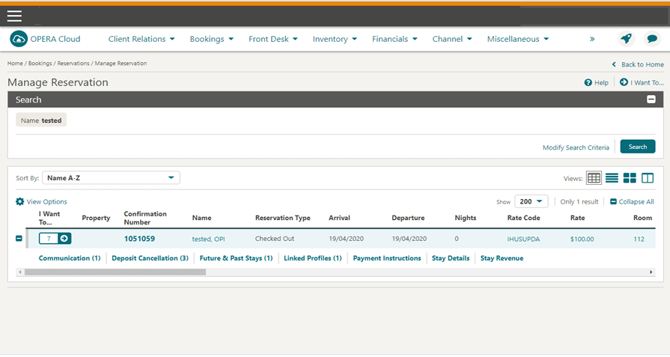
- Open the "I Want To" Menu Click the I Want To button (the icon with the arrow).
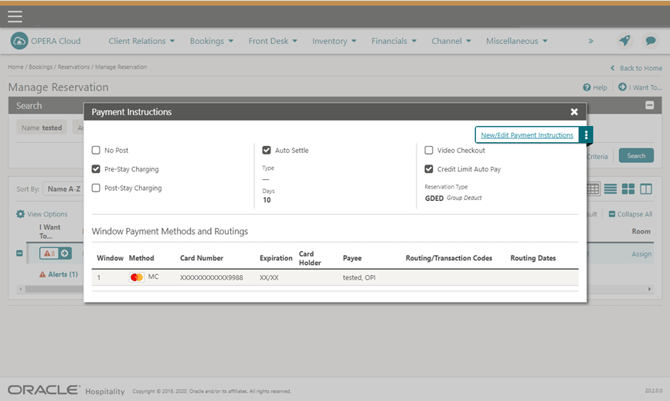
- Select Payment Instructions Choose Payment Instructions.
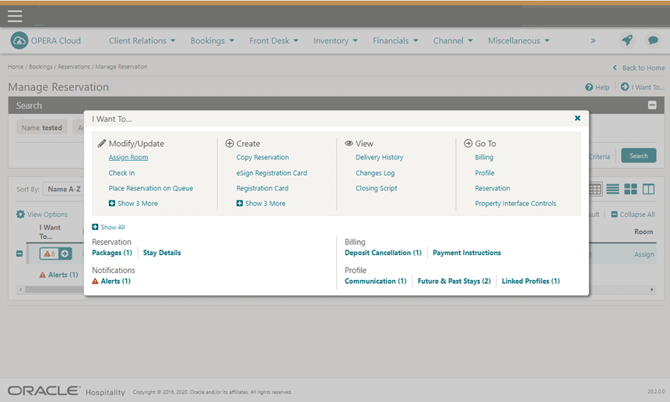
- Open New/Edit Payment Instructions Click New/Edit Payment Instructions.
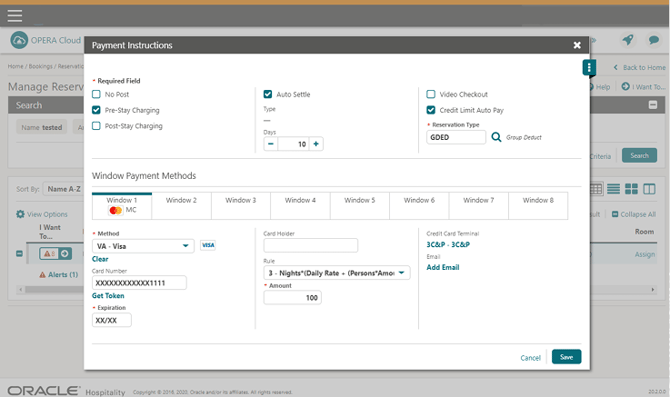
- Enter the Card Details Select the payment Method (VA, MC, CP, etc.), then click or tab into the Card Number field and enter the card number. Tab to the Expiration field and enter the expiration date (MMYY), then tab or click out of the field.
- Save the Token Once you tab out of Expiration, a token is requested automatically and the Save button appears. Click Save to attach the token to the reservation.
Tips & Best Practices
- Notify your Payment Partner first: MOTO transactions need to be specifically supported by your Payment Partner, so confirm this during setup rather than discovering an issue at the point of sale.
- Two methods available: A card can be manually entered either directly into the OPERA Application or via the payment device — use whichever matches your property's workflow.
- Need help? For manual entry or MOTO transaction issues, contact your Payment Service Provider.