
Before You Begin
- OPERA and OPI support Pre-Authorisation Reversals as an automated electronic message sent to the Payment Service Provider.
- This happens automatically whenever an authorisation exists and the payment type is changed — for example, if check-in was authorised on a Visa and checkout is paid in Cash.
Step-by-Step: Process an Authorisation Reversal
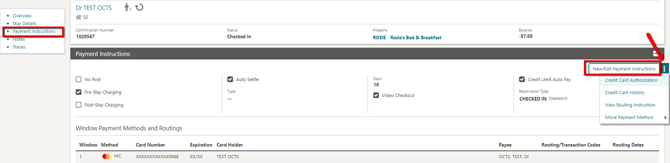
- Locate the Reservation Locate the guest and go to the Payment Instructions panel.
- Open New/Edit Payment Instructions Select New/Edit Payment Instructions.
- Change the Payment Method Change the Method field to your desired payment type (e.g. CA – Cash).
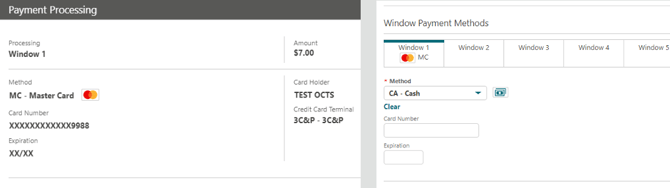
- Confirm the Change OPERA automatically sends the authorisation reversal request to release the original pre-authorisation.
Tips & Best Practices
- It's automatic: You don't need to manually request the reversal — OPERA triggers it the moment the payment type is changed.
- Bank timing varies: Even after a successful reversal request, it's up to the card holder's bank to actually release the hold — some banks don't support the electronic reversal message, so a hold may still show on the guest's account for a few days.
- Need help? For authorisation reversal issues, contact your Payment Service Provider.