
Before You Begin
- Locate the guest's reservation.
- A Top Up Authorisation adds to the existing authorised amount — it does not replace it.
Step-by-Step: Run a Top Up Authorisation
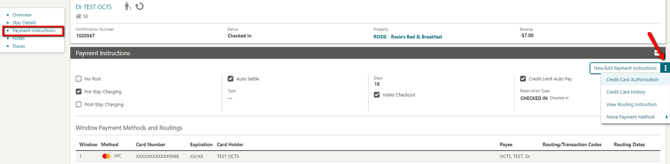
- Locate the Reservation Locate the guest and go to the Payment Instructions panel.
- Open Credit Card Authorization Click the ellipsis (3 dots) and select Credit Card Authorization.
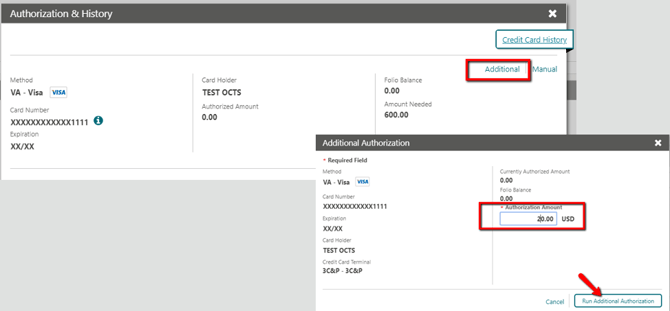
- Select Additional In the Authorization & History window, select the Additional option.
- Enter the Amount Enter the Authorization Amount you want to add.
- Run the Authorisation Click Run Additional Authorization (or Additional Authorization, depending on screen).
Tips & Best Practices
- Check the confirmation: The Payment Processing screen displays, and the posted authorisation is confirmed in the Authorization & History screen with a Successful status.
- Review the amount needed: The screen shows the currently authorised amount and the amount still needed, which helps judge how much to add.
- Need help? For authorisation issues, contact your Payment Service Provider.