
Before You Begin
- You must be logged into the Facilipay Business Portal with reporting access.
- Bundle products should already be configured in your inventory or online ordering settings.
- Decide on the date range you want to analyse before running the report.
What This Report Shows
A bundle sales report lets you:
- See how many bundles sold during a selected period
- Understand revenue performance for each bundle product
- Export sales data for use in Excel or other analysis tools
A "bundle" is typically a grouped set of items or offers that you configure in your inventory or online ordering settings.
Step-by-Step: Generate the Bundle Sales Report
-
Log In to the Business Portal
Sign in to the Facilipay Business Portal using your administrator credentials. -
Go to Reporting → Item Sales
From the portal header, hover over Reporting (or click Reports) and select Item Sales. Item Sales shows item-level data, including bundle products.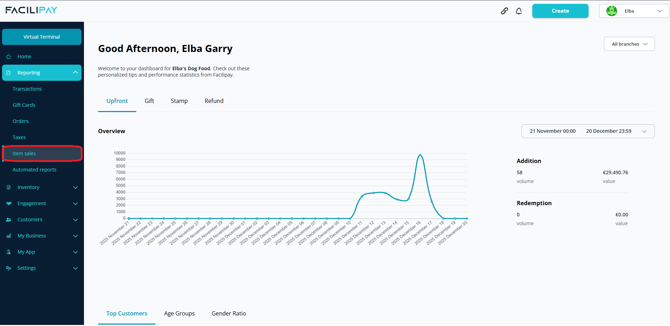
-
Set the Date Range
At the top of the Item Sales screen, use the calendar selectors to choose the period you want to analyse (custom start and end dates). The report filters to include only transactions within that range. -
View Bundle Sales Data
Once the date range is applied, you'll see a list of sold items with quantities and totals. Look for your bundle product names, e.g 10 Meal Bundle, in the item name column — bundles appear alongside other products in the sales list.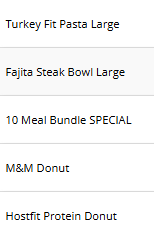
-
Export for Further Analysis
Click the Export button on the top right of the Item Sales screen. A CSV file will download to your computer. Open it in Excel, Google Sheets, or another spreadsheet tool, then filter to show only bundle product rows for easier analysis.
Tips & Best Practices
-
Use consistent bundle names: Clear naming conventions make it easy to identify bundle sales in reports.
-
Use custom date ranges: For periods like weekends or specific campaign dates, use a custom date range for precision.
-
Combine with other reports: Pull a transaction or item report for overall context — including revenue and refunds — across your business during the same period.