
OPERA Cloud allows you to issue and sell Facilipay Gift Cards directly from within the PMS.
For most standalone Gift Card sales, we recommend using the Financials workflow from:
Financials → Cashiering → Pre-Paid Cards → Issue Card
This allows the Gift Card to be issued without requiring an active hotel reservation and lets the cashier take payment immediately by Cash, Chip & PIN / OPI, Direct Settlement / Sale, or another configured payment method. Oracle specifically supports issuing prepaid cards to non-resident guests through the Pre-Paid Cards screen. Oracle Docs
If the Gift Card should instead be charged directly to a guest's room or reservation folio, you can use the alternative reservation-based method further down this guide.
Recommended Method: Sell a Gift Card using Passer By
This is the recommended method for most Gift Card sales, particularly when somebody is purchasing a Gift Card directly at reception and the sale does not need to be associated with an existing hotel stay.
Before You Begin
You will need:
- Access to Financials → Cashiering in OPERA Cloud
- Your Cashier ID and PIN, if prompted
- The Facilipay Gift Card number
- The amount to load onto the Gift Card
- A guest/profile to use for the Passer By transaction (we recommend a always using a guest profile called "Gift Cards")
- A suitable payment method configured in OPERA
Step 1: Open Pre-Paid Cards
From the OPERA Cloud menu, select:
Financials → Cashiering → Pre-Paid Cards
Then click Issue Card.
Oracle's standard Issue Card workflow allows the cashier to enter the stored-value interface, Gift Card number, amount, Passer By guest profile and payment method. Oracle Docs
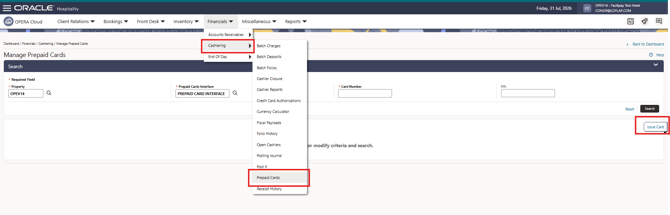
Step 2: Enter the Gift Card Details
On the Issue Card screen:
- Interface: Select the Facilipay / configured Prepaid Card interface.
- Card Number: Enter or scan the Gift Card number.
- Amount: Enter the amount to load onto the Gift Card.
- Total Amount: OPERA will display the total amount to be charged.
The Total Amount can be affected by any generates configured against the hotel's Prepaid Card Purchase transaction code. Oracle Docs

Step 3: Select the Passer By Guest
Open the Passerby section.
In Name, search for and select the appropriate guest/profile.
Some hotels may use a generic profile such as Gift Card for these transactions. Alternatively, the purchaser's own profile can be selected.
If a suitable profile does not already exist, OPERA also allows a new profile to be created from the Issue Card workflow. Oracle Docs
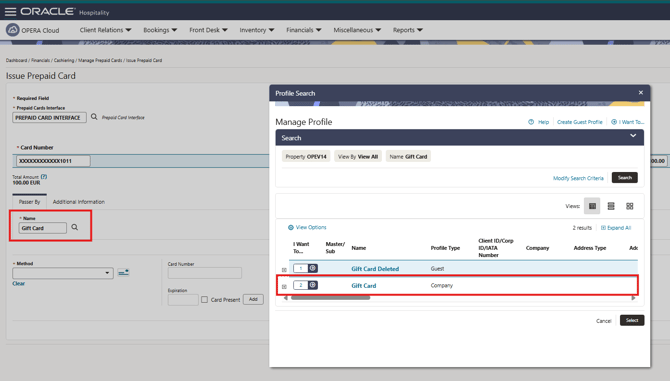
Step 4: Select the Payment Method
Under Method, select how the customer is paying.
Depending on the hotel's OPERA configuration, available methods may include:
- Cash
- Chip & PIN / OPI
- Direct Settlement / Sale through OPI
- Other configured payment methods
If an integrated OPI payment method is selected, follow the normal terminal prompts to complete the payment.
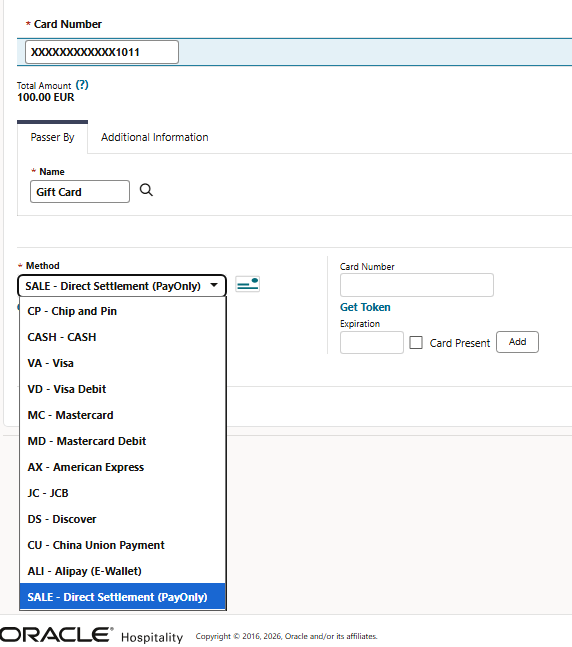
Step 5: Issue the Card
Check the:
- Gift Card number
- Gift Card value
- Customer/profile
- Payment method
Then click Issue Card.
OPERA will issue the prepaid card through the configured Facilipay interface and create the associated financial transaction. Oracle Docs
Once successful, the Gift Card is ready for use.
What Happens to the Payment?
When a Gift Card is sold using the Financials -> Cashiering method, OPERA creates both:
1. A Prepaid Card Purchase charge
and
2. The payment used to settle that charge
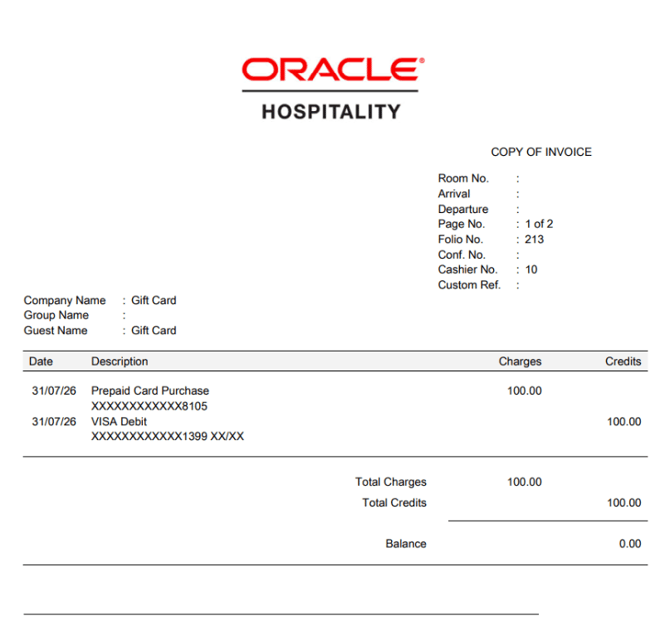
For example, a €100 Gift Card paid for using Visa might appear as:
| Description | Charge | Credit |
|---|---|---|
| Prepaid Card Purchase | €100.00 | |
| VISA Debit | €100.00 | |
| Balance | €100.00 | €100.00 |
The exact Prepaid Card Purchase transaction code varies between hotels, as it is configured at property level.
Finding the transaction later
There are two useful places to review the sale.
Posting Journal
Go to:
Financials → Cashiering → Posting Journal
The Posting Journal shows the individual charge and payment postings.
For example:
- Prepaid Card Purchase: €100 Debit
- VISA Debit: €100 Credit
This is generally the best on-screen view for reconciliation.
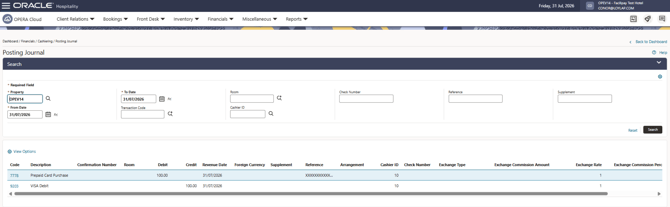
Passer By Folio
You can also find the completed sale under:
Financials → Cashiering → Folio History
Search the relevant date and select Passer By.
OPERA retains settled passer-by folios in Folio History. Oracle Docs
The Folio History search screen displays the completed folio as a single row. To see the individual charge and payment:
- Locate the relevant folio.
- Click the ⋮ Actions menu.
- Select Quick Print Folio.
- Preview or print the folio.
Oracle documents Quick Print Folio as the method for regenerating or viewing a historical folio. Oracle Docs
The detailed folio will normally show both the Gift Card purchase and the payment used to settle it.
For example:
Prepaid Card Purchase
Gift Card XXXXXXXXXXXX8105 — €100.00
VISA Debit
Card XXXXXXXXXXXX1399 — €100.00
Balance: €0.00
Alternative Method: Sell a Gift Card from a Guest Reservation
If a Gift Card is being purchased by a guest and should be associated with their existing reservation, it can instead be issued directly from the reservation.
This method is particularly useful if the Gift Card purchase should be posted to the guest's room and settled as part of their hotel folio.
Oracle supports both Post to Room and Post Payment when issuing a prepaid card from a reservation. Oracle Docs
-
Step 1: Open the Reservation
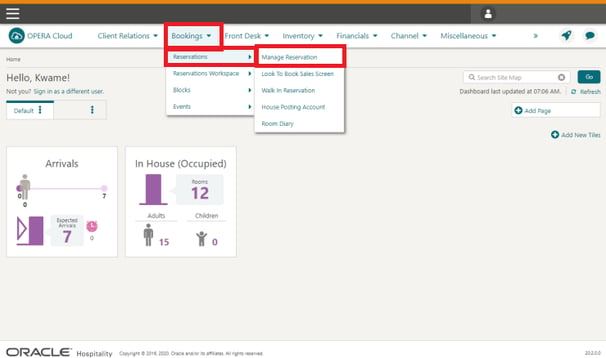
From the OPERA Cloud menu, select:
Bookings → Reservations → Manage Reservation
Search for and open the relevant checked-in reservation.
-
Step 2: Open Prepaid Card Details
Within the reservation, click the Prepaid Card details link.
If prompted, select your Cashier ID and enter your PIN.
-
Step 3: Click Issue Card
Click Issue Card and complete the Gift Card information:
- Interface: Select the Facilipay prepaid-card interface.
- Card Number: Enter the Gift Card number.
- Amount: Enter the Gift Card value.
- Name / First Name: OPERA defaults this to the primary profile attached to the reservation.
-
Step 4: Choose How to Charge the Guest
You can then select one of two options.
Post to Room
Use this when the Gift Card purchase should be placed onto the guest folio and settled later along with the rest of the stay.
Post Payment
Use this when the guest wants to pay immediately using one of the available payment methods.
Oracle documents both options as part of the reservation Prepaid Card workflow. Oracle Docs
Then click Issue Card.
Which Method Should I Use?
For most reception Gift Card sales, use:
Financials → Cashiering → Pre-Paid Cards → Issue Card → Passer By
This is the recommended route because it does not require a hotel reservation and records both the Gift Card sale and its payment as a standalone passer-by transaction.
Use the Reservation method when the Gift Card sale specifically needs to be:
- associated with an existing guest reservation; or
- posted to the guest's room folio for later settlement.
Tips & Best Practices
- Check the Gift Card number carefully: Confirm the physical/digital card number before issuing.
- Confirm the value: Make sure the amount entered in OPERA matches the amount requested by the customer.
- Use the correct payment method: Particularly where OPI offers both Chip & PIN and Direct Settlement / Sale options.
- Check the Posting Journal for reconciliation: This is the easiest place to see both the Prepaid Card Purchase and the corresponding payment transaction on-screen.
- Use Folio History for a receipt: Search the Passer By folio and use Quick Print Folio for a complete transaction record.
- Do not rely on one universal transaction code: The transaction code assigned to Prepaid Card Purchase can differ from property to property.
For further assistance, contact support@facilipay.io.