
Before You Begin
- You must be logged into the Facilipay Business Portal.
- You need permission to manage online ordering settings for your business branch.
Step-by-Step: Add or Update a Welcome Message
-
Log In to the Business Portal
Sign in to the Facilipay Business Portal with your account credentials. -
Navigate to Your Branch
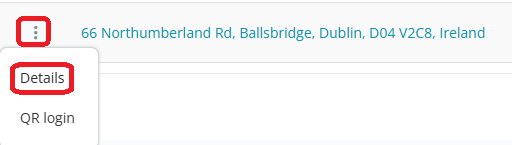
From the portal home screen, click My Business, select Branches, then choose the branch you want to set the message for.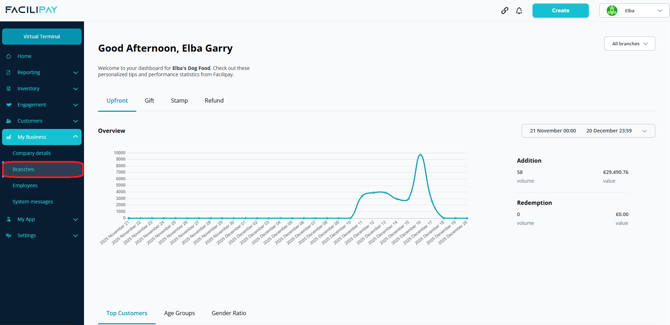
-
Open Ordering Settings
Under the selected branch, click Ordering Settings, then click Edit to make changes.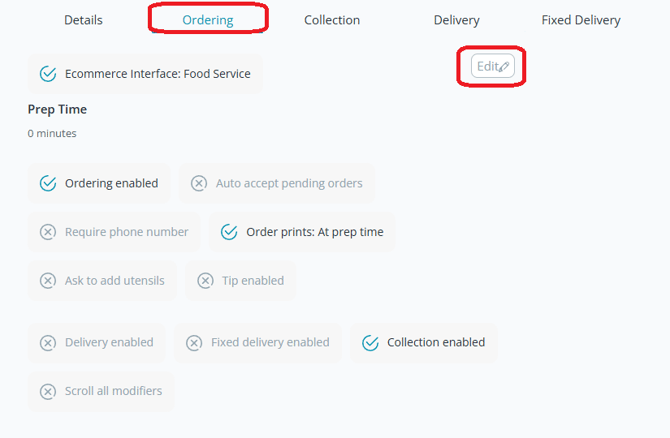
-
Enter Your Welcome Message
Scroll down to the Welcome Message box and type the message you want customers to see when they open your online ordering page.Tip: Keep the message clear and friendly — greet customers, explain how to order, highlight a promotion, or guide them through your menu.
-
Save Your Changes
When you are happy with the message, click Save. Your welcome message will display to customers at the start of their ordering experience.
What Customers See
Once saved, your custom welcome message appears on the Facilipay Order Ahead ordering page when customers first open your menu, giving them context before they begin selecting items.
Tips & Best Practices
-
Be welcoming: A warm greeting sets a positive tone for the customer's experience.
-
Include helpful info: Use the space for ordering tips, such as "Try our specials today!"
-
Promote offers: If you have a current promotion or limited-time deal, mention it here to drive uptake.
-
Keep it short: Brief, friendly messages land best — customers should not need to read through paragraphs before ordering.