
Before You Begin
- Locate the guest before starting.
- Know whether you're keeping the card on file or replacing it with a new card for settlement.
Step-by-Step: Settle at Check-Out
- Locate the Reservation Locate the guest.
- Open Check Out Click I Want To, then select Check Out.
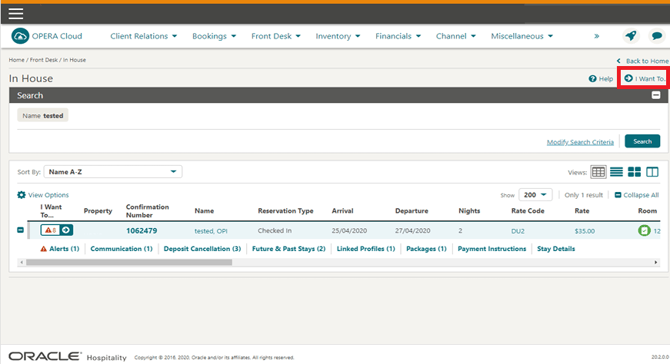
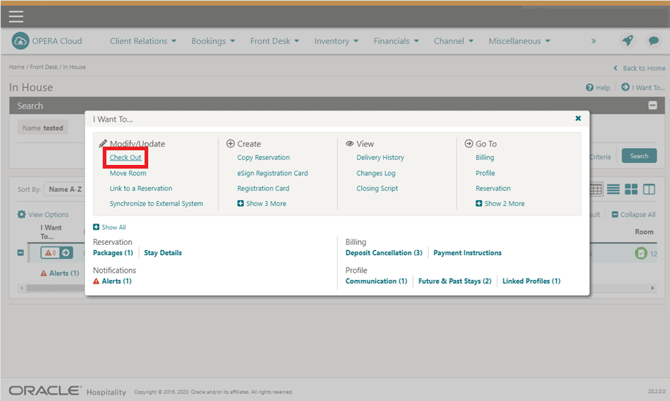
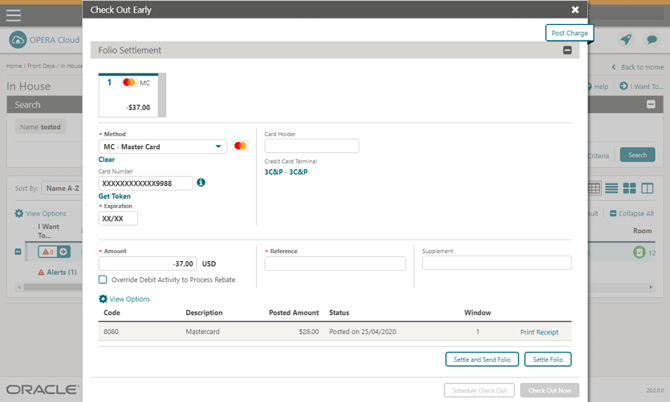
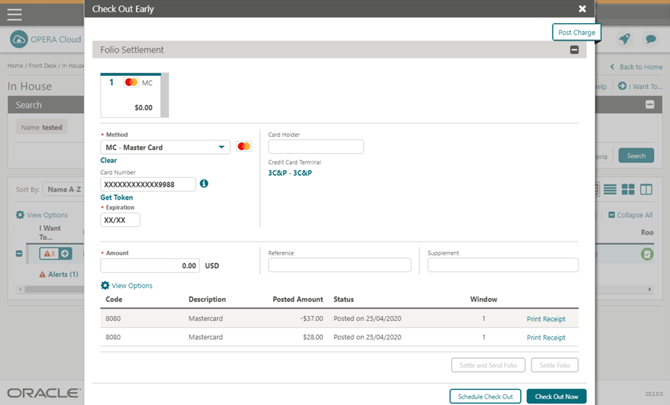
- Review Folio Settlement The Folio Settlement confirmation screen displays.
- Verify the Card Verify the card information on file:
- If replacing the main card with a new one, update the payment method and click Get Token.
- If using the card on file, proceed to the next step.
- Verify the Amount Verify the Amount to be settled.
- Settle and Send the Folio Click Settle and Send Folio (or Settle Folio, if not sending a copy).
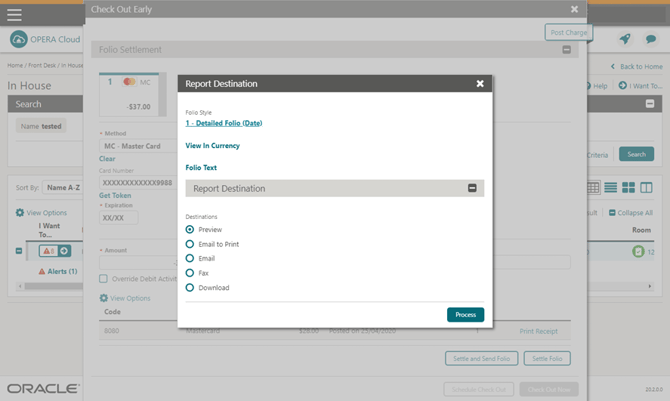
- Select a Destination Select the Destination option for the folio (Preview, Email to Print, Email, Fax, or Download) and click Process.
- Complete the Check-Out Click Check Out Now.
Tips & Best Practices
- Balance should reach zero: Once settled, the window balance should show $0.00 before completing check-out.
- Folio destination options: Choose Email if the guest wants a digital copy, or Preview if you just need to confirm it before closing.
- Need help? For check-out or settlement issues, contact your Payment Service Provider.