
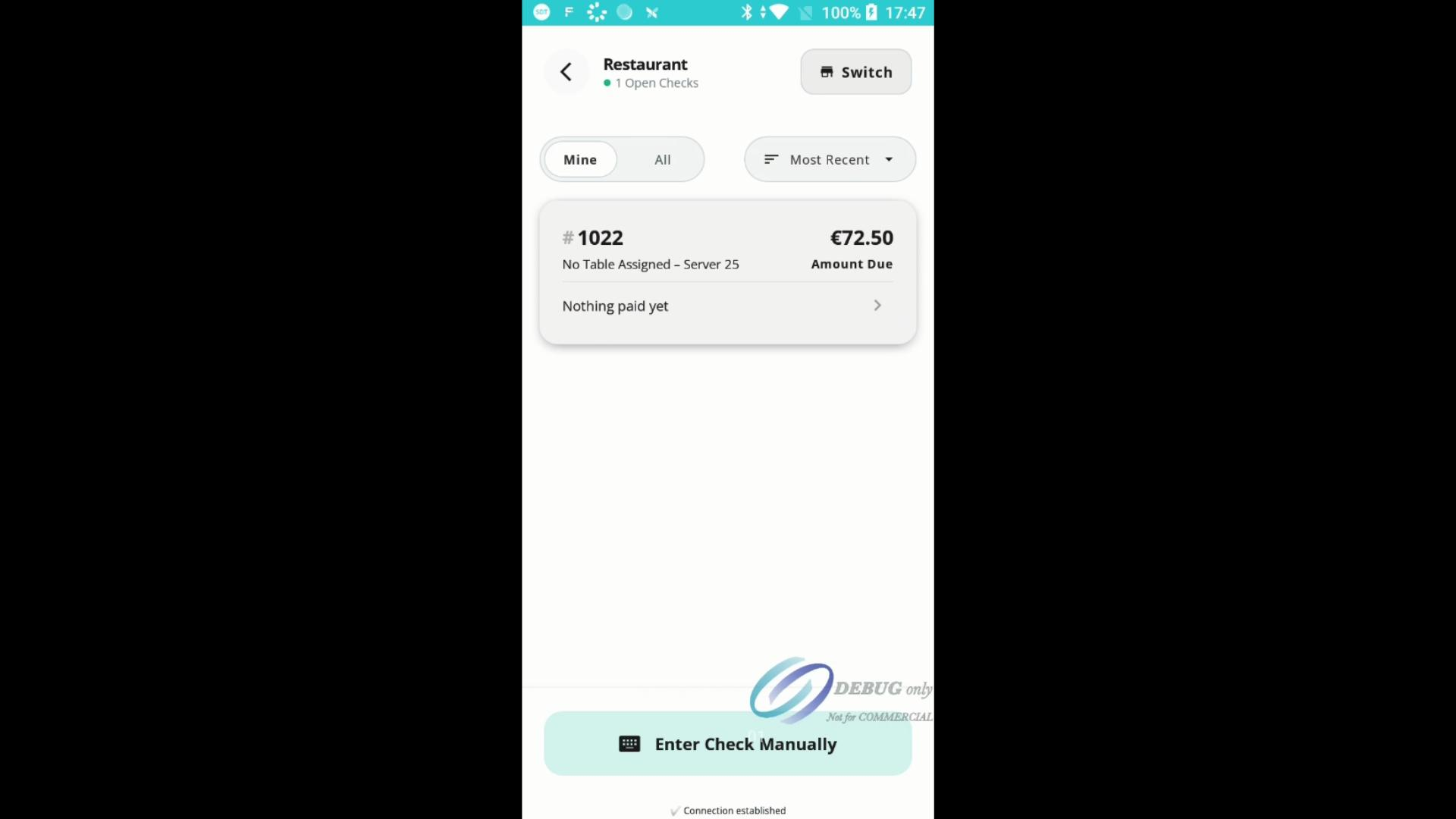
Step 1: Review the order summary. You’ll see the check number and total amount due at the top of the order view.
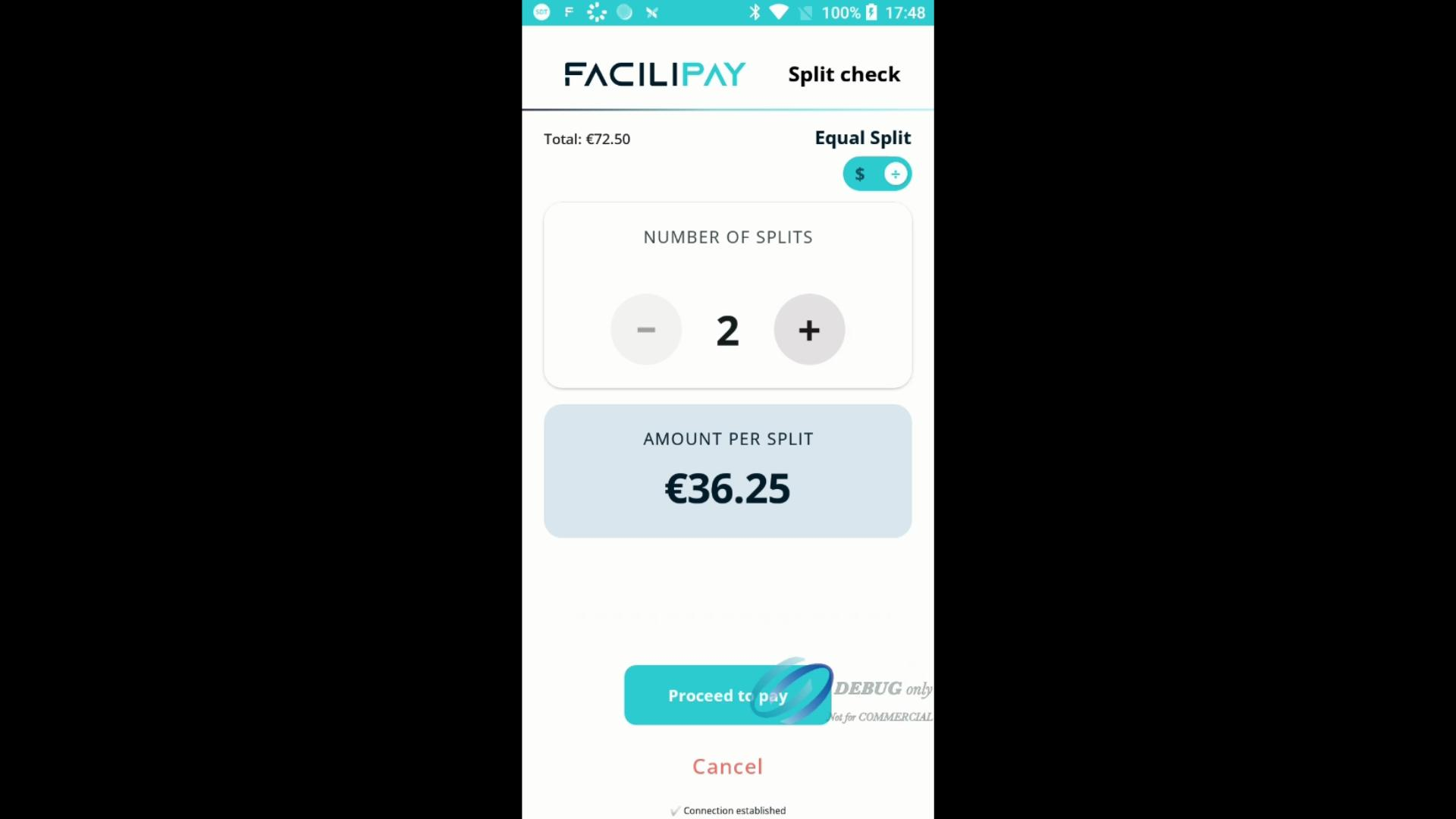
Step 2: To split the bill, select the split check option. Set the number of splits (for example, 2) for an equal division.
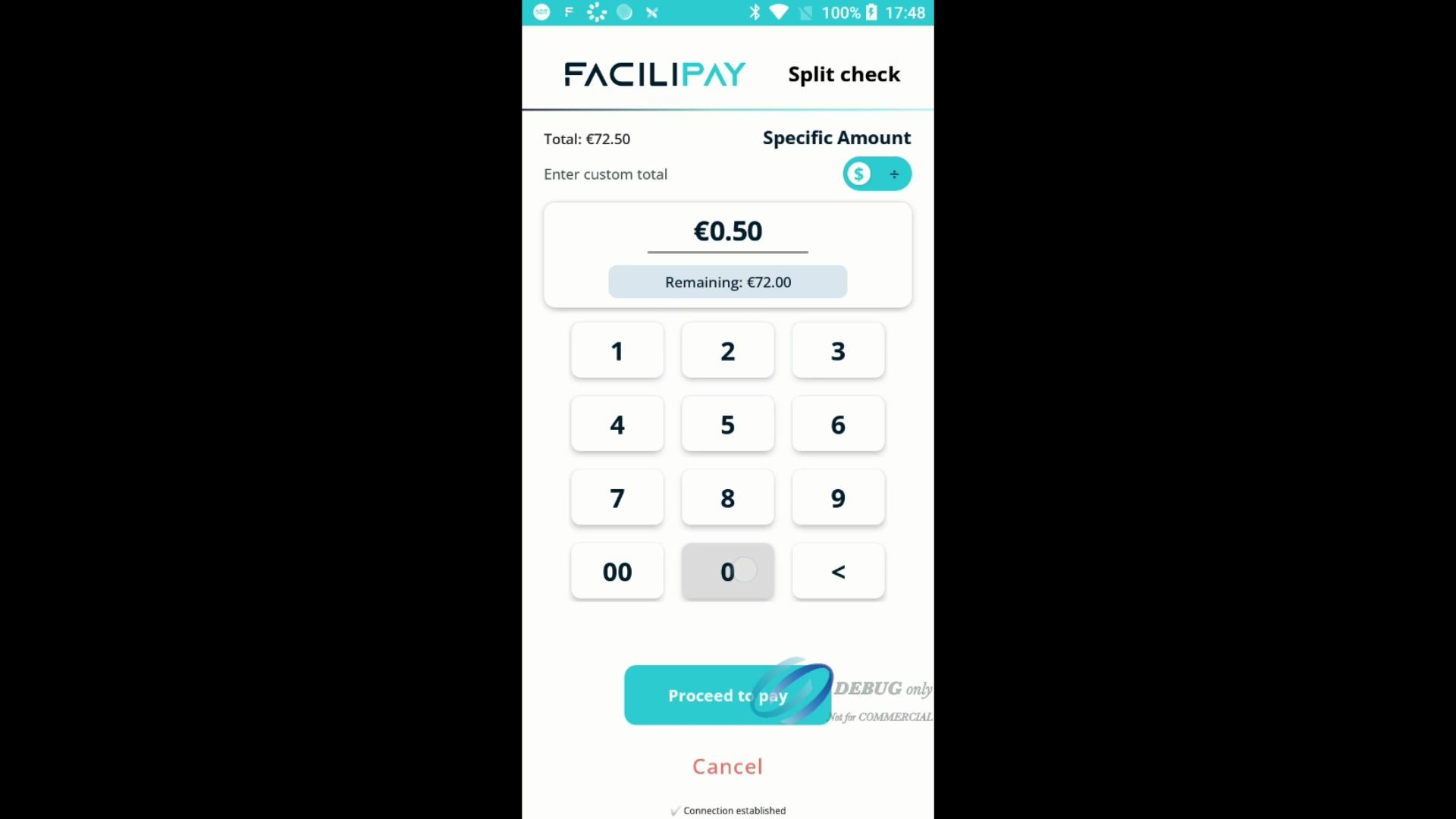
Step 3: If a guest wants to pay a custom amount, switch to specific amount, clear the default, and enter the desired payment (like €50.00).
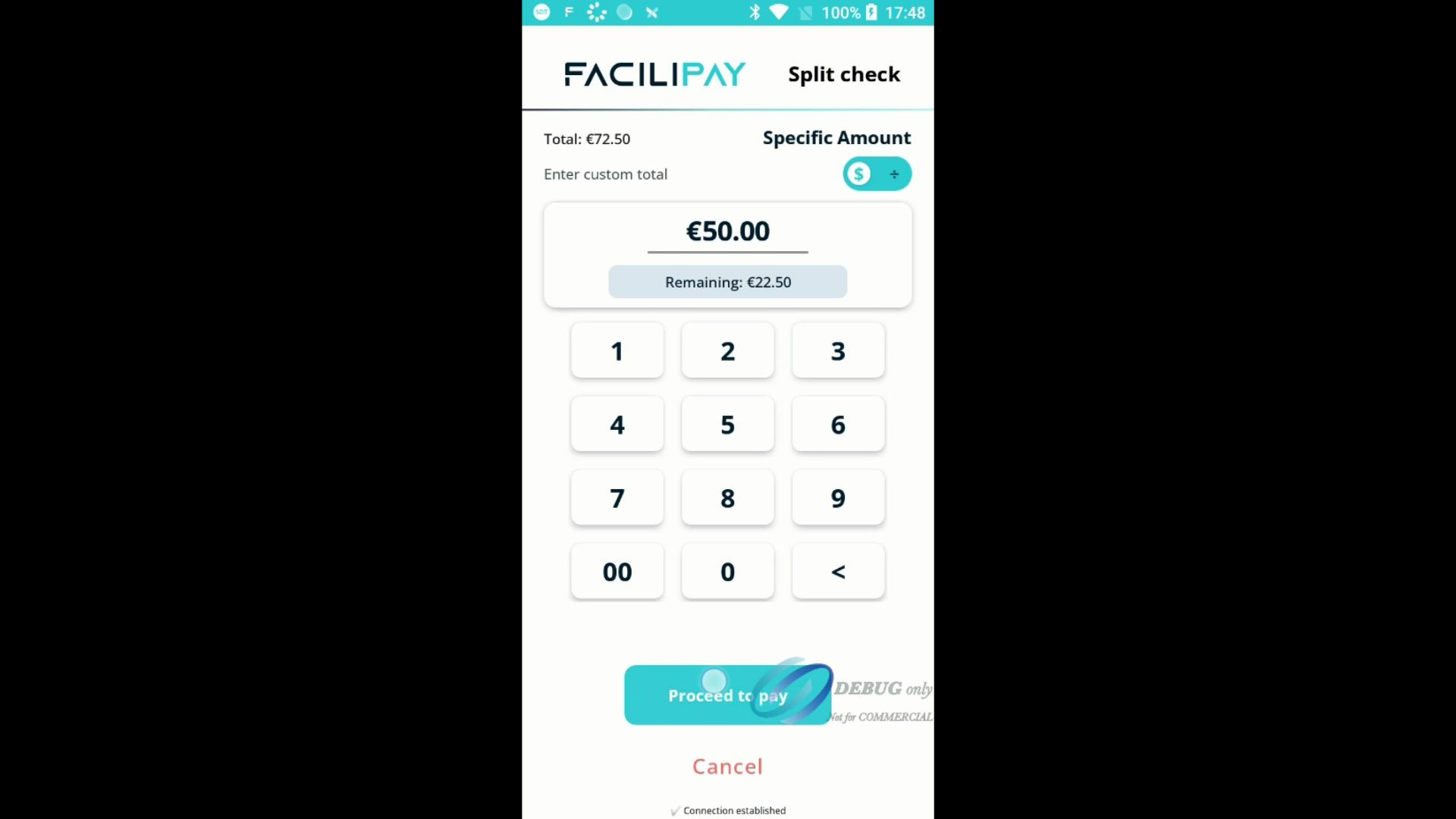
Step 4: Click proceed to move to the tipping screen.
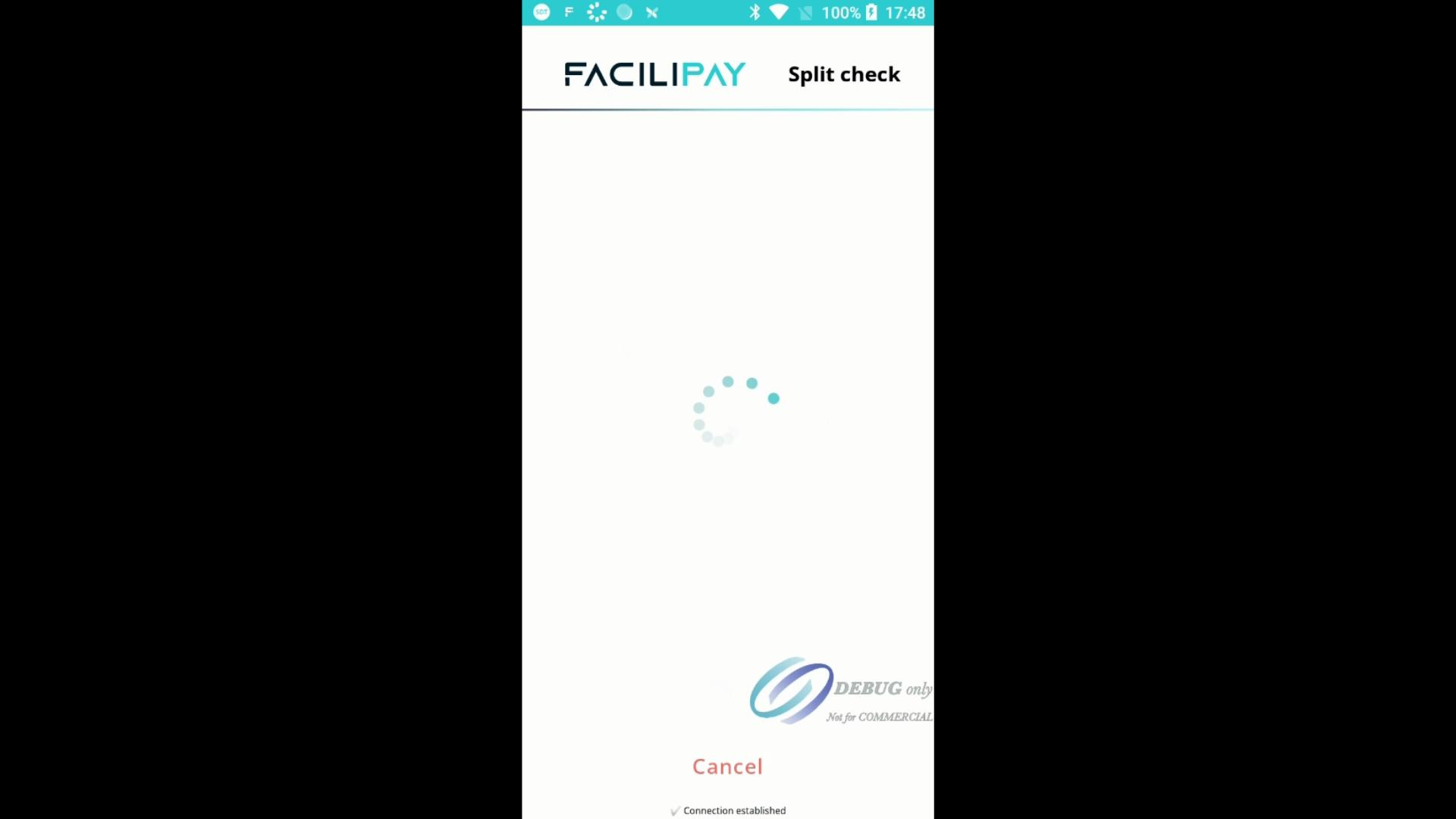
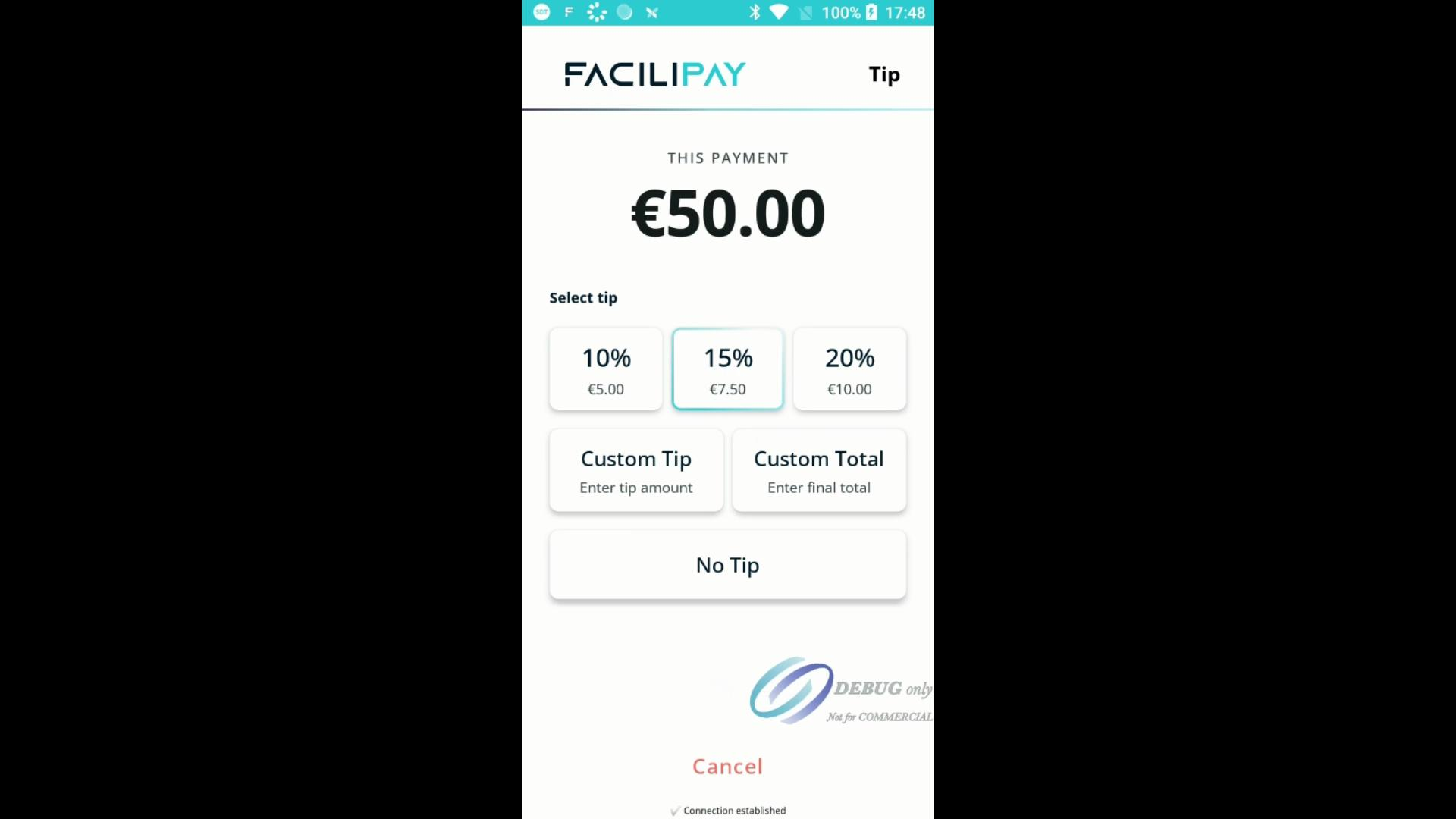
Step 5: The guest chooses a tip. The app adds it to the payment total.
Step 6: Move to the card payment screen. The guest taps, swipes, or inserts their card to pay.
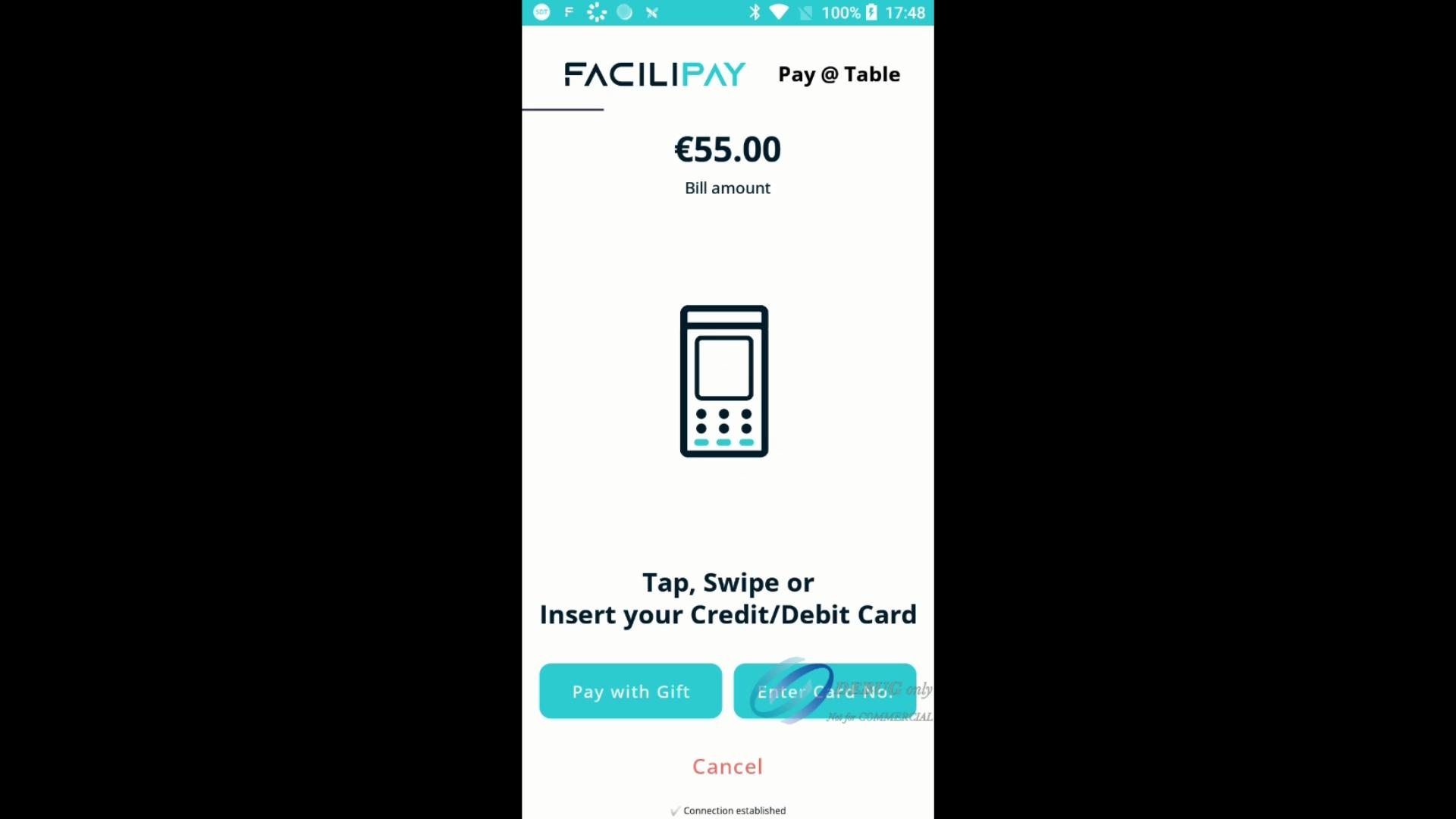
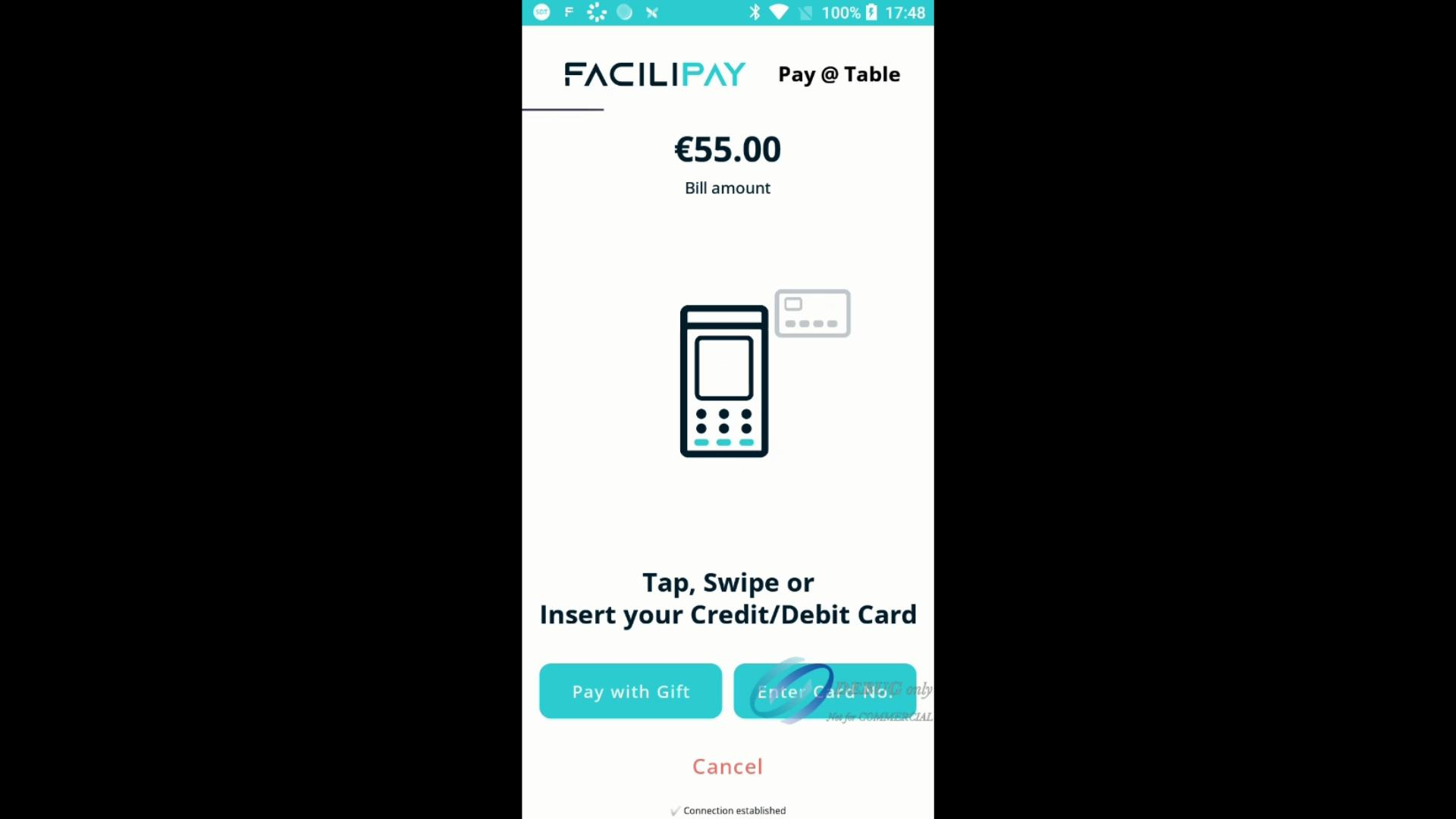
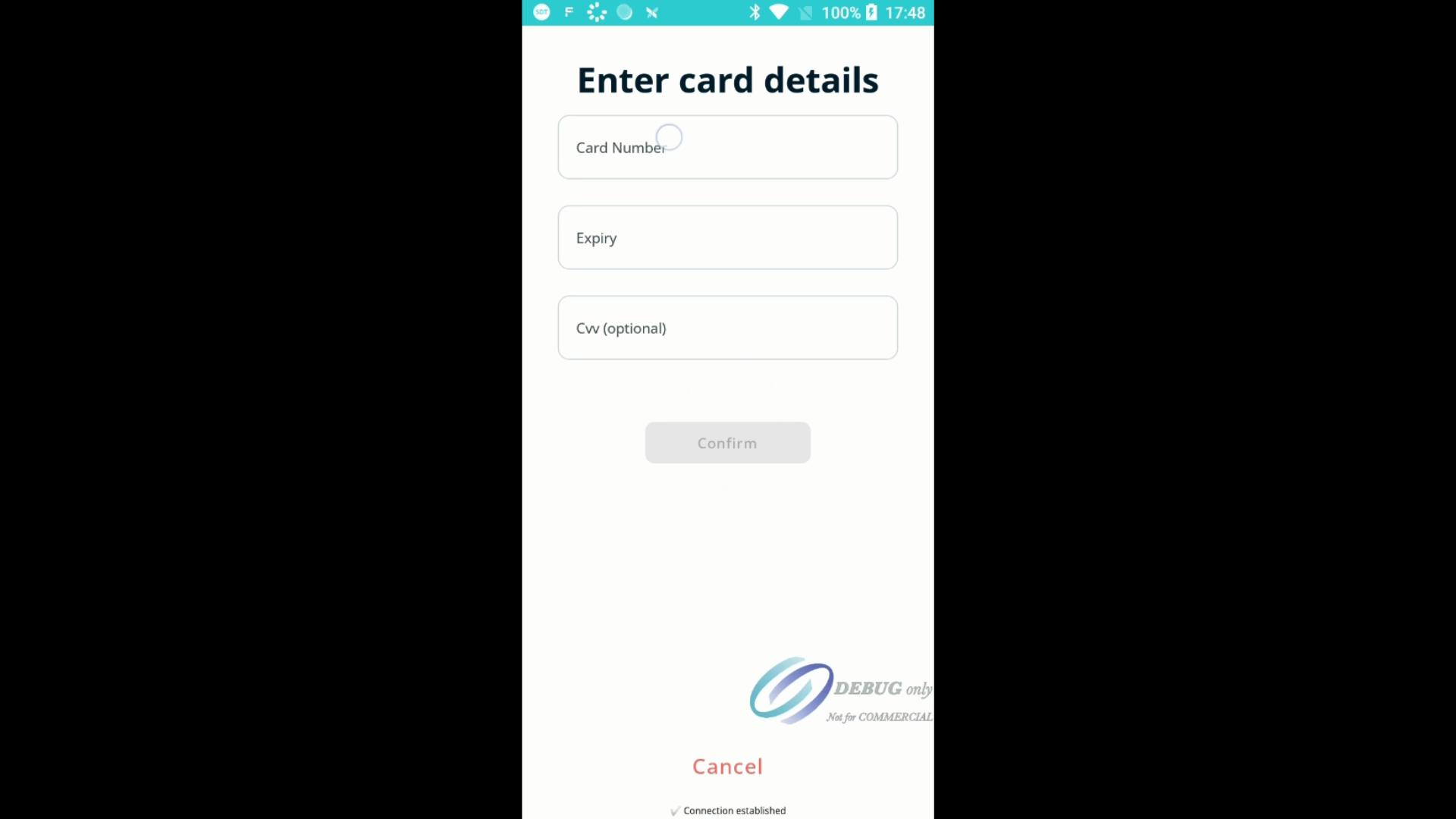
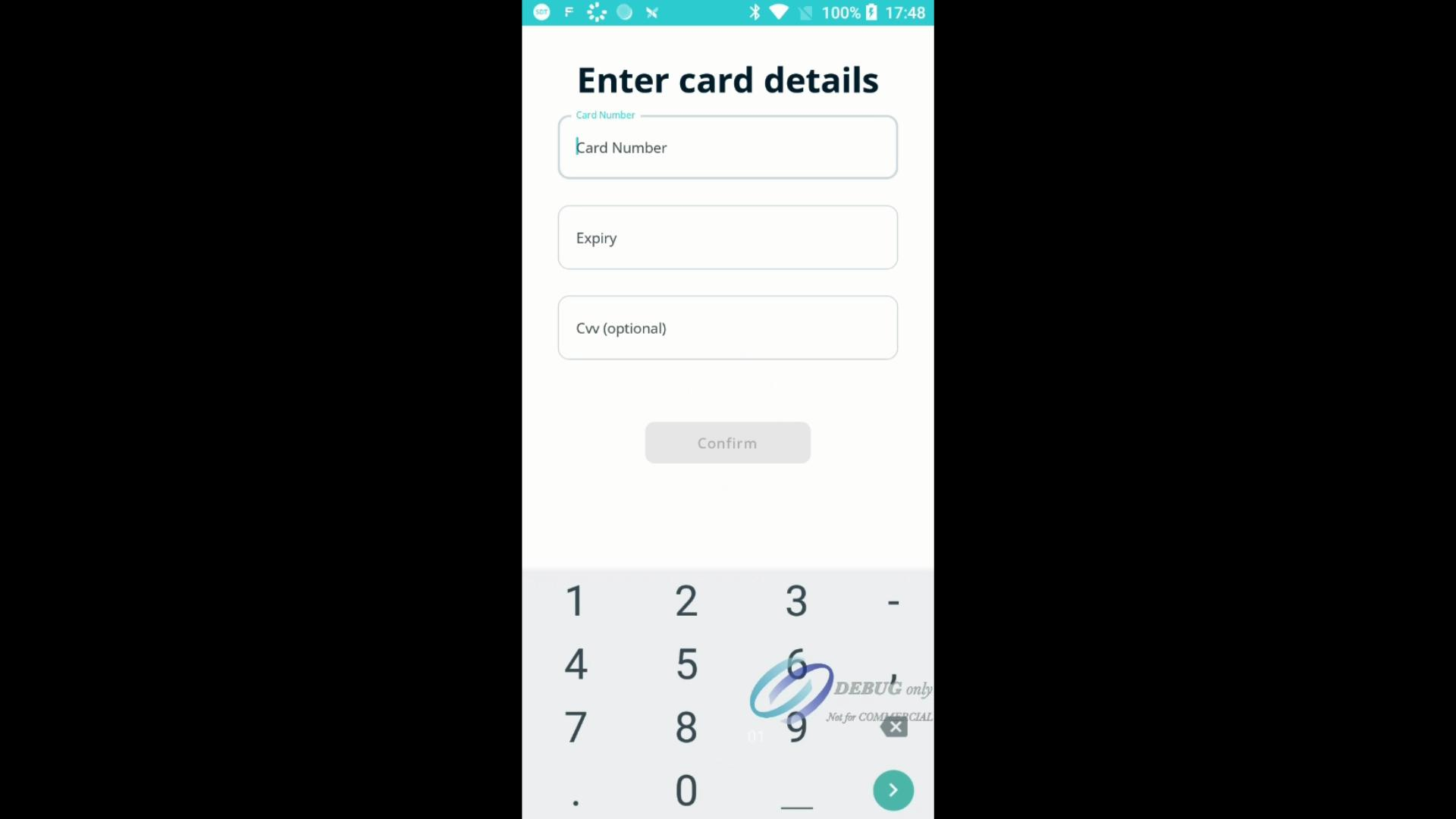
Step 7: For the remaining balance, the next guest enters their card details via a similar method or by using the keypad to complete their portion.
FaciliPay Pay@Table streamlines split payments—no more confusion or delays when dividing checks. The process guides you and guests smoothly through every step, from splitting to tipping to payment completion.