
Step 1: View the summary screen. Here, all open tables display with their check numbers and outstanding amounts.
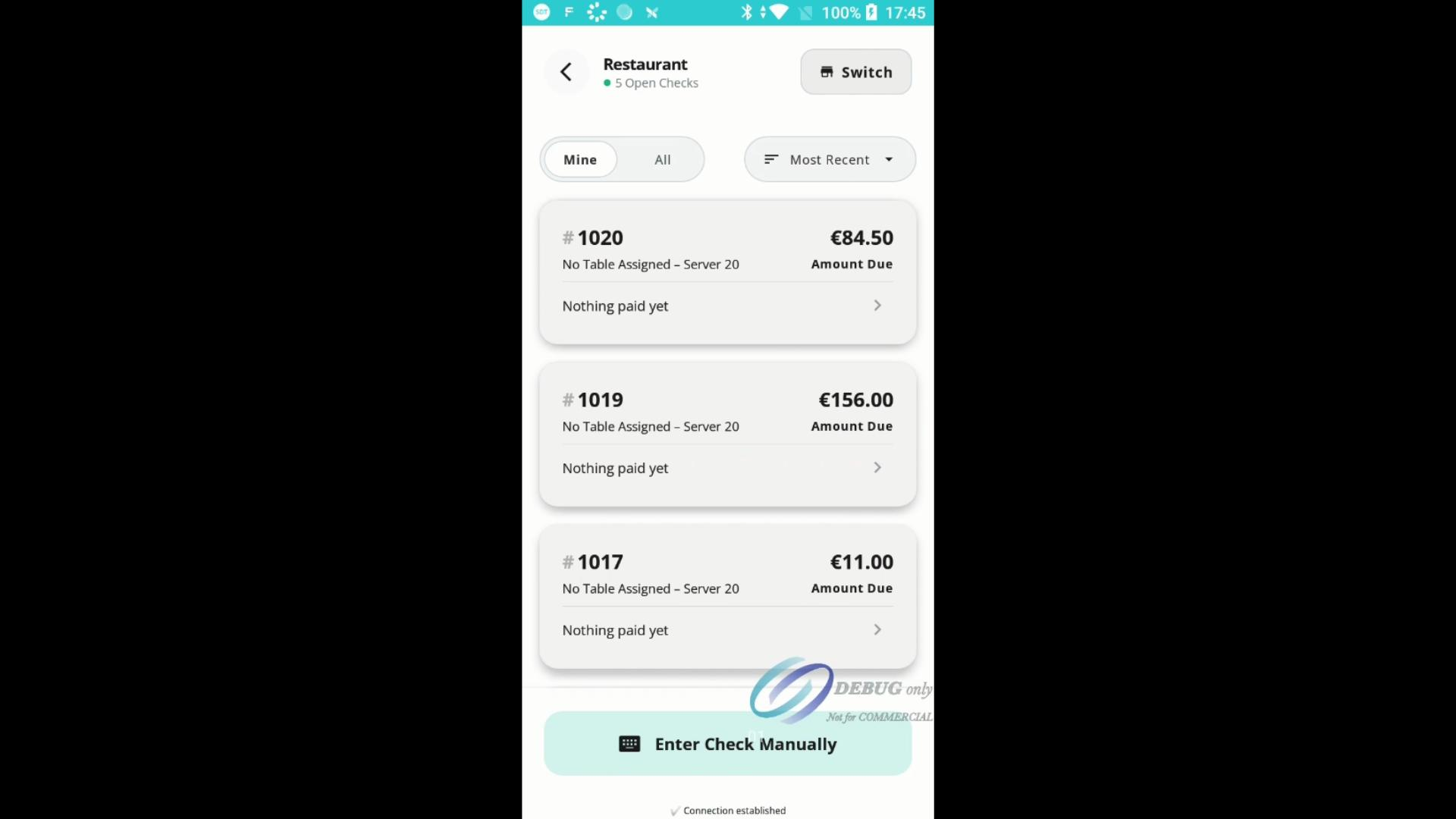
Step 2: Scroll through the list to review open checks. Each shows its check number, total, and breakdown of items.
Step 3: You can filter between Mine to just see checks assigned to you or All to see all open checks.
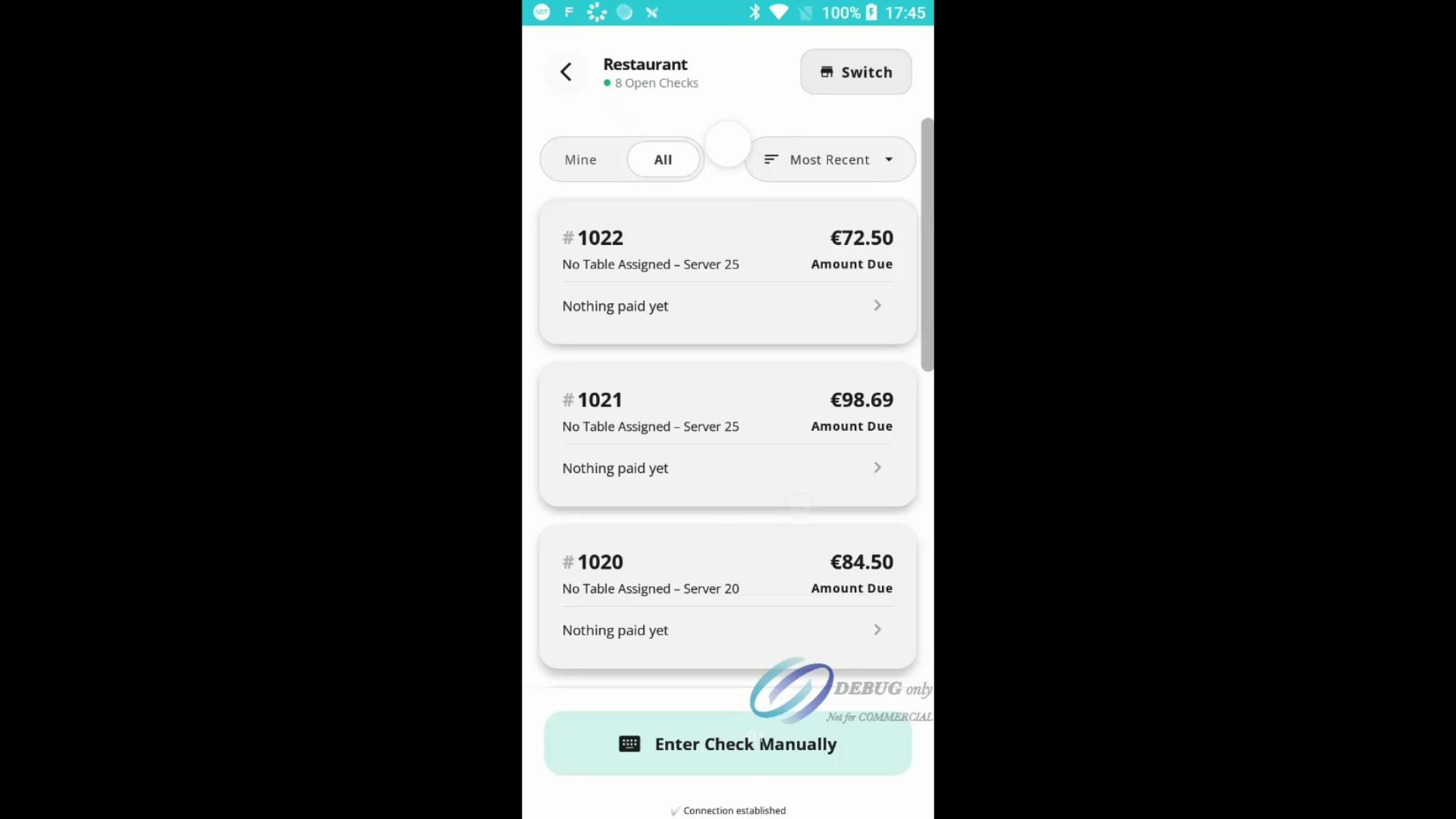
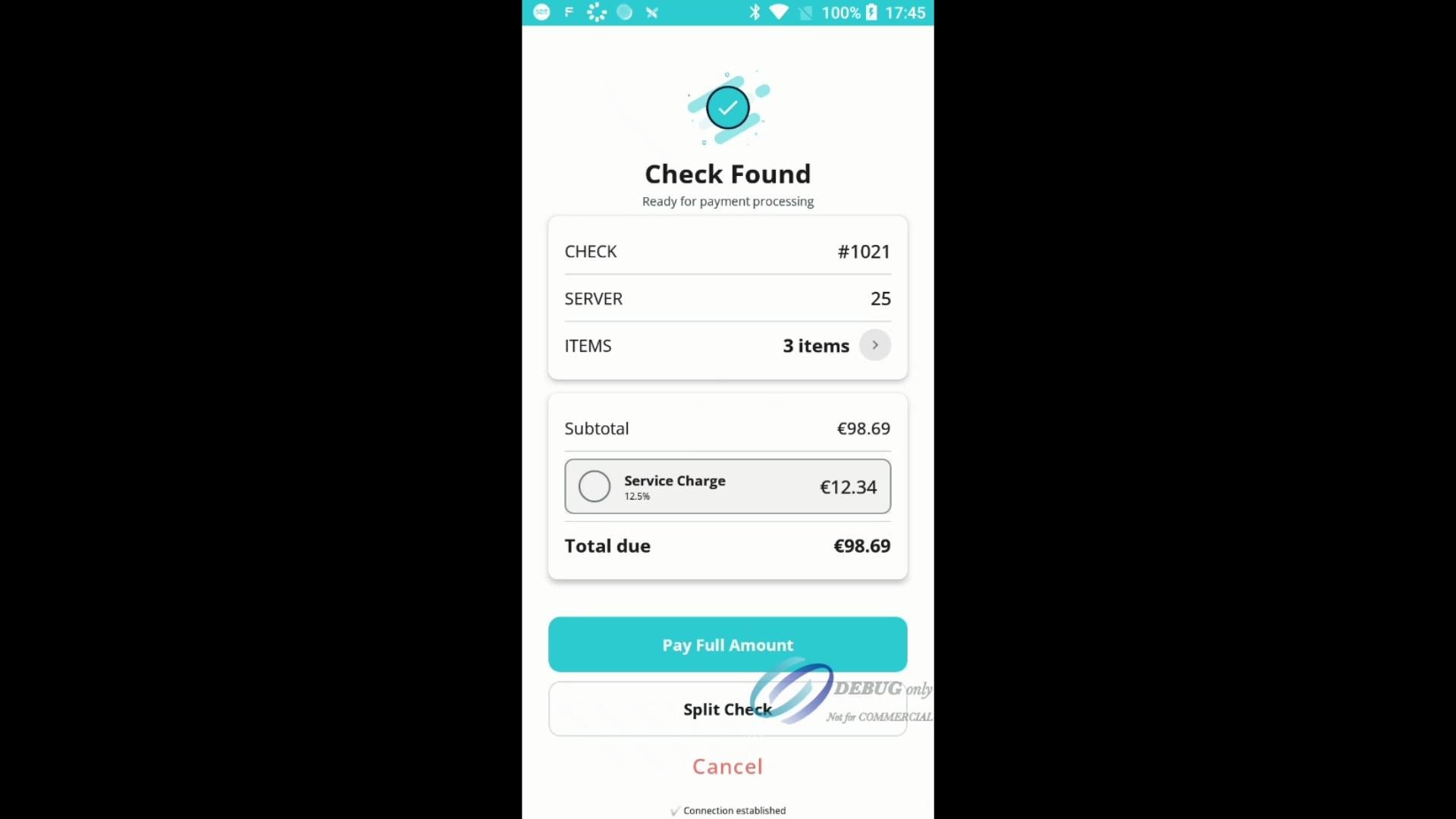
Step 4: Tap a check to see the Check Found screen. You’ll view the subtotal, any service charge, and the full amount due. Select Pay Full Amount or split check as needed.
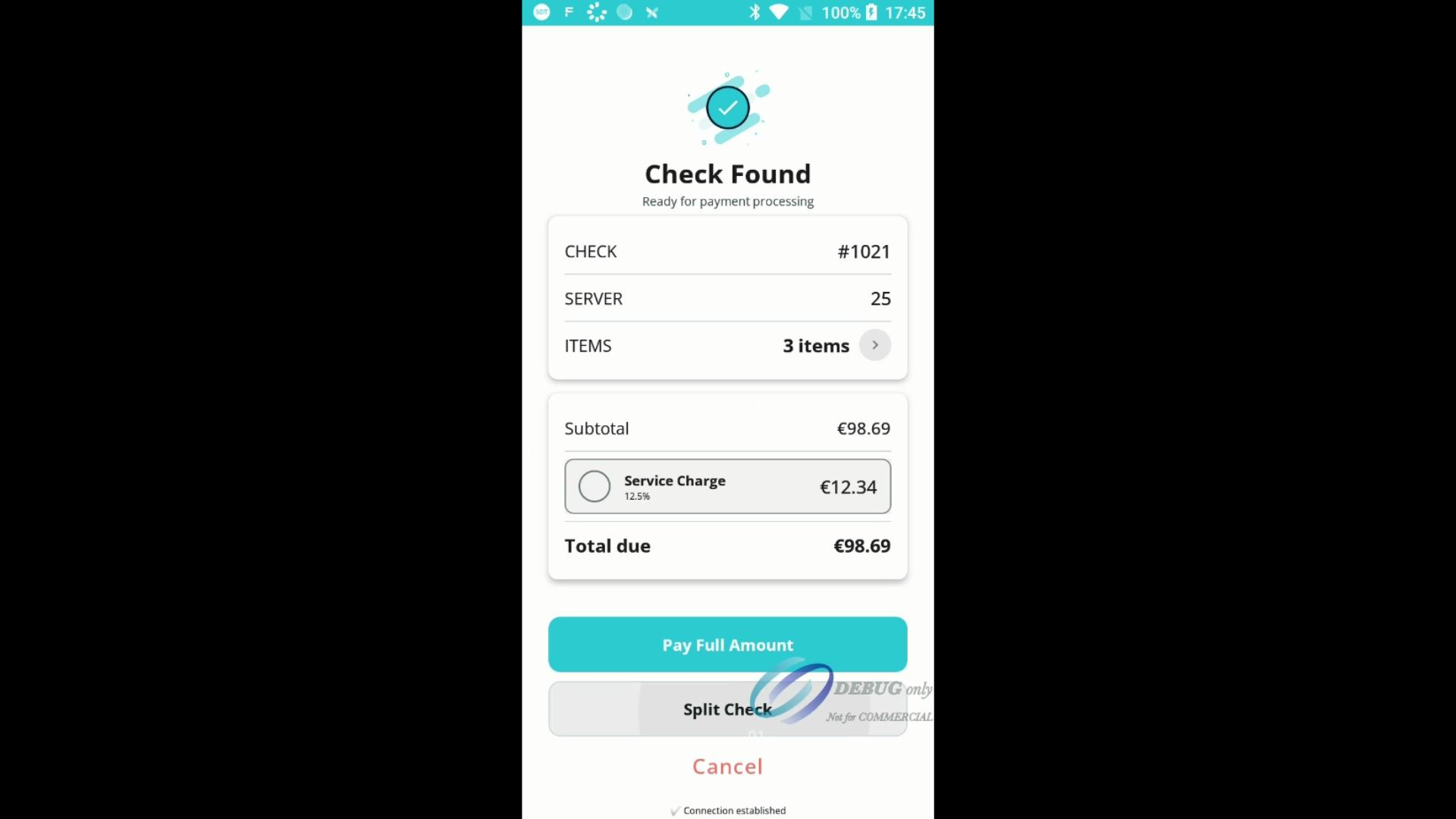
Step 5: To split the bill, select the split check option.
Step 6: After a short processing period, set up the split. Choose how many ways to split—the system automatically shows amounts per person.
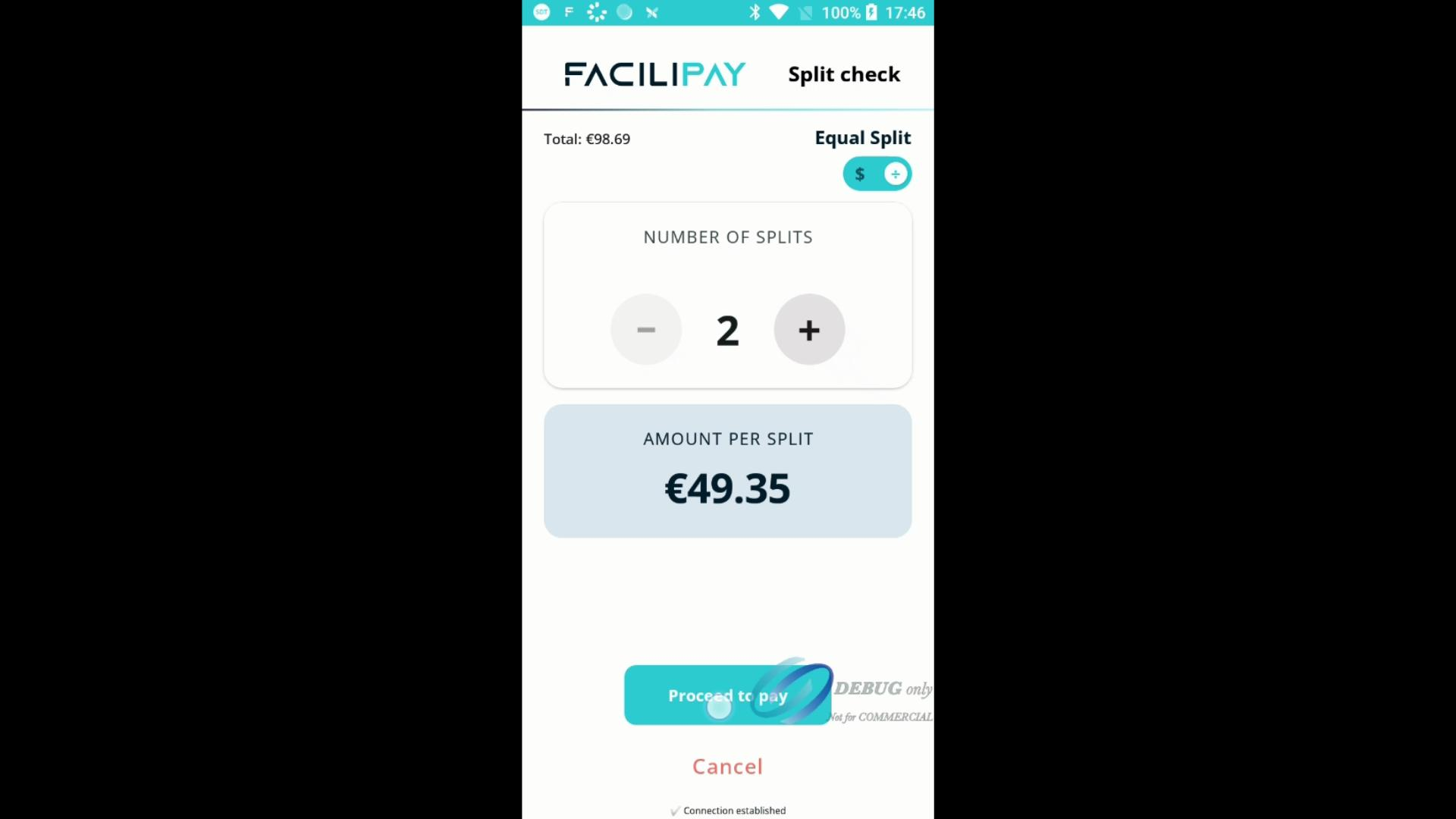
Step 7: Set the number of splits, then tap Proceed to process.
Step 8: Each guest advances to the tipping screen, where they can select a tip percentage, add a custom tip, or skip tipping before finalizing payment.
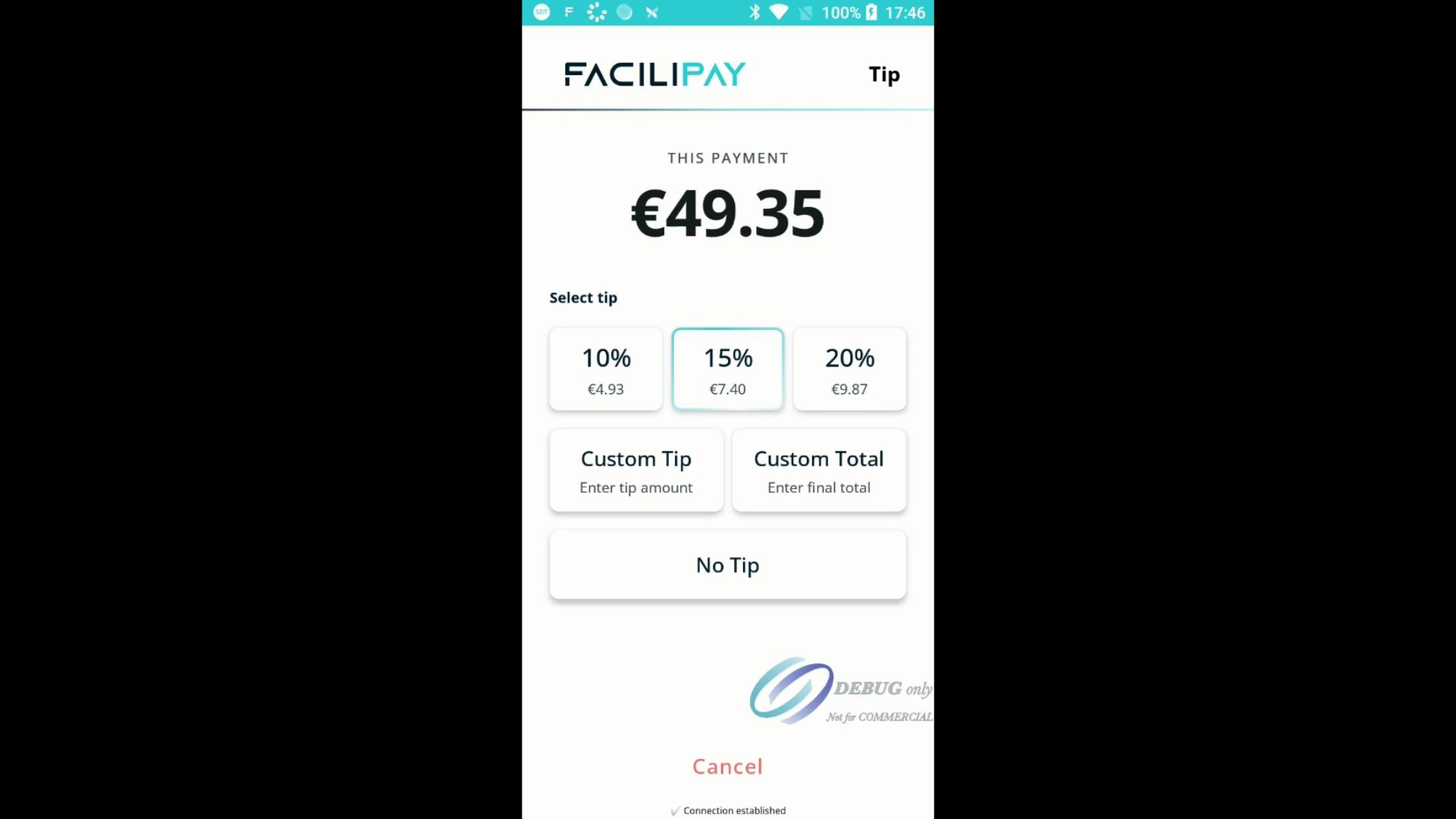
This workflow helps staff efficiently manage tableside checkouts, making it easy to handle complex requests like bill splits and tips. With Pay@Table, guests enjoy a smooth, speedy payment experience right at their seats.