
Before You Begin
- You must be logged into the Facilipay Business Portal with permission to create and manage campaigns.
- Decide on your target audience and what you want to achieve before configuring filters.
Why Target Customers?
Targeting customers helps you:
- Deliver the right message or reward to the right people
- Increase redemption rates for campaigns
- Drive repeat business and loyalty
- Reward valuable customer segments based on behaviour or demographics
Rather than treating all customers the same, targeting lets you personalise campaigns so they feel more valuable and relevant to each group.
Step-by-Step: Select Target Customers
-
Log In to the Business Portal
Sign in to the Facilipay Business Portal. Make sure you have access to create and manage campaigns. -
Create or Edit a Campaign
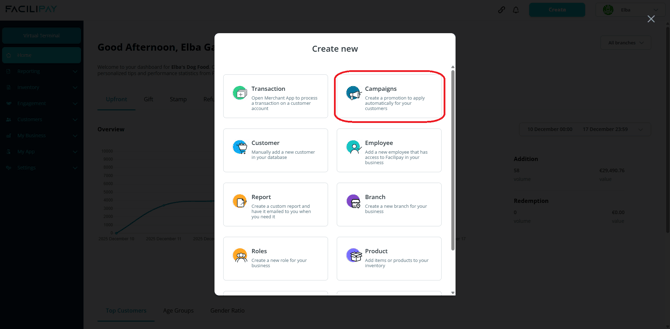
- Click Create at the top right of the dashboard.
- Choose Campaigns.
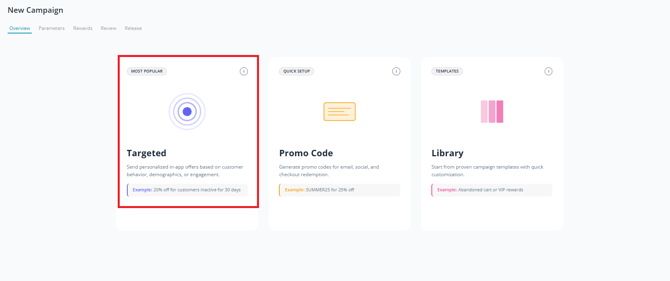
- On the campaign creation screen, click Targeted.
- Fill out the Name, Description & Terms of your Campaign.
-
Define Your Target Group
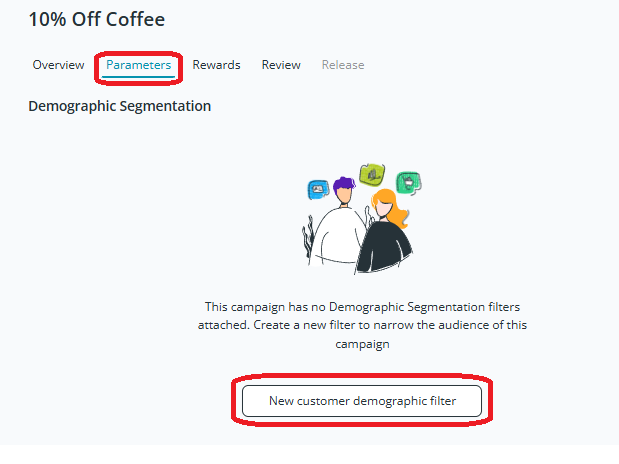
In the Demographic Filters section, click Create customer demographic filter. Select the criteria that determine who is included:- Gender – Target customers of a specific gender.
- Age or age range – Focus on customers within a defined age band.
- Birthday proximity – Target customers whose birthdays are coming up.
- Lapsed customers – Customers who haven't visited in a set timeframe.
- Customer Roles – Custom roles you've set (like VIP or student).
- Branches – Only include customers linked to specific business locations.
- Customer Selection – Pick specific customers from your list.
- Customer Email Domains – Target customers from specific companies or domains.
-
Review Your Customer Filter
After selecting your demographic rules, you'll see a preview or summary of the customers your campaign will target. Adjust your filters if needed to broaden or narrow the group. -
Finalise and Launch the Campaign
Once satisfied with your filters and the rest of your campaign settings, save and publish your campaign. The campaign now applies only to the customers in your target group.
Examples of Effective Targeting
- VIP customers: Those who spend frequently or have high order values.
- Birthday rewards: Customers with upcoming birthdays — perfect for birthday-based incentives.
- Dormant visitors: Customers who haven't returned in a while — include a return incentive.
- Location-specific groups: Customers tied to particular branches or regions.
- Manual selections: Gift a specific loyal customer a complementary item.
Tips & Best Practices
-
Narrow your focus: Start with a small group for testing before broadening the audience.
-
Match offers to behaviour: Frequent visitors respond differently than new ones — tailor accordingly.
-
Review performance: After running a campaign, examine redemption and engagement to refine future targeting.
-
Combine filters: Use multiple criteria (e.g. age + lapsed) for precise targeting.