
Before You Begin
- The reservation must already have a payment method with a token attached.
Step-by-Step: View the Token ID
- Locate the Reservation Locate the guest's reservation.
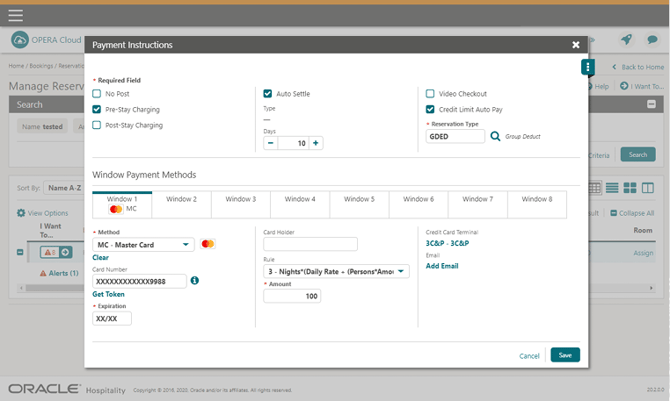
- Open Payment Instructions Access the New/Edit Payment Instructions window.
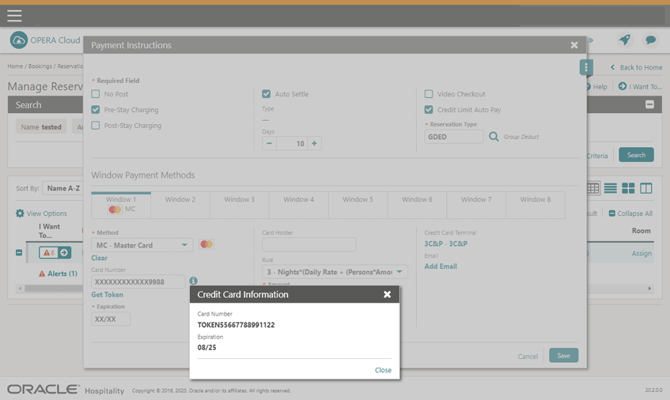
- View the Token Click the information (i) icon next to the Card Number field to view the full token.
- Review the Details The Credit Card Information panel displays the token number and expiration date.
Tips & Best Practices
- Masked by default: Only the last 4 digits of the card number are shown on the main screen — use the (i) icon to see the full token reference.
- No access to the real card number: With OPI active, no user — regardless of permissions — has access to the actual card number; only the token is ever visible.
- Need help? For token or payment instruction issues, contact your Payment Service Provider.