
Before You Begin
- You must be logged in to the Facilipay Business Portal.
- You must have access to branch settings and online ordering configuration.
Step-by-Step: Set Up the Delivery Fee Waiver
-
Sign In to the Business Portal
Open your browser and sign in to your Facilipay Business Portal account. -
Navigate to Your Branch Settings
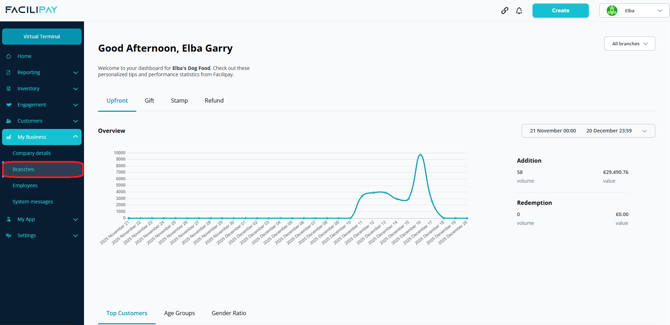
- From the left navigation, click My Business.
- Select Branches to see the list of your locations.
- Click on the branch where you want to enable a delivery fee waiver.
-
Open Ordering Settings
- Inside the branch settings, click Ordering.
- Choose the Delivery dispatch method (or Fixed Delivery if you use that option).
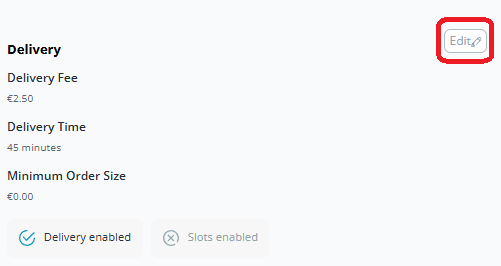
- Click Edit to open the delivery fee configuration.
-
Configure the Delivery Fee Waiver
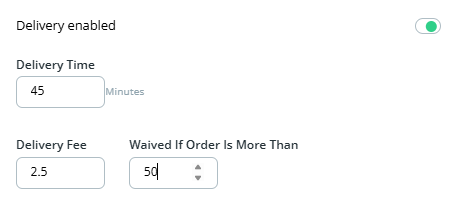
On the delivery settings screen you will see controls for:- Delivery Fee — the standard charge customers pay for delivery.
- Waive Delivery Fee Above Order Total — the minimum order value at which the delivery fee should be automatically removed.
Enter:
- The regular delivery fee amount.
- The minimum order total required for the delivery fee to be waived.
Example: Waive the delivery fee for all orders over £50.
-
Save Your Changes
Scroll to the bottom of the page and click Save to apply your new settings. The system will now automatically waive the delivery fee when orders meet or exceed the threshold.
How It Works for Customers
-
Online ordering still shows a delivery fee during checkout.
-
If the customer's order total meets or exceeds the configured threshold, the delivery fee is removed automatically at checkout.
Tips & Best Practices
-
Choose a meaningful threshold: Set the minimum waiver amount based on typical order values to incentivise larger baskets.
-
Communicate clearly: Display a message on your online menu like "Free delivery on orders over £50" so customers are aware of the offer.
-
Test before launch: Place a test order to ensure the waiver applies correctly when the threshold is met.
-
Review periodically: Update your threshold based on seasonal demand and average order trends.