
Before You Begin
- You must be logged into the Facilipay Dashboard with admin access.
- Your inventory must be synchronised from Clover before you start — otherwise products will not be visible.
Make an Individual Product Available
-
Open Inventory → Products
From the Facilipay Dashboard, select Inventory, then click Products.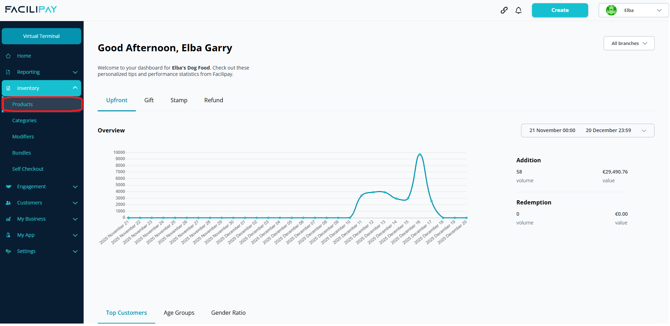
If no products are visible, synchronise your inventory from Clover before proceeding.
-
Select the Product
Use the search bar or scroll to find the product you want to update, then click on it to open its settings. -
Enable Online Ordering
Tick Available for Ordering, then click Save.
Make an Entire Category Available
-
Open Inventory → Categories
From the Facilipay Dashboard, select Inventory, then click Categories.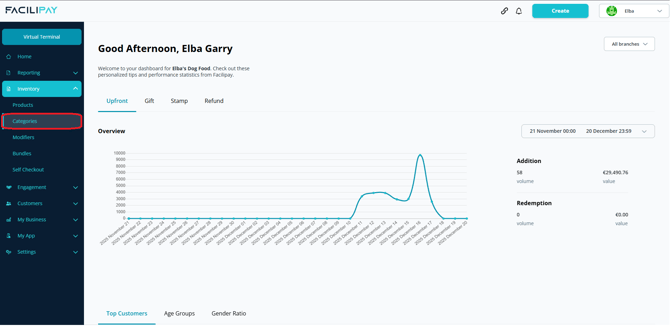
-
Select the Category
Search for or scroll to locate the category you want to update, then click on it to open its settings. -
Enable Online Ordering for the Category
Tick Available for Ordering. All products within this category will now be available for online ordering. Click Save.
What Happens After You Save
The selected product or entire category becomes available for online ordering and appears in your online store immediately.
Tips & Best Practices
-
Use category-level enabling for menus: Managing whole categories is much faster than enabling individual products.
-
Check stock and pricing: Before enabling, confirm prices and stock levels are correct so customers see accurate information.
-
Test the customer view: Open your online ordering page after saving to confirm the items display as expected.