
Before You Begin
- You must be logged into the Facilipay Dashboard with admin access.
- Have your logo, brand assets, and any specific design notes ready before starting.
Step-by-Step: Order a Designed Card
-
Access Gift Card Settings
From the Facilipay Dashboard, select Settings, then click Gift Cards.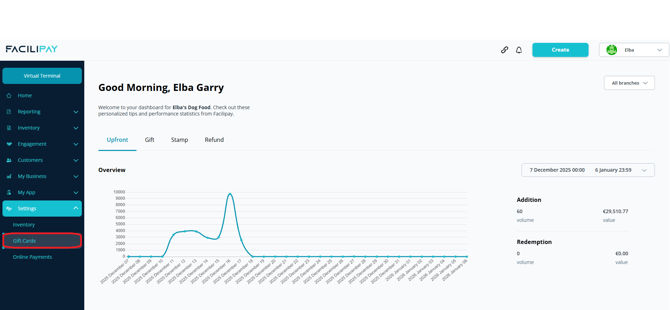
-
Open the Gift Card Shop
Click Gift Card Shop.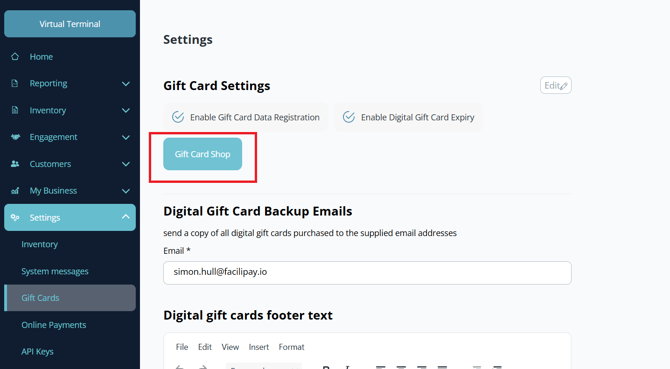
-
Select Design Services
Click Use Our Design Services in the top right corner. This opens the design request page.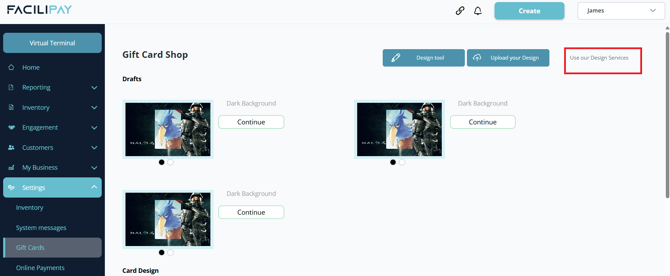
-
Enter Design Information
On the design page, customise your gift card or key fob:Upload Logo
Upload your primary business logo. This will be the main branding displayed on the card.Optional Customisation Options
- Add additional text
- Upload a background logo
- Choose a background colour
- Add social media handles
- Include contact information
- Add internal notes for the design team
To change the background colour:
- Click the colour selector icon
- Choose your preferred colour and shade
- Enter a colour reference code if required
- Click Apply to confirm
Once all details are completed, click Add to Cart.
-
Review and Checkout
A summary of your design order will display.- Click Edit to make changes
- Click Proceed to Checkout to continue
At checkout, shipping, billing, and payment details auto-populate from your account. Update any details if required, then click Pay Now to submit the order.
What Happens After You Submit
Your design request is submitted to the Facilipay team. A team member will follow up regarding the progress of your gift card or key fob design.
Tips & Best Practices
-
Provide clear information: High-resolution logos and clear notes lead to better designs first time.
-
Match your brand: Use brand colours and fonts customers already associate with your business.
-
Need help? For design queries, contact cards@facilipay.io.