
Before You Begin
- You must have access to your Facilipay Dashboard.
- Donations must have been processed through Facilipay for data to appear in the report.
Step-by-Step: Report on Your Donors
- Log Into Your Dashboard - Log into the Facilipay Dashboard.
- Open the Donations Report - From the menu on the left-hand side, click Customers, then click on Donations.
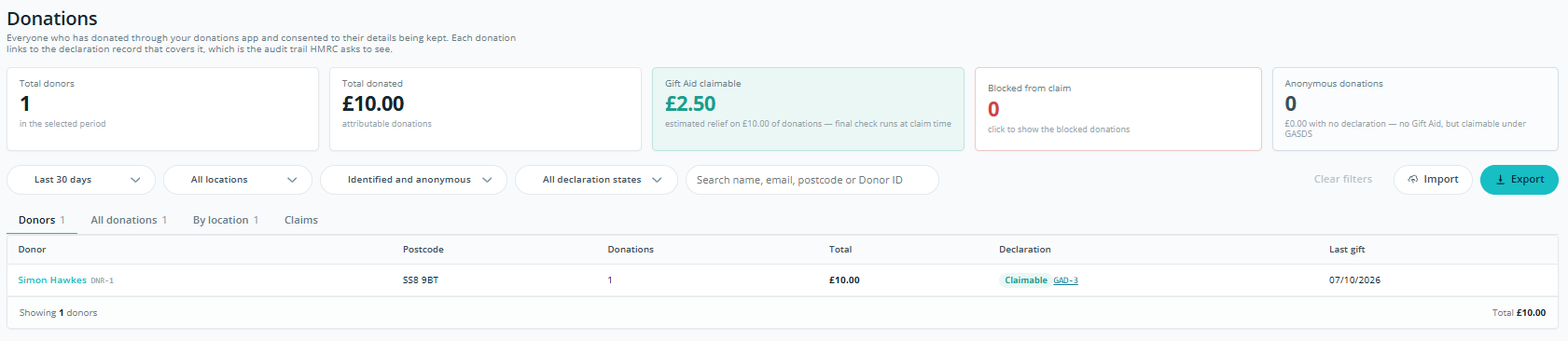
- Adjust the Timeframe - The report loads showing the last 30 days. Click the dropdown to extend the timeframe.
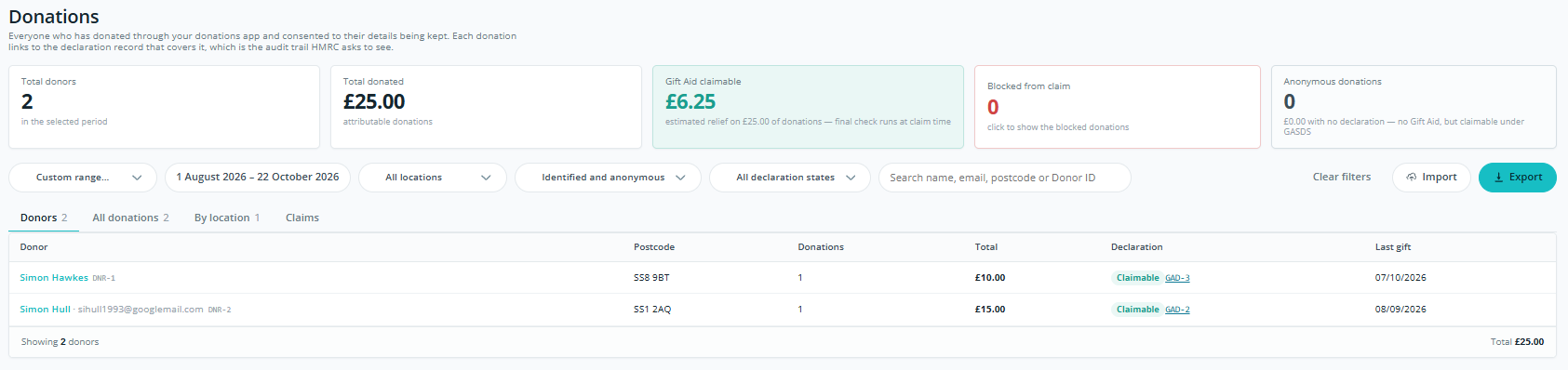
- Review the Summary The top of the report shows your summary figures:
- Total donors
- Total value donated
- Gift Aid Claimable
- Blocked from claim
- Anonymous donations
- Open the Donors Tab - The first tab, Donors, lists each donor's name and postcode, along with their number of donations, donation value, Gift Aid declaration, and last gift.
- Open the All Donations Tab - The All Donations tab lists every donation received, with the oldest listed first. The date, donor name, amount, and declaration are shown for each.
- Open the By Location Tab - The By Location tab covers each location where donations have been taken. For each location it shows the number of donors, the number of anonymous donors, total gifts, and the amount and value of Gift Aid.
- Export the Report Export any of these reports to a CSV file for bookkeeping needs.
Tips & Best Practices
- Extend the timeframe for Gift Aid claims: The default view is the last 30 days, so widen the date range to cover the full period you're claiming for.
- Use By Location for multi-site charities: This tab makes it easy to compare donations and Gift Aid across each location.
- Export for your records: CSV exports from each tab can be used directly in your bookkeeping or Gift Aid claim preparation.