
Before You Begin
- You must be logged into the Facilipay Dashboard with admin access.
- Decide on the order you want categories and products to appear before configuring.
Step-by-Step: Set Sort Order
-
Access Categories
From the Facilipay Dashboard, select Inventory, then choose Categories from the dropdown menu.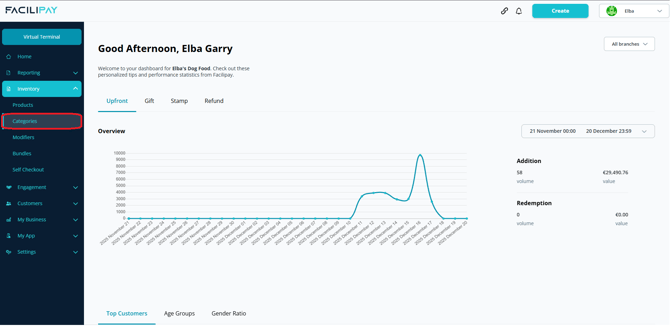
-
Set Category Sort Order
Open the category you want to adjust. In the Sort Order field, enter the position you want the category to appear in the Self Checkout app.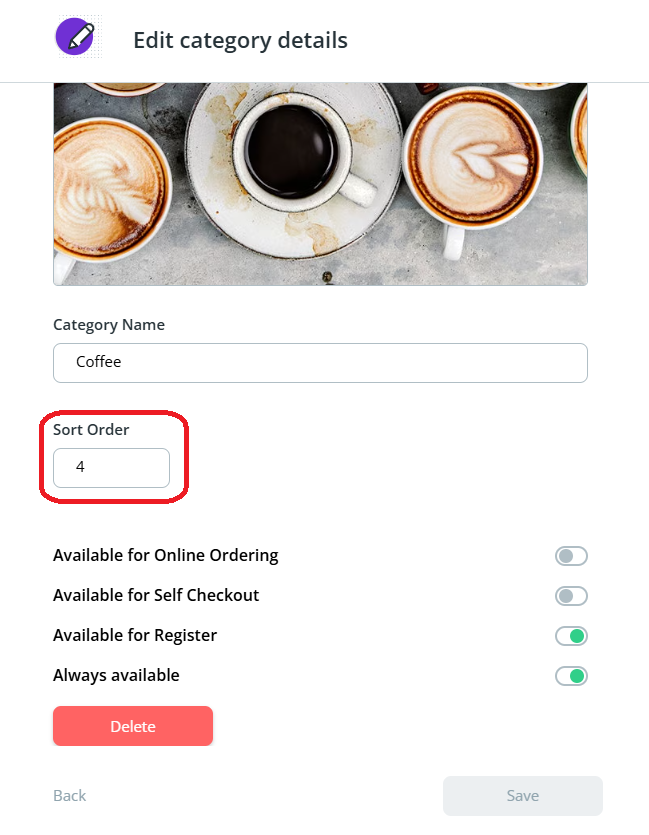
Example: if a category is set to 5, it will appear in the fifth position on the kiosk display. It is also worth noting the Category needs to be marked as available for Self Checkout.

Click Save to return to the Categories page.
-
Access Products Within a Category
Under Inventory, select Products. Use the Categories filter to select the category you want to manage. This displays all products assigned to that category. -
Set Product Sort Order
Open each product individually. Enter the desired Sort Order value to determine its position within the category. Click Save after updating each product.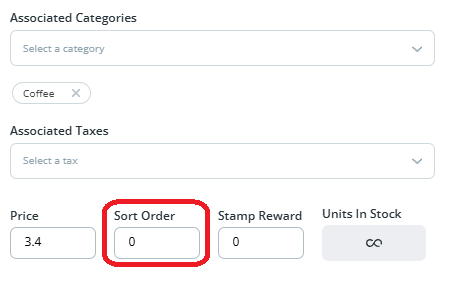
What Happens After You Save
Categories and products now display in the selected order within the Self Checkout app.
Tips & Best Practices
-
Most popular first: Set the most commonly ordered items in lower sort positions.
-
Logical groupings: Group related items so customers can find them intuitively.
-
Need help? For sort order queries, contact support@facilipay.io.