
Before You Begin
- You must be logged into the Facilipay Dashboard with admin access.
- Decide on the slot duration and order limits per slot before configuring.
Step-by-Step: Configure Order Slots
-
Access Branch Settings
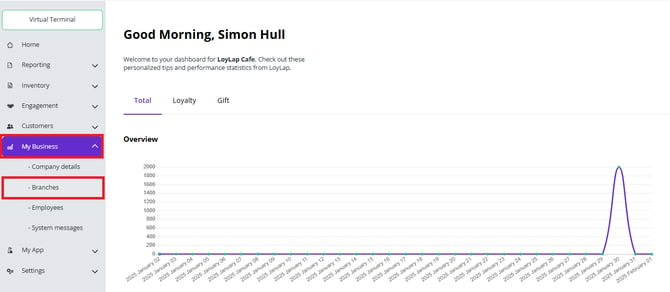
From the left-hand menu, select My Business, then click Branches. The list of branches will display.
-
Select the Branch
Click on the branch name where dispatch slots need to be configured.
-
Open Ordering Settings
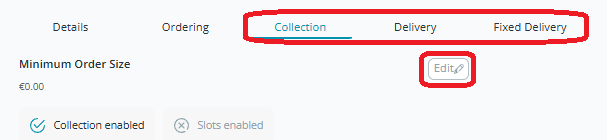
Select the Ordering tab. Under Ordering Settings, locate the relevant Dispatch Method (e.g. Collection or Delivery), then click Edit beside it.
-
Enable and Configure Slots
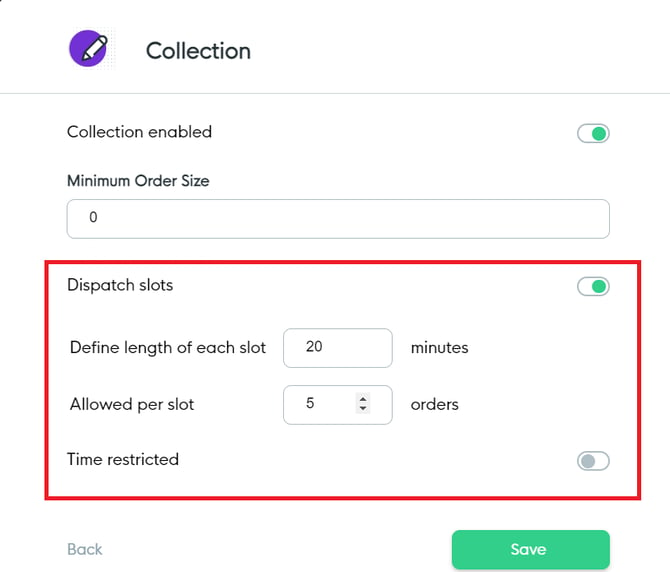
Enable Slots for the selected dispatch method. You can configure:- Slot Duration (e.g. 20-minute intervals)
- Order Limit per Slot (e.g. 5 orders per time slot)
Example: If a 20-minute slot is set with a limit of 5 orders, once 5 orders are placed for that period, the slot becomes unavailable.
Customers select from the available time slots during checkout.
-
Set Time-Restricted Slots (Optional)
Enable Time Restricted to apply different order limits to specific time ranges.Example: If additional kitchen staff are available between 12:00 and 14:00, the order limit for slots within that timeframe can be increased.
Printing Behaviour
Enabling Slots does not change receipt printing settings. Receipts continue to print based on your configured print timing — for example, if prep-time printing is set to 30 minutes, the receipt will print 30 minutes before the scheduled order time.
What Happens After You Save
Dispatch Slots are configured for the selected branch and dispatch method. Customers see only available slots when they place orders.
Tips & Best Practices
-
Right-size slots to capacity: Set order limits based on what your kitchen can realistically deliver.
-
Boost limits during peaks: Use time-restricted slots to handle known busy periods.
-
Need help? For setup queries, contact support@facilipay.io.