
Where to Find Transaction Filters
-
Sign in to the Facilipay Business Portal.
-
Navigate to Reporting → Transactions.
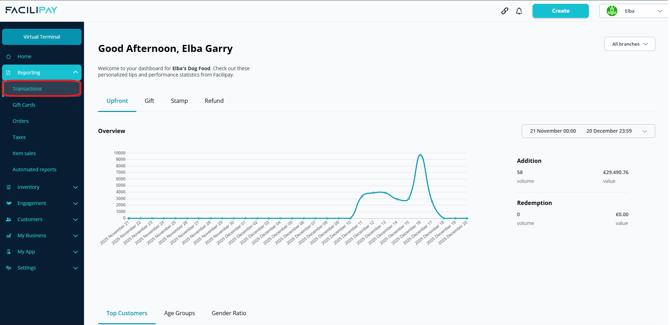
-
You'll see a list of transactions from newest to oldest.
-
Above the list, use the filter options to refine results by date, type, customer, and more.
Available Filters
Time
Restrict transactions to a specific date or date range — one day, one week, one month, or any custom range. Useful for daily audits or monthly reporting.
Name
Filter by the customer name linked to the transaction. Enter the customer's name as registered in their account to view all activity for that person.
Transaction Type
Defines whether money was added to or removed from an account:
- Add: Money added — top-ups, gift card loads, or loyalty credits
- Redeem: Money removed — payments, loyalty redemptions, refunds, etc.
Payment Type
Choose which payment method was used:
- Gift card
- Loyalty credit or stamp
- Cashless (linked debit/credit)
- Refunds
- Surcharges
- Upfront/Top-up payments
- Online orders (Ecomm)
Facilipay Amount
Filter transactions by order or payment amount. Useful for finding transactions of a specific value or within a value range.
Customer ID (Facilipay ID)
The eight-digit code printed under the QR code on the customer's gift or loyalty card. Use this to find all activity for a specific customer. For cashless bands or staff cards, the ID can be found after scanning via the Cashless app.
Account ID
A separate identifier created when an account is first set up. Usually only needed for deeper technical analysis — you can ignore it for most filtering.
Merchant & Branch
If your business is part of a group or franchise, or has multiple branches:
- Merchant filters to transactions across a specific business entity.
- Branch filters to a specific location within that merchant.
Employee
Filter by which employee processed the transaction — useful for staff performance reporting or identifying who handled a particular sale.
Terminal ID
If you use multiple payment terminals (such as PAX devices), filter by Terminal ID to see transactions linked to a specific device.
Using Filters Together
You can apply more than one filter at a time. For example:
- Date range + Payment Type → see all card payments in a week
- Customer Name + Transaction Type → view all loyalty rewards or redemptions for that customer
Combining filters makes reporting and troubleshooting much faster and more accurate.
Exporting Filtered Results
Once you have applied your filters, you can export the filtered results directly to a CSV file using the Export button. This is ideal for deeper analysis in spreadsheets or external reporting tools.