
Before You Begin
- You must be logged into the Facilipay Dashboard with access to gift card reporting.
- The Balance Report reflects the live remaining value of all vouchers sold — it is not limited to a specific date range by default.
Step-by-Step: Access the Balance Report
-
Open Gift Card Reporting
Log in to the Facilipay Dashboard, click Reporting, then select Gift Cards.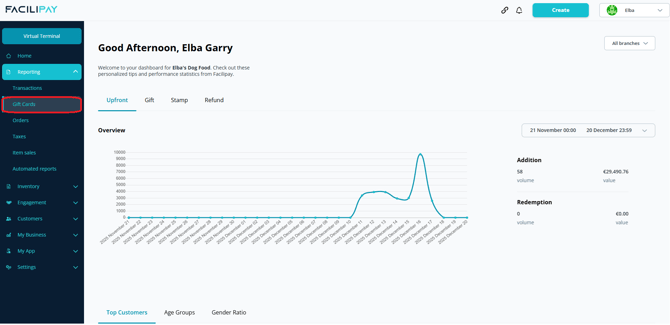
-
Open the Balance Report
From the top menu within the Gift Cards reporting section, click Balance Report. -
Review the Report
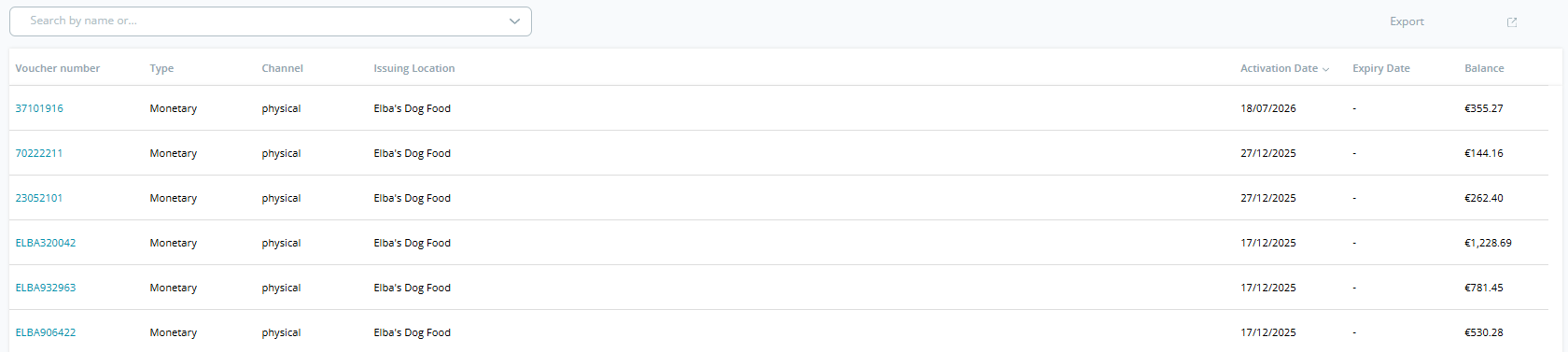
You'll see a list of all vouchers sold. Each row includes:- Voucher Number — unique ID of the card
- Type — Monetary (multi-use) or Single-purpose voucher
- Channel — Physical or digital
- Issuing Location — The branch that sold the voucher
- Activation Date — The date the voucher was sold
- Expiry Date — When the voucher expires (if applicable)
- Balance — The current remaining value
Note: The report defaults to showing the most recently activated vouchers.
-
Apply Filters (Optional)
Use the available filters to refine your view:- Voucher Number — search for a specific card
- Activation Date — filter by time period (e.g. last 7 days or custom range)
- Expiry Date — identify vouchers nearing expiry
- Balance — filter by remaining value
- Type — Monetary or Single-purpose
- Assigned Branch — filter by location
-
Export the Report
Click Export in the top-right corner. The report downloads as a CSV file, which can be opened in Microsoft Excel, Google Sheets, or any other spreadsheet tool.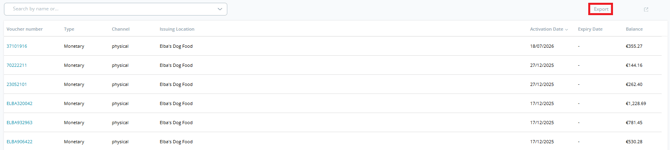
Tips & Best Practices
-
Check for expiring vouchers: Use the Expiry Date filter regularly to identify vouchers nearing expiry — this can inform customer communications or targeted promotions.
-
Use the Balance filter for reconciliation: Filtering by remaining balance helps identify dormant or high-value vouchers still in circulation.
-
Export regularly: Periodic exports support gift card liability tracking and financial reconciliation.