
Before You Begin
- You must be logged into the Facilipay Business Portal with admin access.
- The product and its modifier groups must already exist in your inventory.
Step-by-Step: Reorder Modifiers
-
Log In to the Business Portal
Sign in to the Facilipay Business Portal. -
Open Inventory → Products
Navigate to Inventory > Products.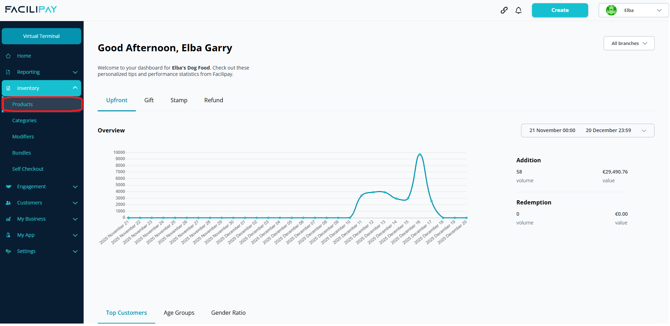
-
Find the Product
Search for and select the product you want to edit. -
Open the Modifiers Section
Within the product details, open the Modifiers section.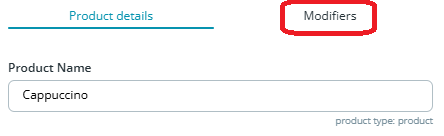
-
Reorder Modifier Groups
Click and drag a modifier group above or below another to reorder it. -
Reorder Individual Modifiers
Open a modifier group and update the Sort Order of individual modifiers.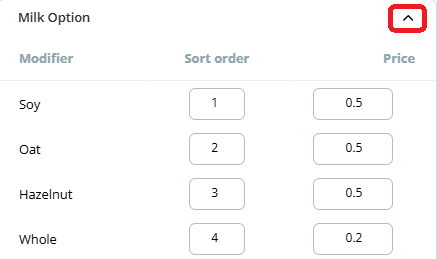
-
Save Your Changes
Click Save to apply. -
Refresh the Menu
Refresh the online ordering page or app to confirm the updated order is displayed correctly.
Tips & Best Practices
-
Lead with most-chosen options: Place the most popular modifiers first to speed up customer decisions.
-
Use logical groupings: Group similar modifiers (e.g. sizes together, then sauces) for an intuitive ordering flow.
-
Test on the customer view: Always preview the menu after reordering to confirm the experience is right.