
Before You Begin
- You must be logged into the Facilipay Dashboard with admin access.
- Have a completed CSV file using the correct template format.
Step-by-Step: Bulk Update Balances
-
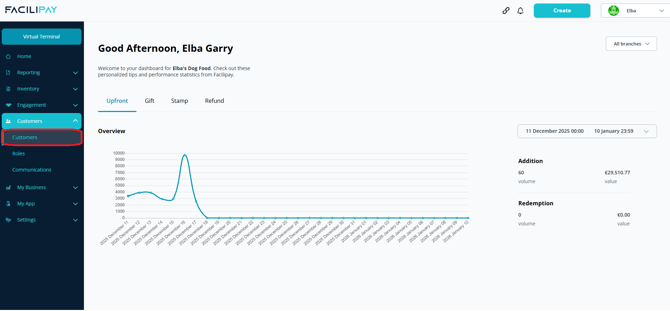
Access the Customers Section
- Log in to your Facilipay Dashboard
- Navigate to Customers
- Select Customers from the dropdown menu
-
Download the Upload Template
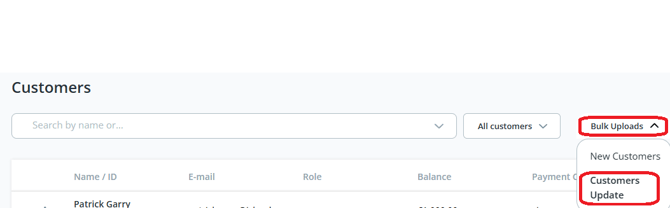
- Click Bulk Upload
- Select Customers Update
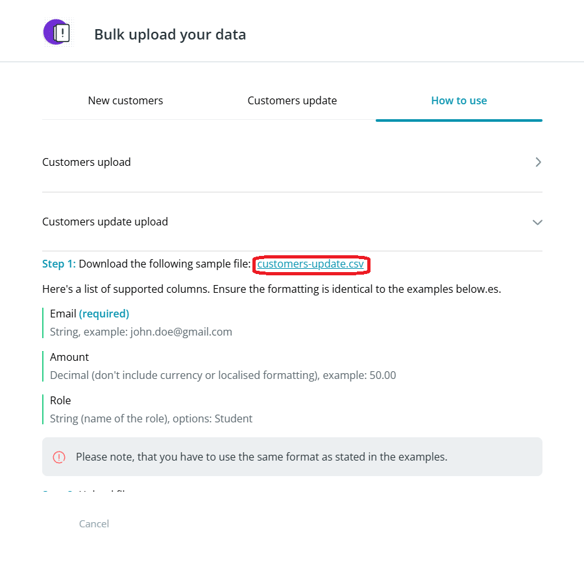
- Click How to Use
- Select Customers Update Upload
- Download the linked .csv template file
-
Prepare Your File
- Open the downloaded CSV file.
- Confirm the first row contains the columns:
email,amount - Enter your data:
- Email column: Add valid customer email addresses in correct format
- Amount column: Enter the value to add to the customer's balance — use decimal format only (e.g. 10.50), no currency symbols
- Save the file in CSV format
-
Upload the File
- Return to the Facilipay Dashboard
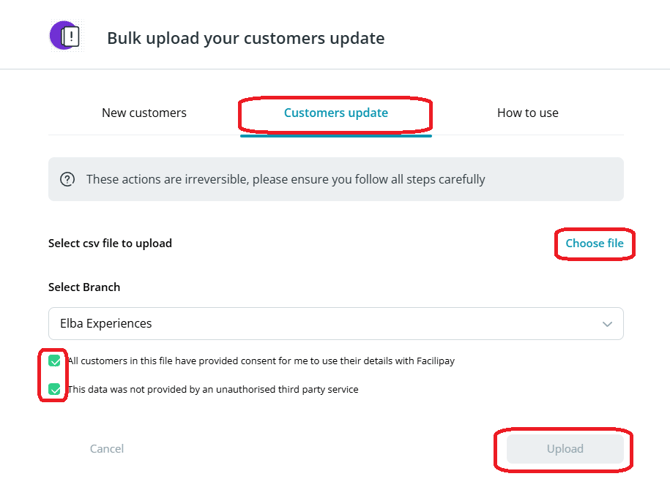
- Go to Customers Update
- Click Choose File and select your saved CSV
-
Confirm and Submit
- Select the branch the transactions should be recorded against
- Tick both acknowledgement boxes
- Click Save
Note: Every transaction in Facilipay must be assigned to a branch.
What Happens After You Save
Your file is processed and customer balances are updated in bulk. Each customer receives the specified amount added to their account.
Tips & Best Practices
-
Test small first: Try a few rows before doing thousands — spot any formatting issues early.
-
Document the campaign: Keep a record of why balances were topped up for finance and audit.
-
Need help? For upload errors, contact support@facilipay.io.